The requester of an approval request can see a reviewer's comments after they have approved, declined, or reviewed a request in the following locations:
Table of Contents
Approval Request Emails
Approval request emails can be sent upon the reviewer's response, assuming these emails are enabled in the approval workflow's settings (enabled by default). When enabled, and comments are included as part of the reviewer's response, those comments will display in the body of the emails the requester receives:
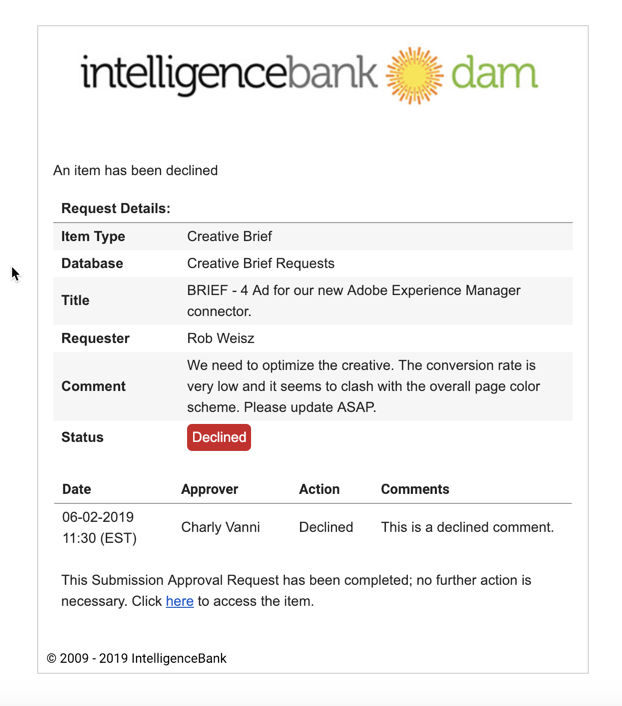
Approval Request Email Admin Configuration
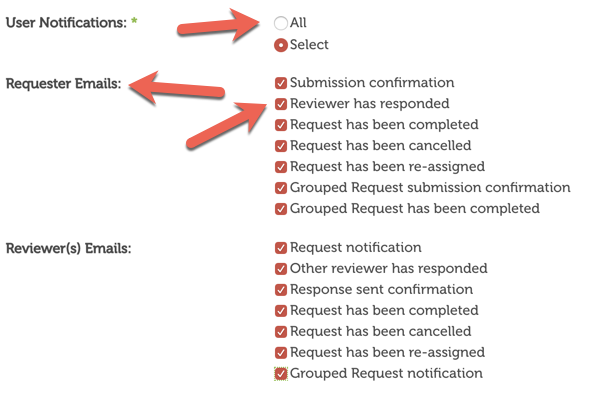
The settings below appear for each approval workflow created in the Admin > Workflows area of the platform. The options selected will dictate which approval workflow actions trigger email notifications, and to whom, as part of the approval process:
Review Request Page
Request Status Section
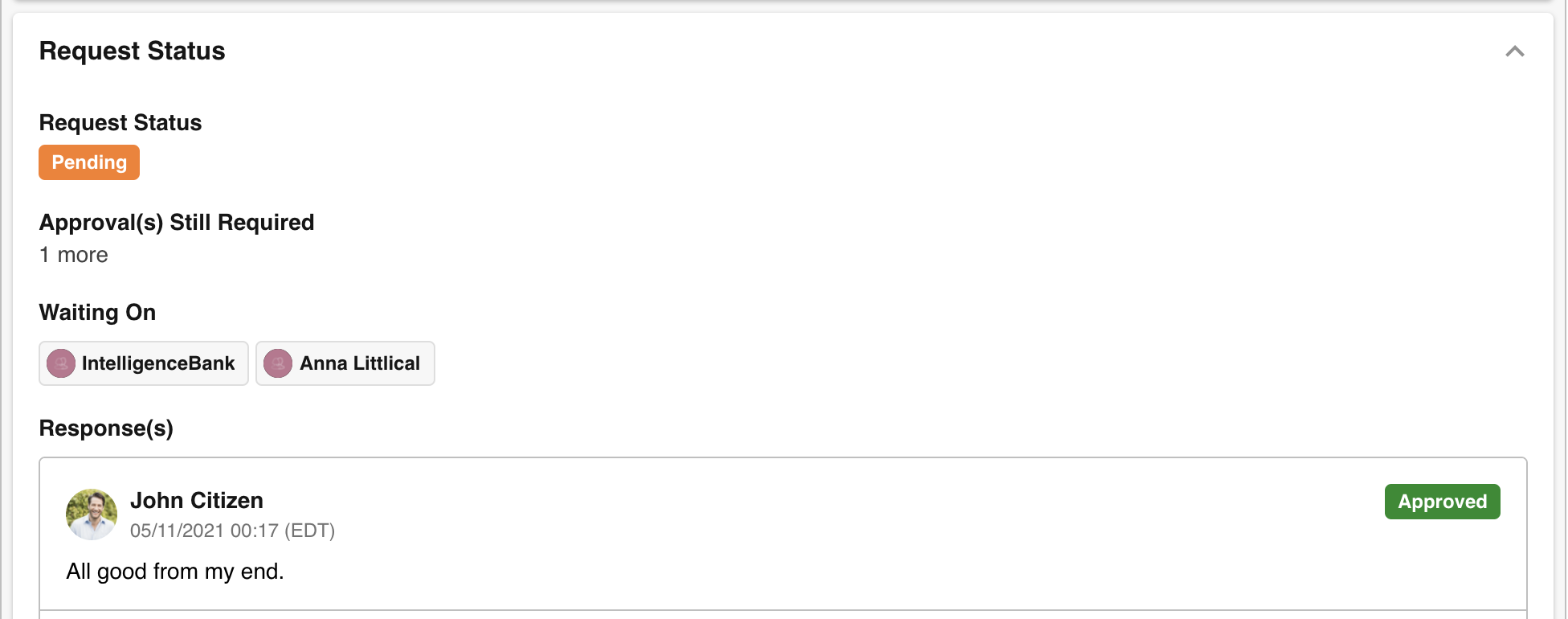
The requester can also access reviewers' comments by navigating to their Approvals List and opening the request's Review Request page. Reviewers' comments will be displayed within the Request Status section.
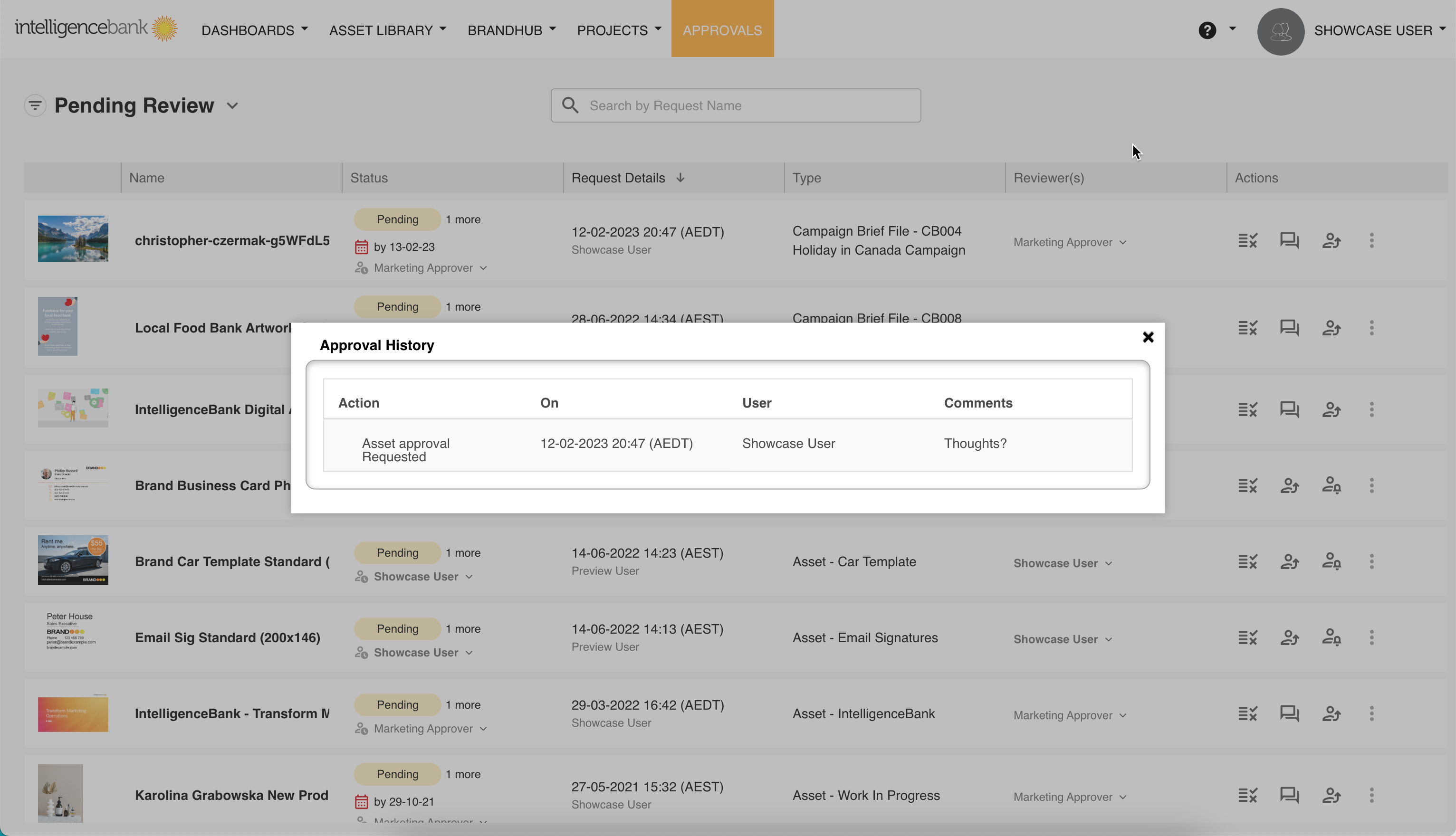
Approval History
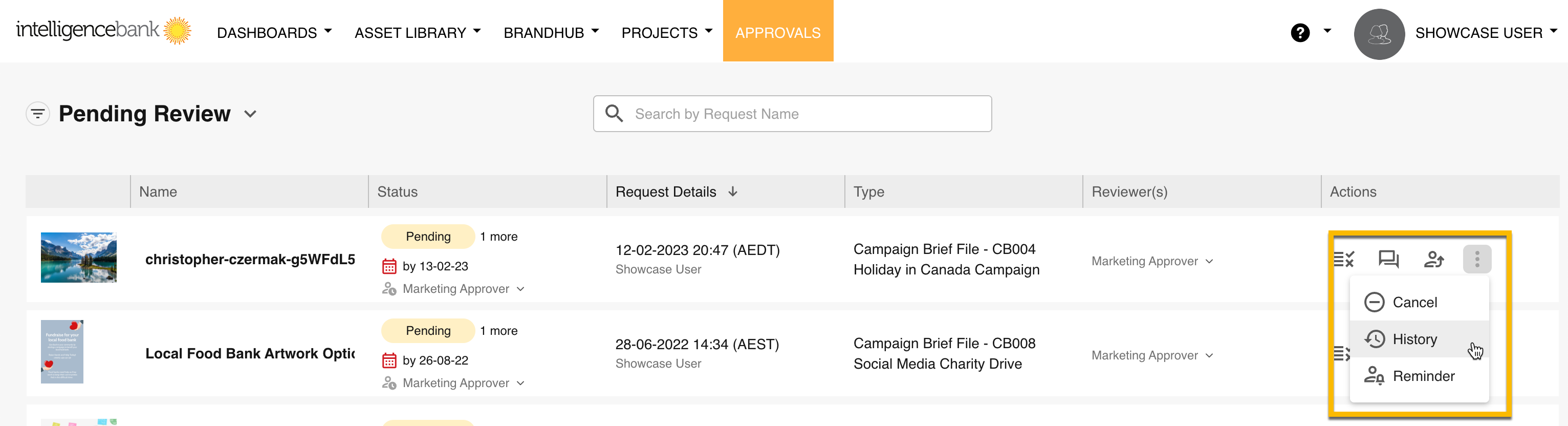
In the Approvals List area, click into the dropdown for the request and then select History.
This will list all approval requests for that item (asset, record, or survey response). Comments by each reviewer, for each request associated with the item, will display here to give you a fuller picture of the approval and workflow history for that item.
Was this article helpful?
That’s Great!
Thank you for your feedback
Sorry! We couldn't be helpful
Thank you for your feedback
Feedback sent
We appreciate your effort and will try to fix the article