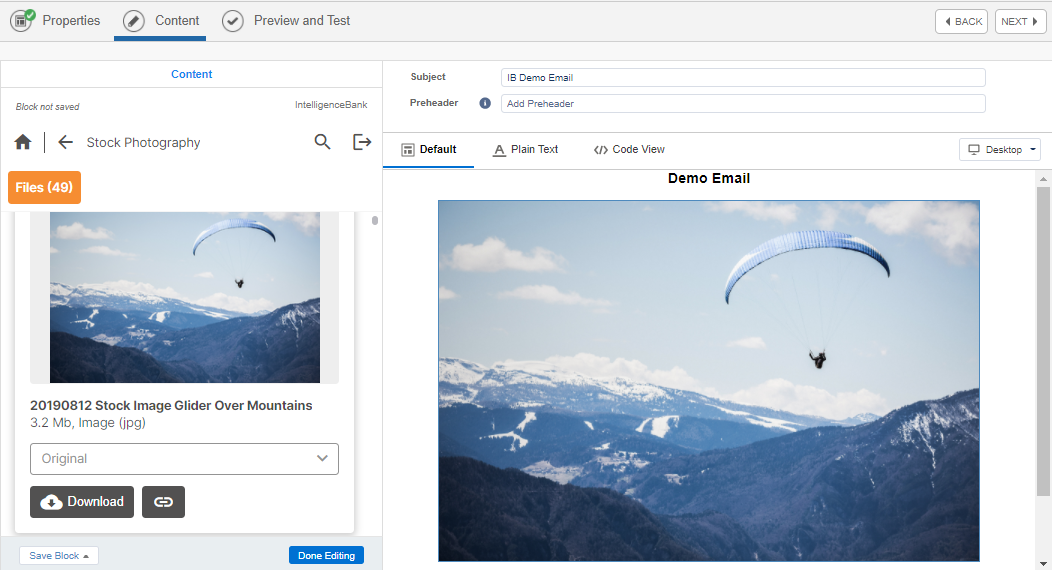
The IntelligenceBank Connector for Salesforce Marketing Cloud Engagement lets you browse folders, download assets, and insert public links to your IntelligenceBank content directly inside the Content Builder of Email Studio.
Table of Contents
Overview
The IntelligenceBank Connector for Salesforce Marketing Cloud Engagement is a Custom Content Block that allows users to log in to IntelligenceBank, browse folders, download assets to their desktop, or insert public links to videos, audio files, or images into the content being edited via the Content Builder of Email Studio.
Installation
Follow these steps in Marketing Cloud Setup to install the connector as an installed package.
| 1Open Marketing Cloud Setup | Navigate to Marketing Cloud Setup. |
| 2Find Installed Packages | In the quick find box, type "Installed Packages" and click it. |
| 3Create a new package | In the top right corner, click "New". Enter a Name for the connector, for example the name of your IntelligenceBank platform, and optionally a Description.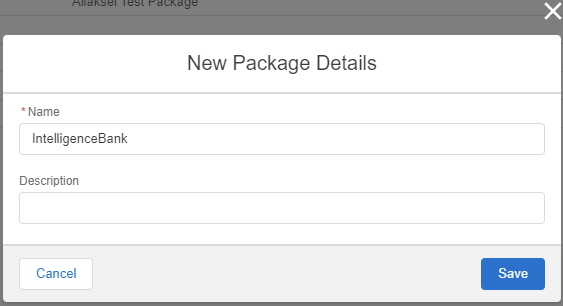 |
| 4Add a component | On the package detail page, click "Add Component", select "Custom Content Block", and click "Next".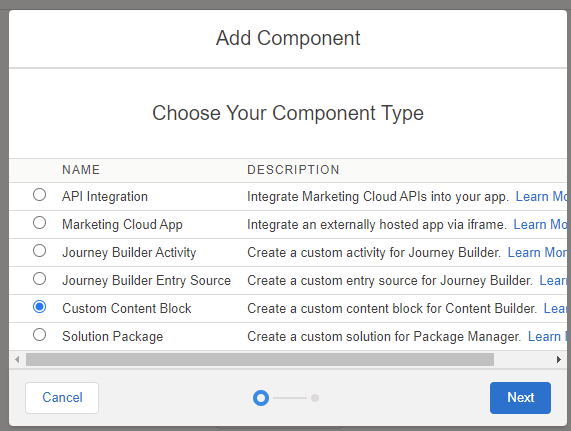 |
| 5Enter the connector details | Provide the following information.
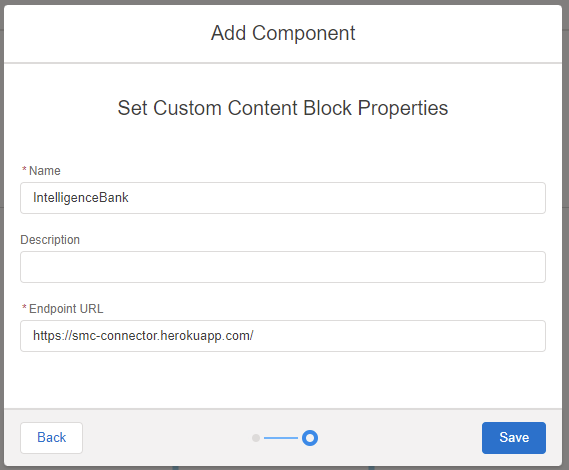 |
| 6Save and grant access | Click Save. On the "Access" tab, provide access to the package for the required users. |
| 7Verify in Content Builder | Navigate to the Content Builder to verify the installation. Find "IntelligenceBank" under the "Custom" accordion section.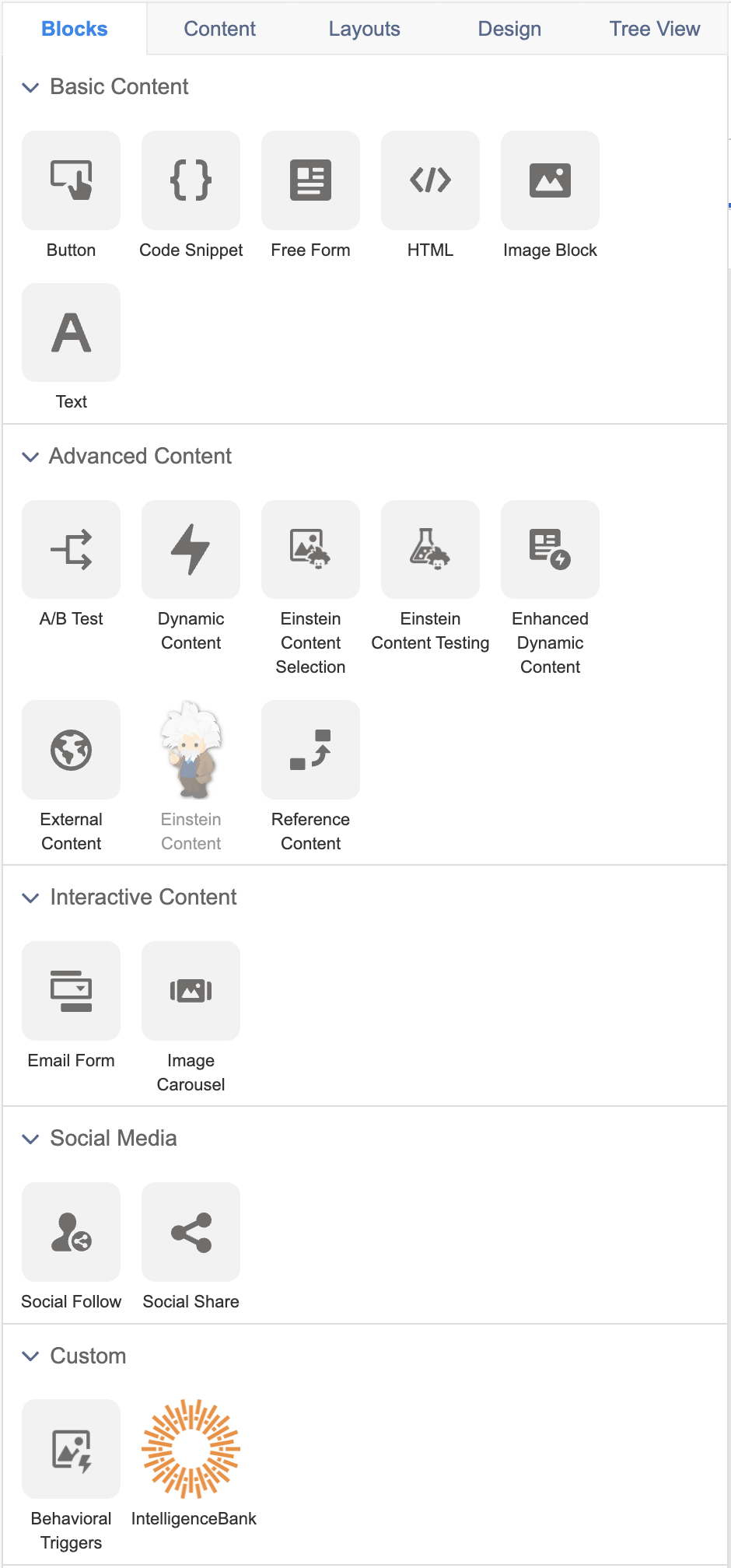 |
| 8Insert content | Drag and drop the block onto your template to start inserting content from IntelligenceBank. Styling options appear so you can easily adjust the display of the block and asset.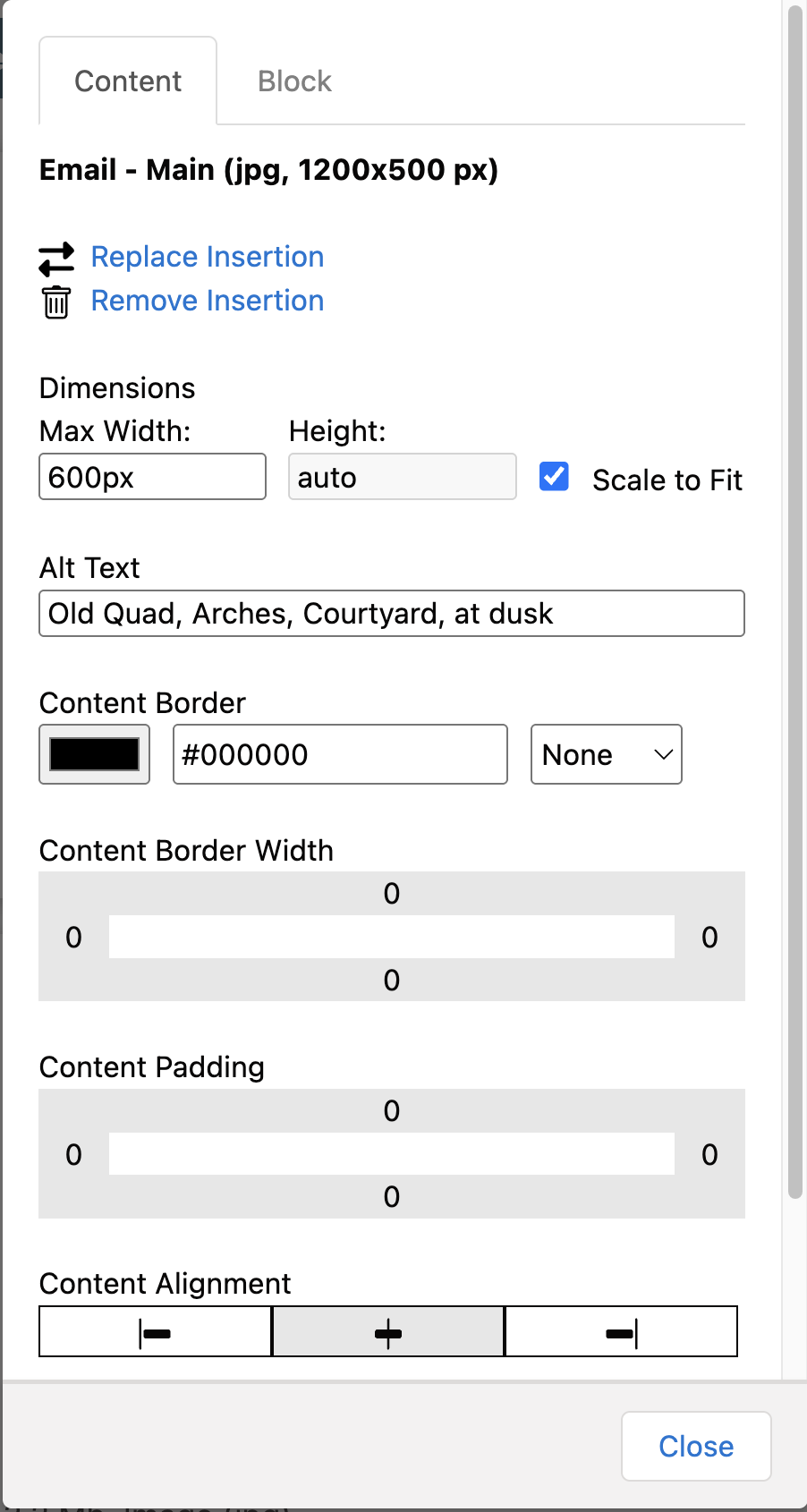 |
Scale to Fit
The Scale to Fit option is enabled by default on insertion. You can make it disabled by default by appending scaletofit=false to the block URL, for example https://smc-connector.herokuapp.com/smc_public?scaletofit=false.
Misc Notes
- Due to technical constraints, the Download action will not copy the file automatically into SMC Email Studio's local storage and assets library. The file is instead downloaded to the user's desktop, and needs to be re-uploaded manually as required to use it as a local copy in SMC Email Studio.
Release Notes
Version 1.6.0
- Folder path: the asset's folder path (for example, Imagery > Marketing Approved) now displays below the Resource Name in the Content tab, so the selected image is easy to identify when an email contains several modules.
- Folder deep-link: re-editing an existing block now opens IntelligenceBank directly in that asset's folder, rather than your last-visited location. Blocks inserted before this version are unaffected and continue to open at your last location.
Version 1.5.0
- Custom CSS class input adds an author-specified class to the image tag (appended to 'ib-content') so responsive modules can be targeted with media queries in the email template. Persists per block like other inputs. Applies to images only.
- Selected Resource Name now displays below the preset details in the Content tab so the chosen image is identifiable while editing.
- Fixed "Conversion Tracking link" label typo.
Version 1.4.4
- Configurable Scale to Fit default via the URL parameter
?scaletofit=false.
Version 1.4.3
- Preset dimensions: presets now populate width and height and maintain their aspect ratio. Supports presets with both dimensions, width only, height only, or a percentage of the original.
- Width auto-calculation: new blocks get their width from the preset or original dimensions instead of defaulting to 600px.
- Width preservation: existing blocks preserve their configured width when changing images, so template modules maintain their set dimensions.
Version 1.3.0
- The Alt Text field is now fully editable. Users can modify or clear the alt text after inserting an image, and their changes will persist.
Version 1.2.0
- Link attributes (title, alias, conversion, data-linkto) applied.
- Inputs preserved when re-editing a block.
- LinkTo dropdown preserves selection.
- HTTPS as default.
- data-linkto = protocol only.
- "Other" link type for AMPScript.
Version 1.1.0
- Scale to Fit: now matches native SFMC behavior. The width input stays enabled and outputs
width:100%; max-width:[value]px. - Dynamic labels: shows "Max Width:" when Scale to Fit is on, and "Width:" when off.
- Height auto: the Height field shows "auto" and is disabled when Scale to Fit is on.
- Outlook compatibility: added the HTML width attribute for Outlook 2007-2021.
- Alt text fix: multi-word alt text no longer breaks into invalid HTML.
- Block IntelligenceBank icon: now displays correctly in Content Builder with the new path-based URL, for example https://smc-connector.herokuapp.com/smc_public.
Was this article helpful?
That’s Great!
Thank you for your feedback
Sorry! We couldn't be helpful
Thank you for your feedback
Feedback sent
We appreciate your effort and will try to fix the article