This guide provides detailed instructions for uploading, managing, and tracking revisions of audio and video files in Marketing Compliance.
TABLE OF CONTENTS
- Understanding the Revision Process
- Adding a New Revision
- Best Practices for Audio/Video Revisions
- Viewing and Managing Revisions
- Revision Workflow Strategies
- Troubleshooting Revision Issues
Understanding the Revision Process
After an audio or video file has been reviewed and risks have been identified, you'll likely need to make revisions to address these issues. Marketing Compliance allows you to upload revised versions of your audio/video file while maintaining a complete history of changes and reviews.
Adding a New Revision
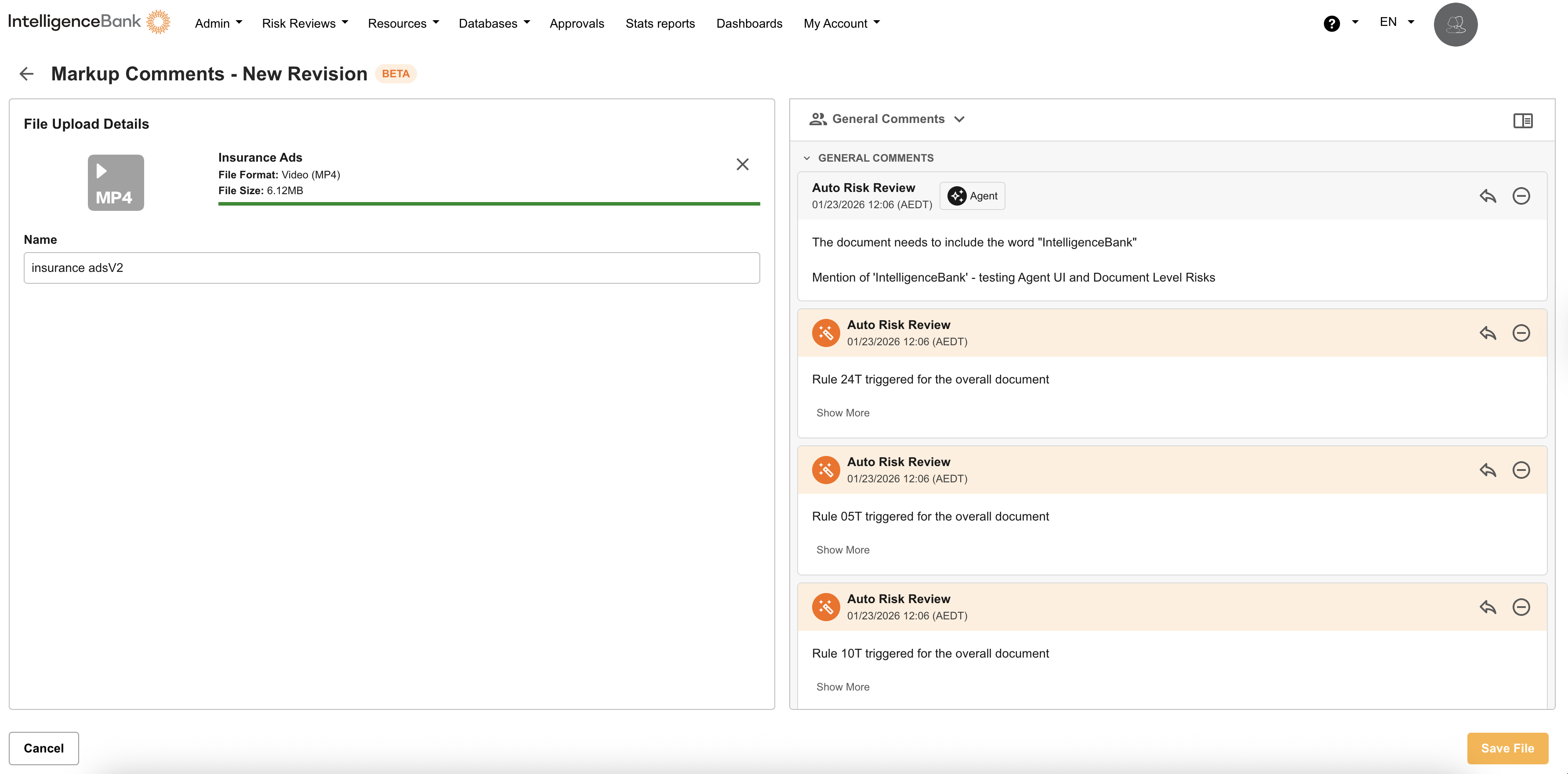
- Make the necessary changes: This will be done outside of IntelligenceBank in the original format
- Open the Audio/Video File: Click on the file in the Multi-Upload field to open it
- Navigate to Risk Comments Panel: Ensure you're viewing the file with the risk panel visible
- Access Revision Option: Click the Add Revision button near the top of the panel
- Upload Revised File:
- Click to browse for your file or drag and drop it
- The file name does not need to match the original file, but using a similar name helps with organization
- Save the Revision: Click Save to submit the revision
- Automatic Review: The revision will be automatically transcribed and checked against the same rules as the original file
- Manual Review: If Manual is enabled on your Database you may need to click on the Risk Review button located in the File List on the Record
Best Practices for Audio/Video Revisions
Before Uploading a Revision
- Review all risks and make necessary changes to your audio/video file
- Keep track of what you've modified to help reviewers understand your revisions
- Ensure your revised file maintains the same general content structure
- Make sure your revision is in a supported format (MP4, MOV for video; MP3, WAV for audio)
- Verify that your file meets the requirements:
- Maximum file size: 2GB
- Maximum duration: 60 minutes
- Language: English only
- Audio: Available. Not a silent video / audio file
During the Revision Process
- Wait for each revision to complete its review before uploading another
- Ensure spoken content remains clear with minimal background noise
- Ensure the same Filter categories remain selected for consistent rule application
Viewing and Managing Revisions
Accessing Revision History
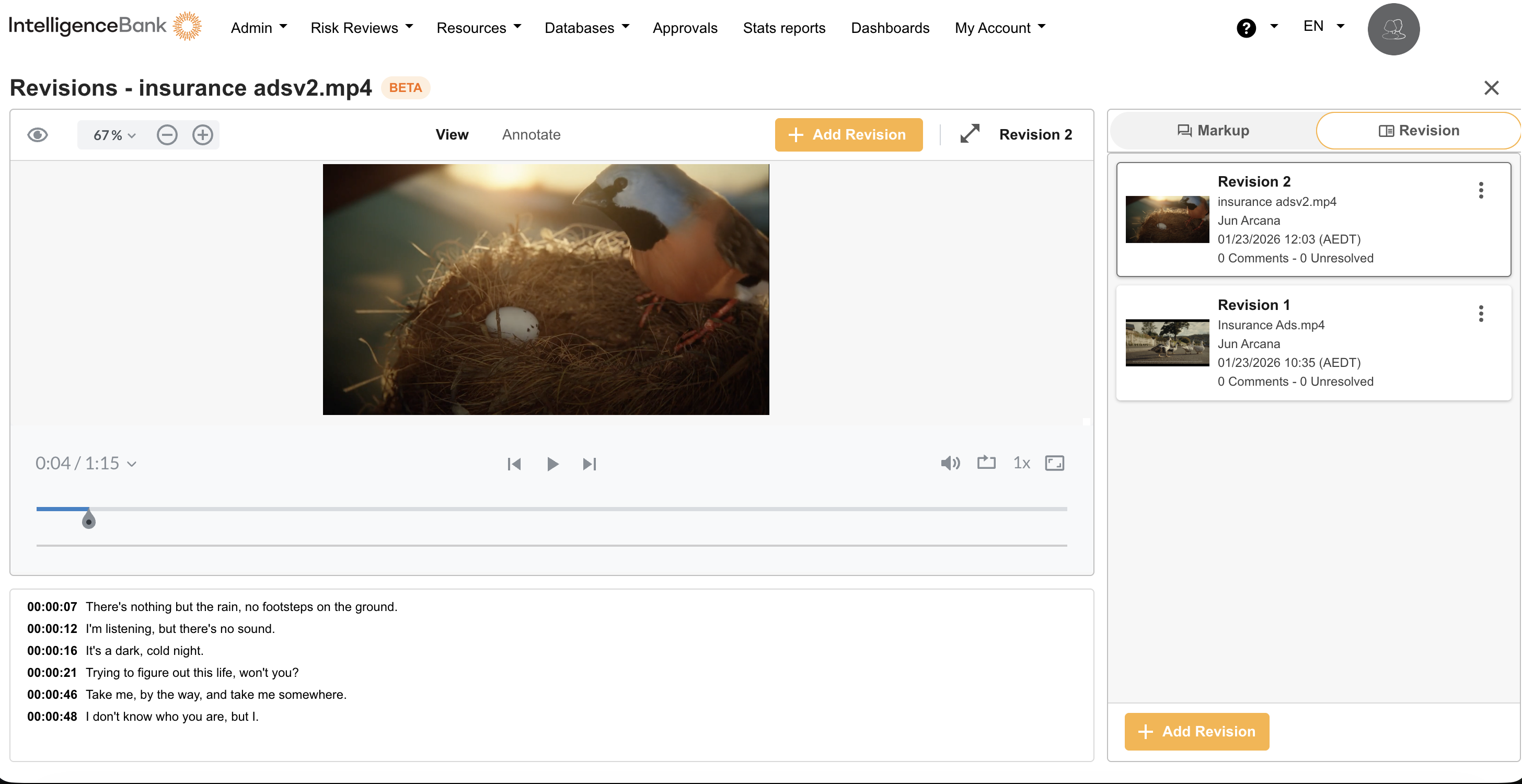
- Open the audio/video file in the risk panel
- Look for the revision dropdown menu near the top of the panel
- Select any revision from the dropdown to view that specific revision
Understanding Revisions
- Each revision is labeled sequentially (Revision 1, Revision 2, etc.)
- The most recent revision is displayed by default
- All risk reviews for each revision are preserved in the Review Comment Threads
- Select "Risk Review Threads" from the dropdown to see the complete history of reviews
Comparing Revisions
This feature is NOT available for Audio/Video Risk Reviews. Side-by-side comparison functionality is only supported for document-based content.
Revision Workflow Strategies
For Simple Audio/Video Files
- Address all issues in a single revision
- Upload the revised file
- Review new results and proceed to approval if no issues remain
For Complex Audio/Video Files
- Address high-priority risks (legal/compliance) in the first revision
- Upload this first revision and verify those issues are resolved
- Address secondary risks (brand, messaging) in a second revision
- Continue this process until all risks are addressed
After the Final Revision
Once your audio/video file has no remaining unaddressed risks:
- Request Approval: Click the "Request Approval" button on the List View
- Select Approvers: Choose the appropriate reviewers based on your workflow if applicable
- Add Comments: Provide context about revisions made and any special considerations
- Submit for Approval: Send your file through the approval process
Troubleshooting Revision Issues
- Same Risks Still Appearing: Ensure you've properly addressed the specific issue in the spoken content
- New Risks Appearing: This is normal if your revisions introduced new spoken content that triggers rules
- Unable to Add Revision: Verify with your Admin that the "Revisions" feature is enabled for your upload field
- No Transcription Generated: Ensure your audio/video contains spoken English dialogue
For specific questions about revision capabilities, contact your administrator or Intelligencebank support
Was this article helpful?
That’s Great!
Thank you for your feedback
Sorry! We couldn't be helpful
Thank you for your feedback
Feedback sent
We appreciate your effort and will try to fix the article