Sometimes you may need to edit a brief or form after it has been created or completed, if, for example, a field includes an error you need to correct.
Below are steps on how you can edit a brief/form.
There are four key considerations to being able to edit briefs:
- A user needs to have Edit permission on the brief. Please check with your site administrator if you're unsure if you can edit
- Staged forms require the user to 'revert' to the previous stage
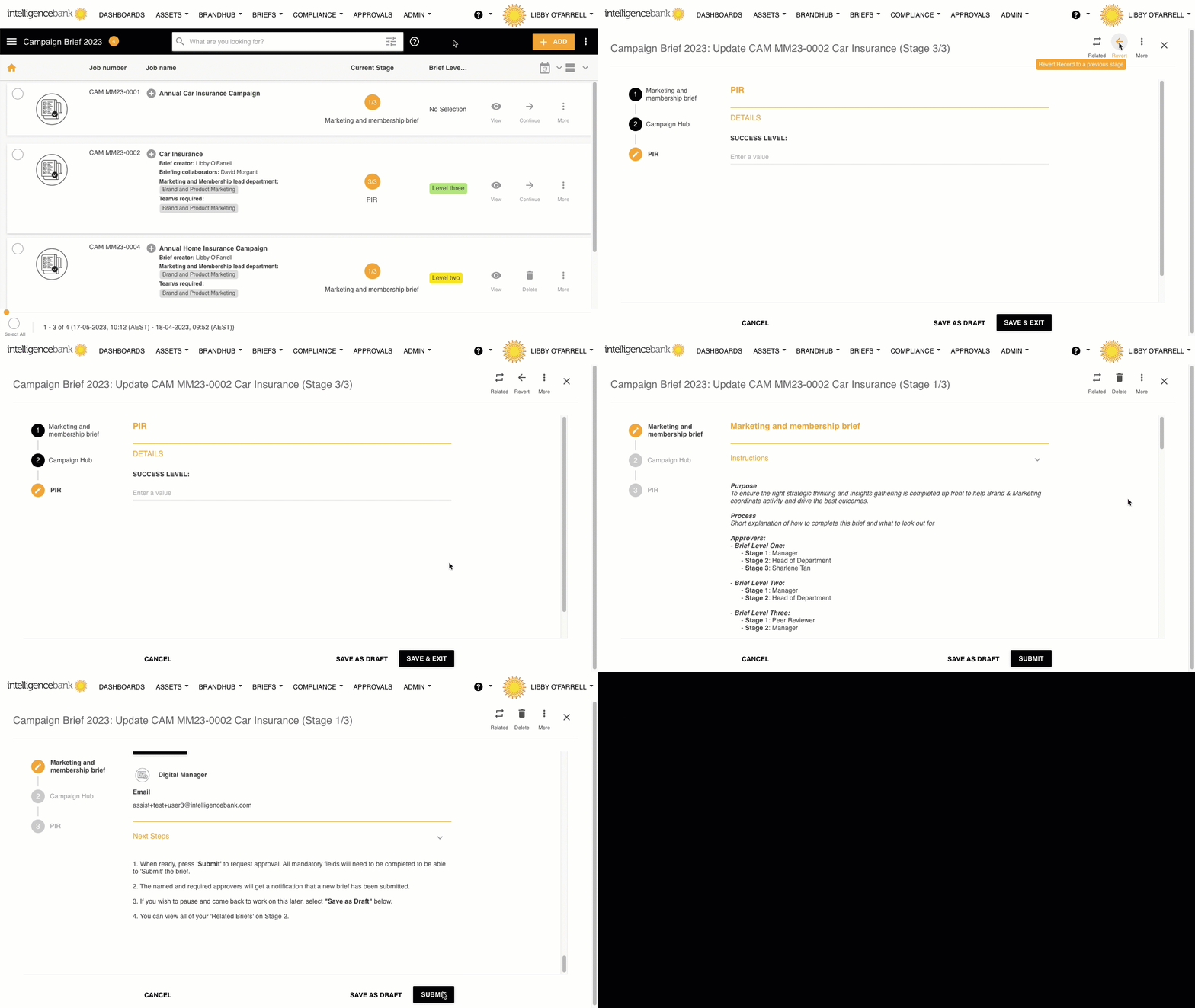
There are two main ways to edit:
- From the brief/form homescreen:
- Click the Three Dots Menu (⋮) on the particular brief/form record you wish to edit, and then click Revert
- Within the pop up box, select the stage you need to revert to
- Select the revert button (You will be taken back to the brief/form homescreen)
- Click the Three Dots Menu (⋮) on the particular brief/form record you wish to edit, and then click Continue
- Make the required changes
- Scroll to the bottom of the page and click SUBMIT or SAVE AS DRAFT (note that SUBMIT will send for re-approval, if an approval process has been enabled on your brief).
- From within the individual brief or form:
- Select the brief or form you wish to edit
- In the top right hand corner, click the Three Dots Menu (⋮) and click Revert
- Within the pop up box, select the stage you need to revert to
- Select the revert button (You will be taken back to the brief/form homescreen)
- Click the Three Dots Menu (⋮) on the particular brief/form record you wish to edit, and then click Continue
- Make the required changes
- Scroll to the bottom of the page and click SUBMIT or SAVE AS DRAFT (note that SUBMIT will send for re-approval, if an approval process has been enabled on your brief).
Was this article helpful?
That’s Great!
Thank you for your feedback
Sorry! We couldn't be helpful
Thank you for your feedback
Feedback sent
We appreciate your effort and will try to fix the article