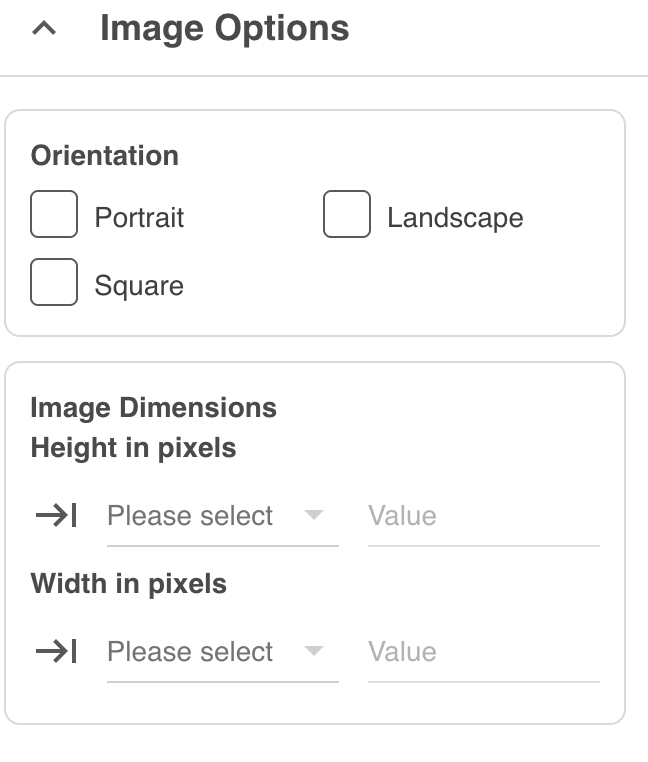
When the filtering options side panel is open, select Image in the File Format section. This will automatically open additional filtering options for Images.
Search by People
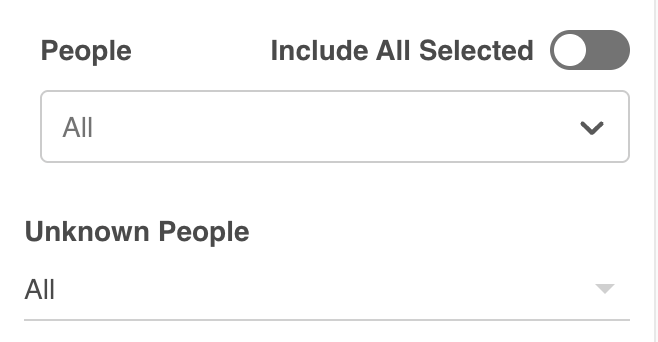
If your organisation uses Facial Recognition and any of your images have been trained on an individual, you'll be able to search within the People dropdown for their names. Select a name and images featuring this individual will display in your search results.
This makes it easy to identify all images featuring particular people, in case action needs to be taken to remove or archive these images in your platform, to comply with usage/talent rights agreements or for employees who no longer should be featured in your platform.
There is also a toggle called Include All Selected. Enabling this means that all selected persons must be recognised in each image. Consider using this if you are filtering by multiple individuals in the People dropdown, but you want the images that display to include everyone selected.
The Unknown People field lets you filter your results by:
- All - will display both images that have individuals tagged by Facial Recognition and those that haven't
- Yes - will display images featuring individuals that haven't been tagged by Facial Recognition. This is useful if you are making your way through training/identifying images that feature individuals you still need to apply Facial Recognition to
- No - will display images that feature individuals who have all been identified/tagged with Facial Recognition
To learn more about the Facial Recognition feature, please read this article here.
Search by Image Orientation
You can choose to filter images based on their orientation. The options available include:
- Portrait
- Landscape
- Square
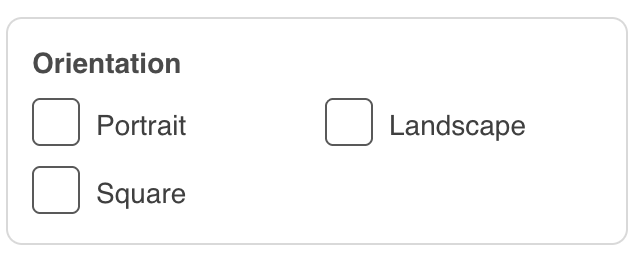
You can select one or multiple options of the above selection.
Search by Image Dimensions
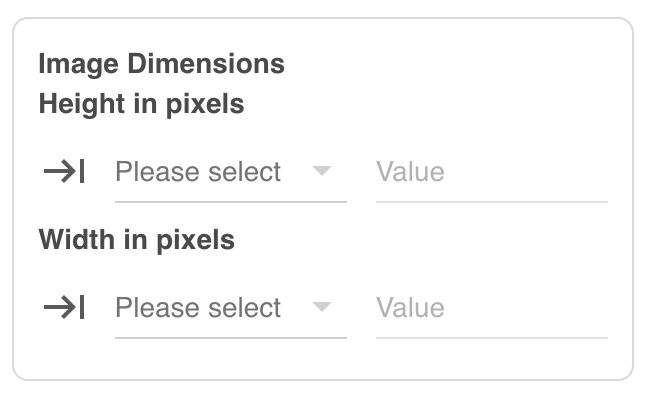
This option allows you to enter either the Height or Width of the image in pixels.
Click Please select to choose the type of range you want to apply. You can enter an exact value, or click the arrow icon to input a range of values, using options like greater or less than. Enter a number as your value to see matching resources appear immediately on the right side of the page.
To find out more about other filtering options, please click here.
Was this article helpful?
That’s Great!
Thank you for your feedback
Sorry! We couldn't be helpful
Thank you for your feedback
Feedback sent
We appreciate your effort and will try to fix the article