Within the IntelligenceBank Asset Library, users can leave and reply to comments on assets via the Comments feature.
Table of Contents
Key Benefits
Comments allow users to share their experiences/recommendations on how to use particular assets. If, for example, a user wants to leave a note on assets they've used or would consider using for particular campaigns, etc, they can make a comment. Other users can review, and make their own replies/comments.
How to Enable Comments
In the Admin Area
By default, comments are enabled within the platform in the Admin>Settings area. Main Admins can verify this (or disable, if they don't want to use the comments feature at all) by following the steps outlined below:
| 1Navigate to Admin>Settings | Navigate to Admin>Settings. |
| 2Locate Enable Comments | Locate the field called Enable Comments. If checked, it will be a feature you can enable on folders.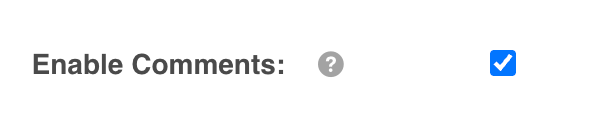 |
On Folders
If comments are enabled within the Admin area, you can navigate to folders to enable on your folders' settings.
| 1Navigate to the folder | Navigate to the folder you'd like to enable comments on. |
| 2Open Folder Settings | Select the three vertical dot in the top right of the folder, then Folder Settings.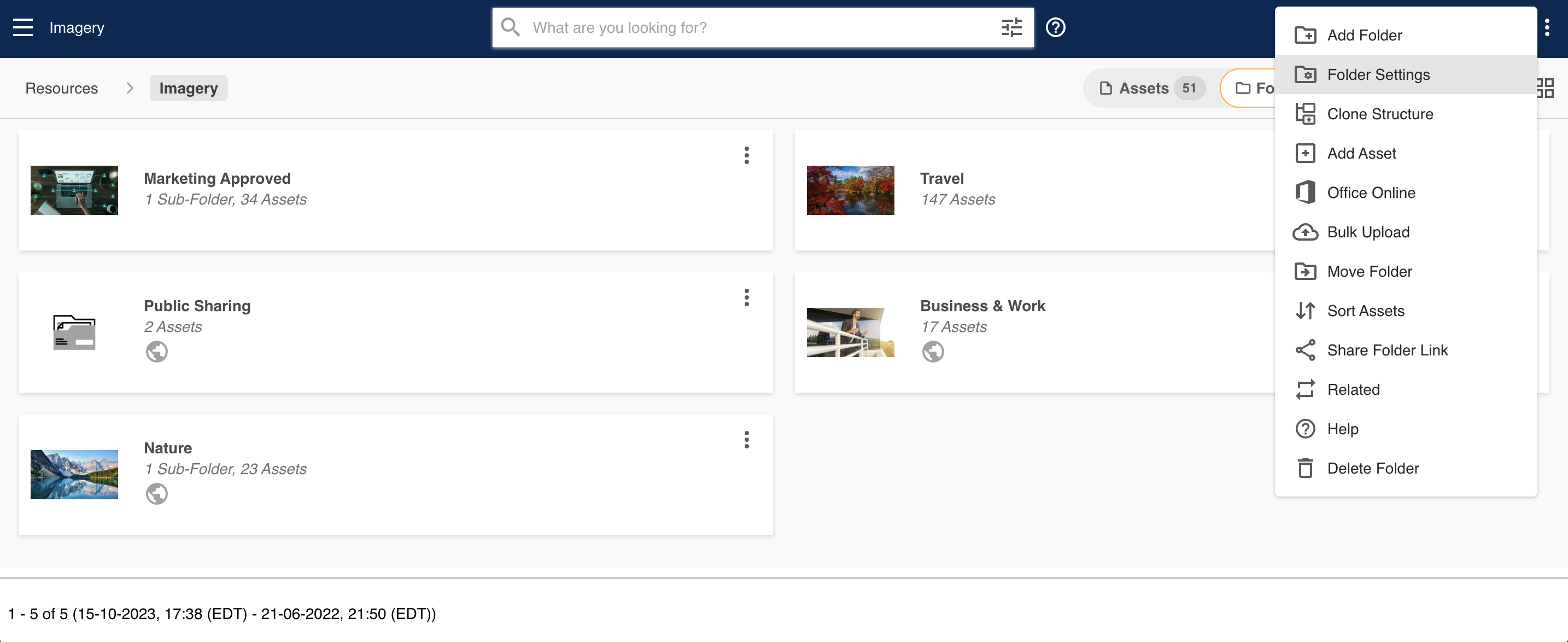 |
| 3Enable Allow Comments | Select Advanced Options, then locate the field called Allow Comments. Select the checkbox to enable, then select Save at the bottom of the page. |
| 4Start commenting | Once saved, you can then make comments against the assets within that folder. If you need to enable comments on multiple folders, you can do this by doing a bulk edit of folders and enabling comments on them all, saving time and effort. |
How to Make a Comment
Any user who can view the asset (ie: Preview permission or higher) can make comments on them.
If you are viewing your assets in Card or Mosaic layout, you can make a comment by following the below steps:
| 1Navigate to the asset | Navigate to the asset you'd like to make a comment on. |
| 2Select Comments | Select the three vertical dots that appear in the asset's top right, then select Comments.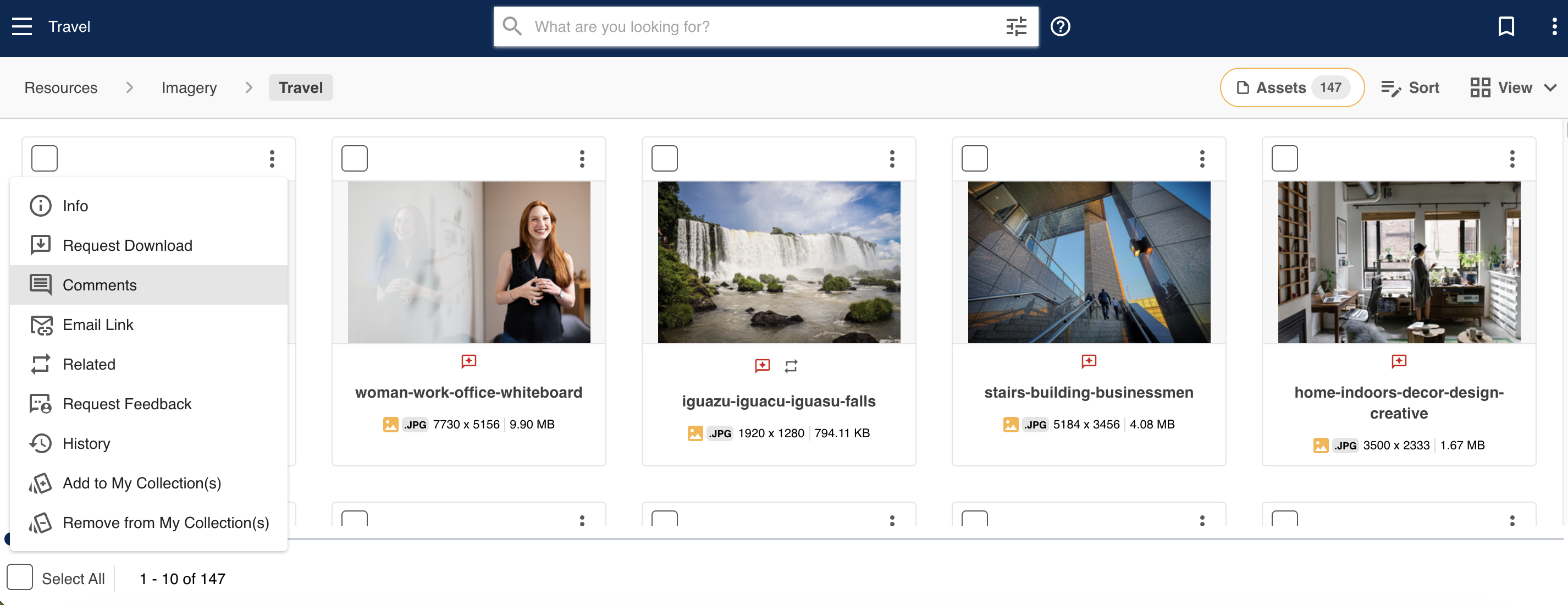 |
| 3Or: List layout | If you are viewing your assets in List layout, a comments icon will display against the asset, which you can click on to access the comments panel.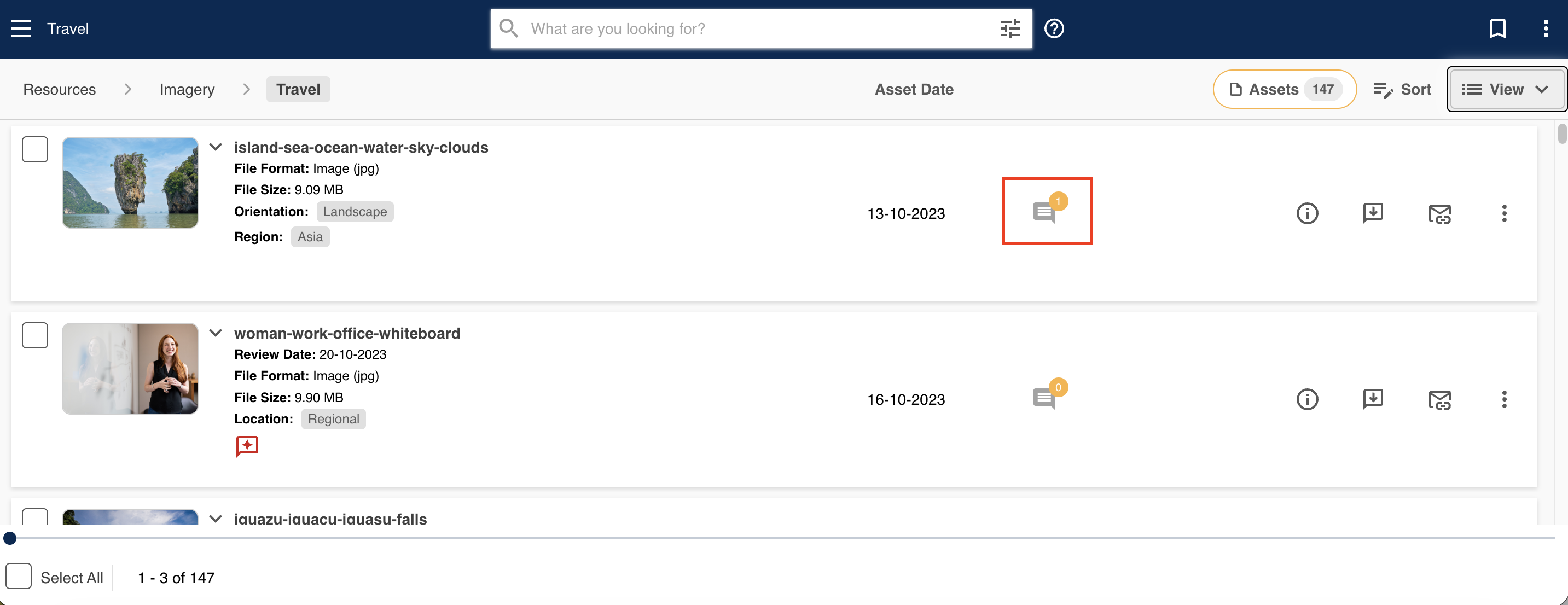 |
| 4Leave a comment | A comments panel will pop up to the righthand side of your screen. Leave a comment in the text field on the bottom, then select Save to save your comment.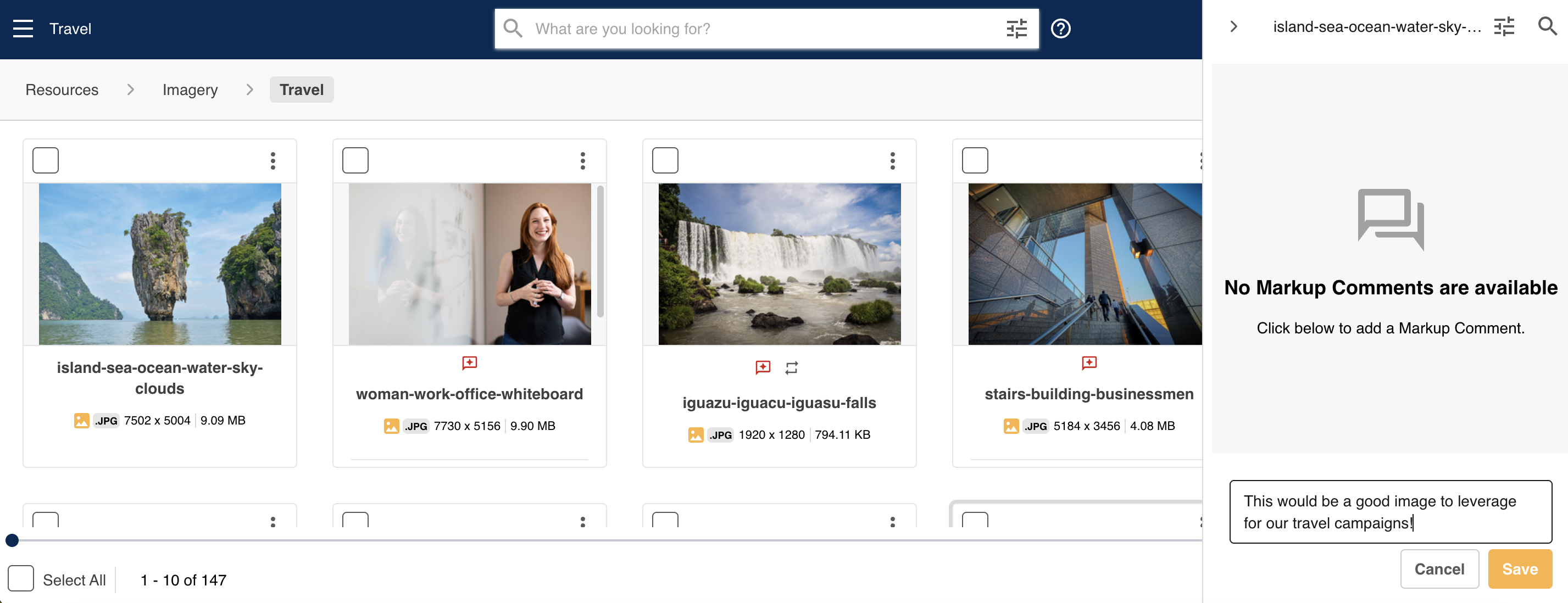 |
Editing or Deleting Comments
Users are able to edit or delete their own comments, if for example, they need to adjust the verbiage on their comment or if their comment is no longer relevant.
To edit your comment, select the three vertical dots that appear in the upper right side of the comments box.
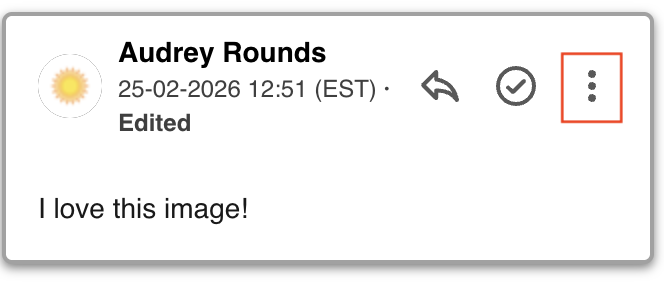
Then select Edit. This will open up your comment in an editable format, which you can adjust. Then select Save to save your comment.
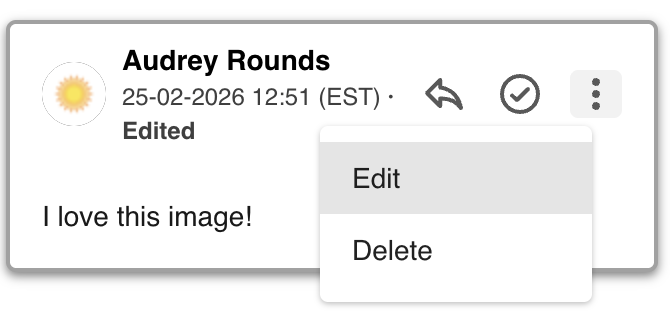
If you've edited a comment, the comment will indicate that it's been edited.
To delete your comment, select the same three vertical dots outlined above, then Delete. This will delete your comment, along with any replies.
Searching and Filtering Comments
You can search and filter for comments within an asset's comments panel. This can be a helpful feature if there are a high number of comments made on an asset and you need to easily find a particular comment.
To search for comments, select the magnifying glass icon illustrated below.
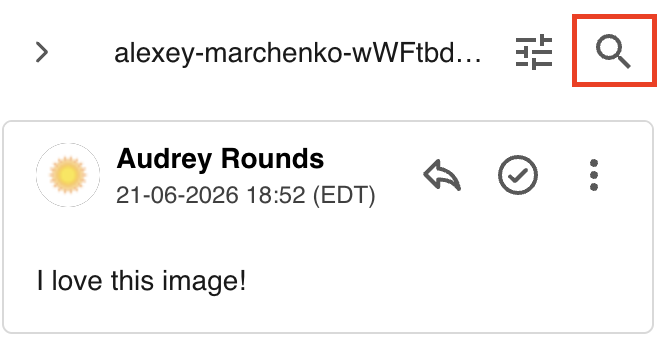
Then, start typing in a search term. The search will pull from words within the comment itself. If it finds a match, you will see the relevant comments appear, with the search term highlighted the comment.
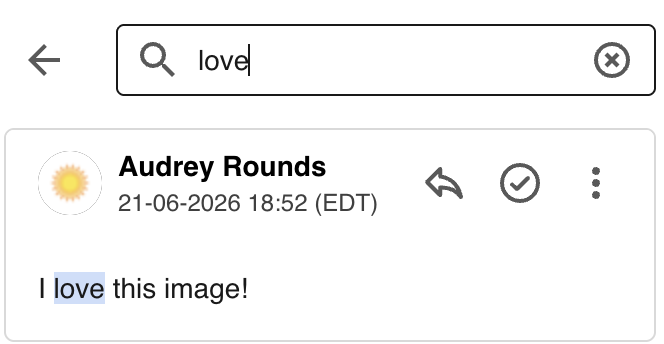
Filtering comments is also available, which allows users to easily find comments made by particular users or sort comments in a variety of ways, making it easier to locate specific comments.
To filter comments, select the filter icon illustrated below.
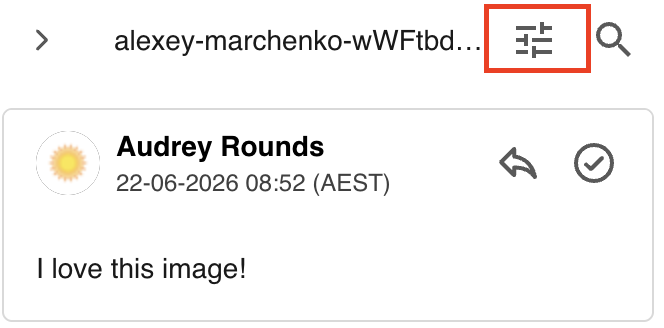
You'll then see a window pop up, where you can sort comments by:
- Date Created
- Last Updated
- Author
- Status
If you select Date Created or Last Updated, you'll also be able to choose whether you'd like to sort by Oldest or Most Recent first.
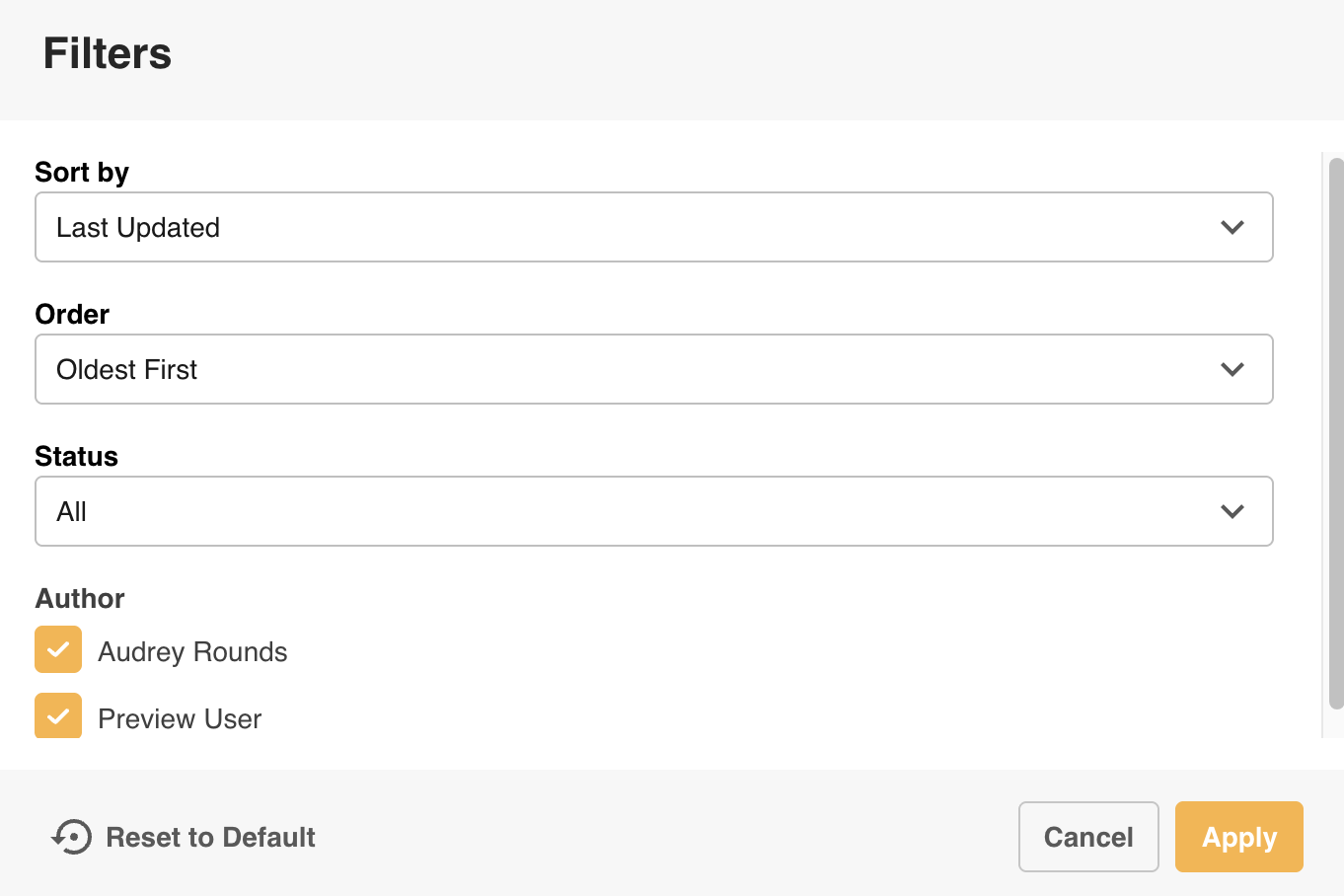
Make your filter/sorting selections and select Apply to apply those to the comments.
Replying to Comments
Users can reply to asset comments if they want to chime in on a particular comment.
To reply to a comment, select the reply icon illustrated below. This will create an editable reply comment field, which the user can add their reply to.
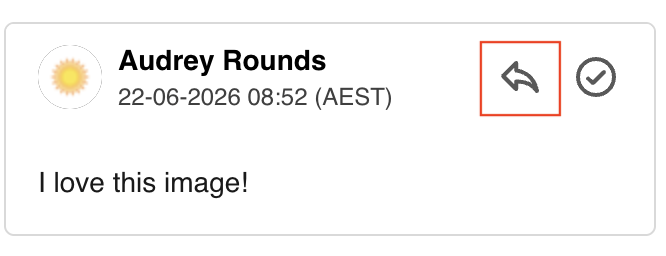
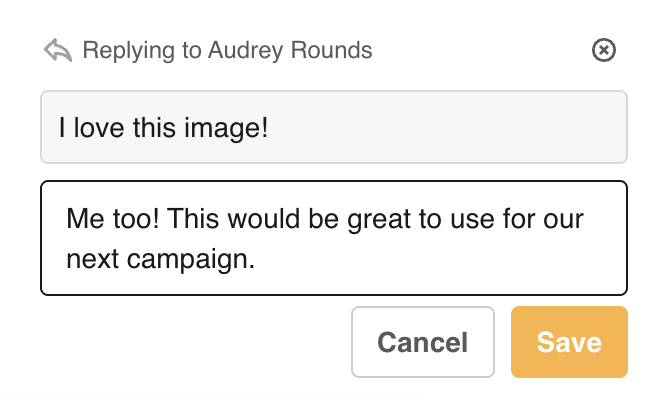
Select Save to save the reply.
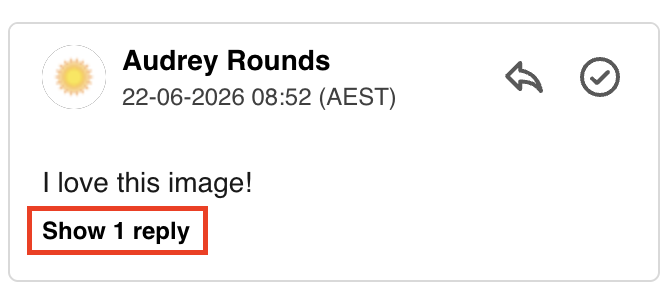
Once saved, the reply will be accessible by selecting the show reply link under the original comment.
Notable Limitations
Asset Comments currently have the following limitations:
- Comments are not searchable in the main asset search area
- Comments are not reportable
- You cannot filter to display assets that have or have not been commented on
- There are no @mentions on asset comments
- There are no instant alerts when leaving comments or replies
Was this article helpful?
That’s Great!
Thank you for your feedback
Sorry! We couldn't be helpful
Thank you for your feedback
Feedback sent
We appreciate your effort and will try to fix the article