When downloading an image asset, users can download not only the original image, but also additional formats using IntelligenceBank's Download Transformations and Presets features.
These features make is easy for users to download images in formats or dimensions they might need that differ from what was saved originally in the Asset Library. Rather than having to save different file formats in folders, you can store one original image and leverage Download Transformations and Presets to allow users to download what they need.
Table of Contents
Accessing Image Download Options
To access an image's download options, first select the download action. You'll then be taken to the download transformation page.
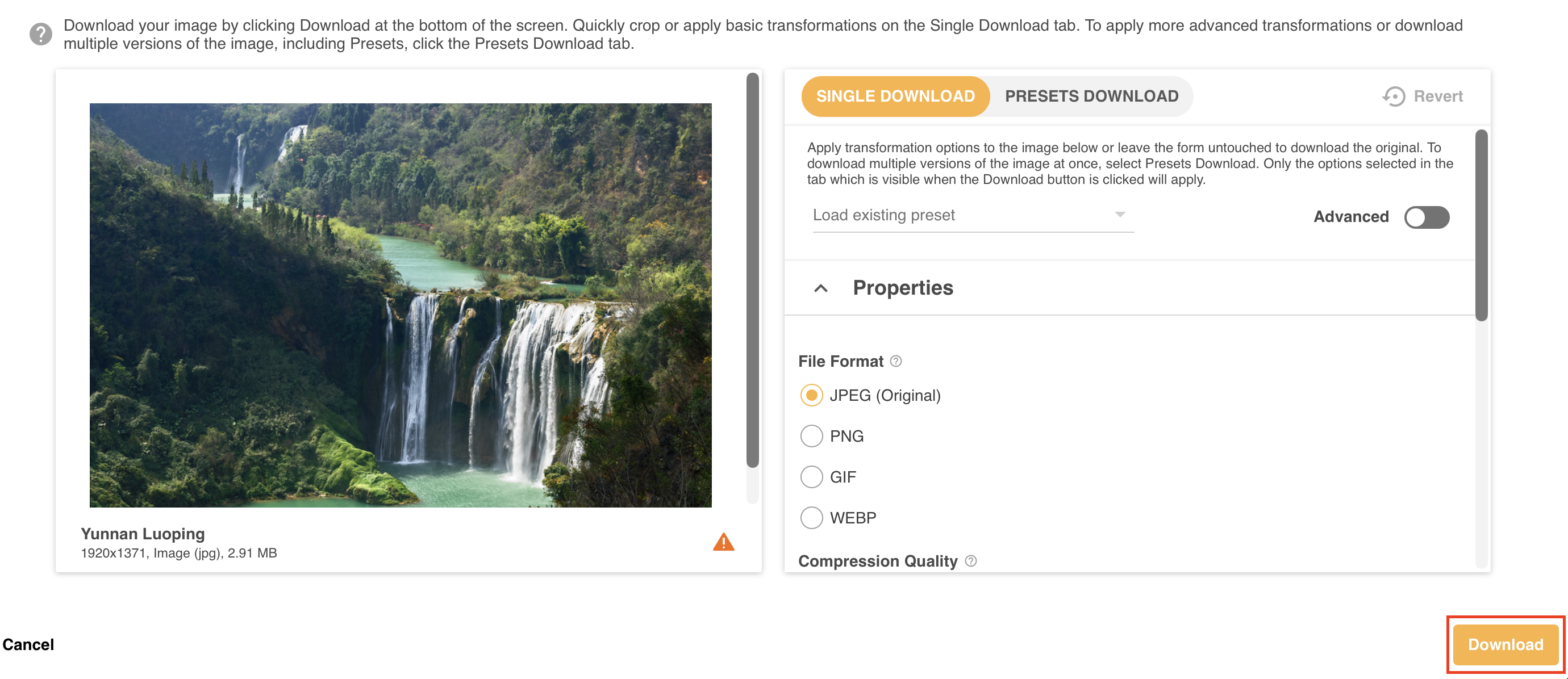
The image selected for download will appear on the left of your screen.
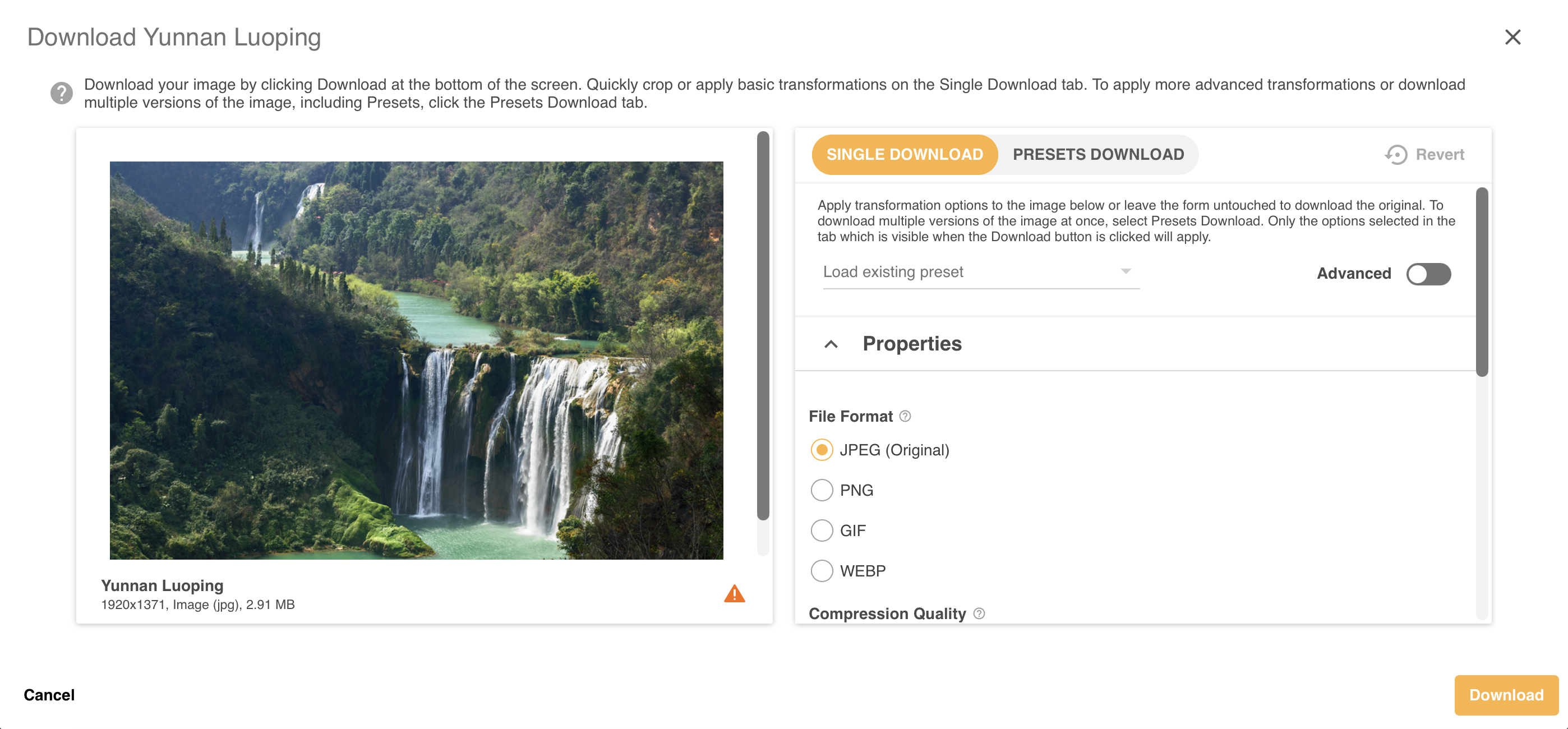
On the right side of the page are the download options that you can apply to your image. There are two tabs here that you can switch between, Single Download and Presets Download.
You can only download from one of these tabs at a time.
Whichever tab is open when you click the Download button will be what downloads. Your selection will also be remembered, so the tab that was last opened will also be your default the next time you open a single Download page.

Single Download Tab
Within the Single Download tab you can apply both basic and advanced transformation options. If you only want to download the original file, you can directly click the Download button at the bottom right of the page, as highlighted below:
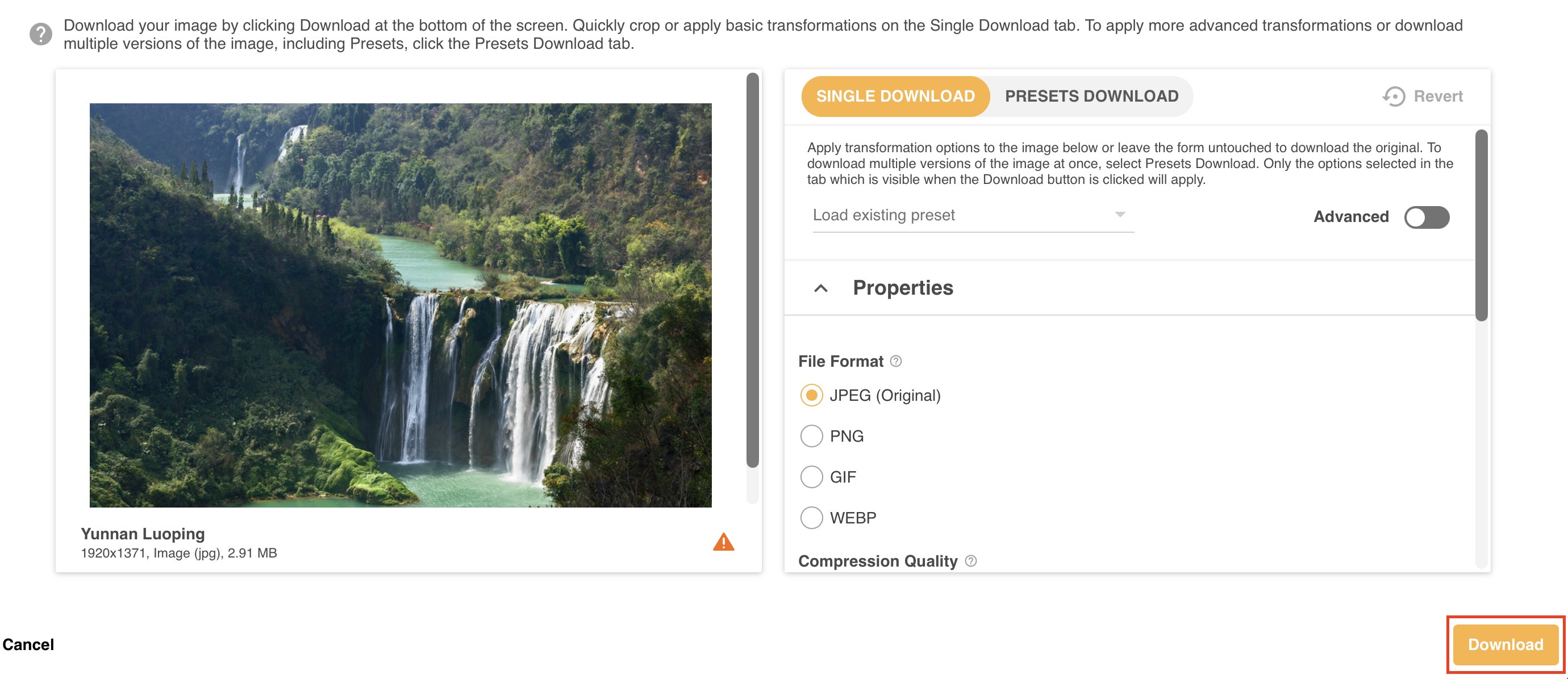
Default Single Download options
These are the actions that will automatically be available when the Single Download tab is opened:
- Load Existing Preset: This option allows you to quickly apply an existing Single or Global Preset. This will load the settings of that preset on your page.
- Properties: You can change the File Format, Compression Quality and Compression Type. Note that if your file type is not supported as an output transformation, you will need to switch to another File Format to view these options or download the original file.
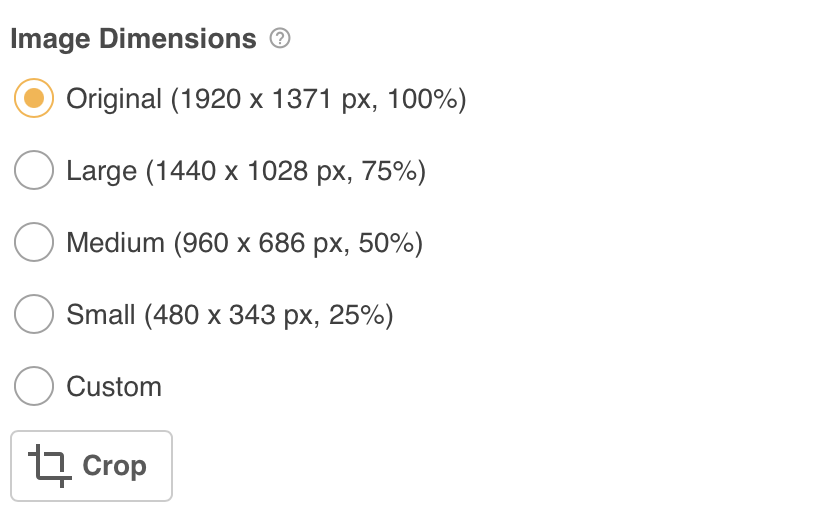
- Dimensions: You can change the dimensions of the image. You can also click the Crop button (pictured below) to quickly crop the image.
Cropping & Advanced Single Download options
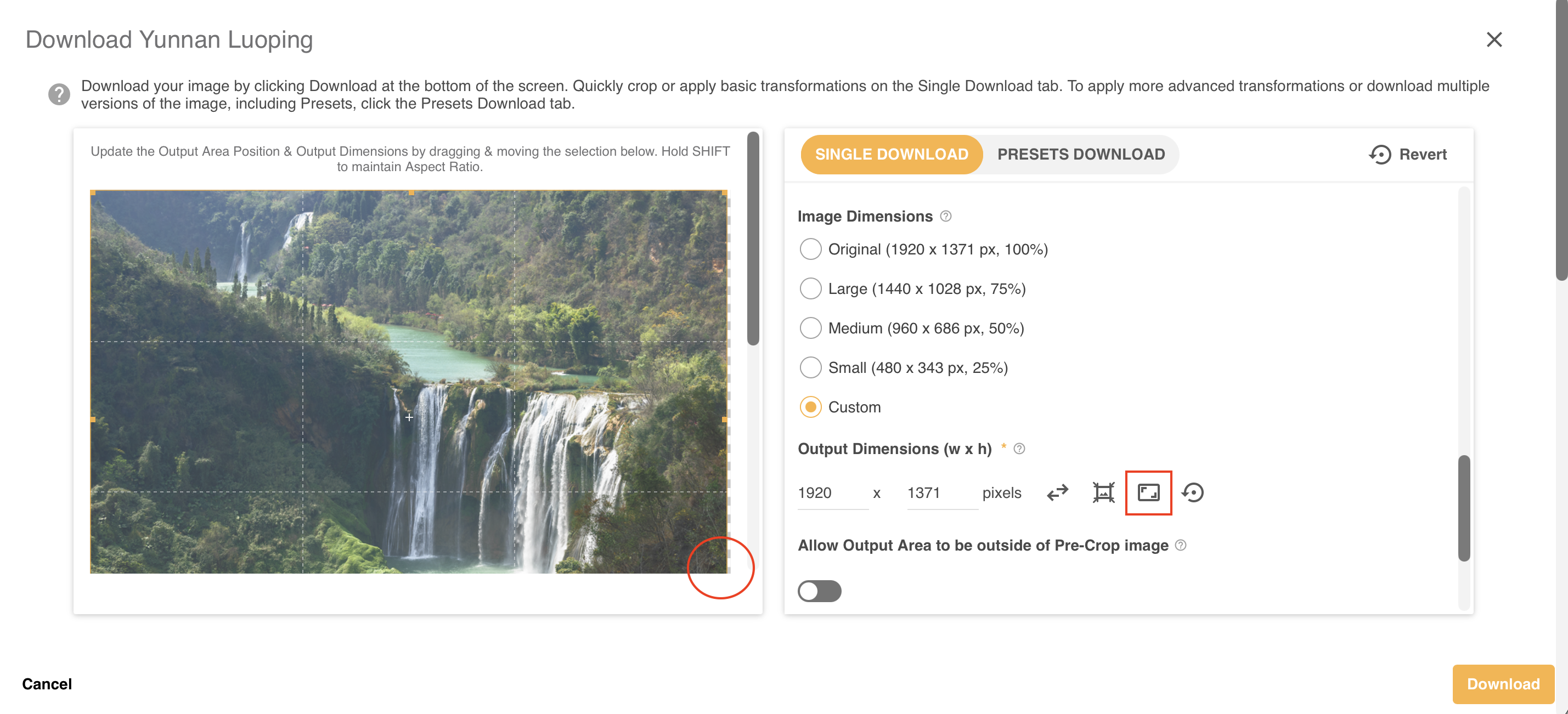
Once the Crop button or Custom Image Dimension options > Crop is selected, additional options will be available. This is because the Advanced Single Download options have been automatically enabled. You do not have to fill out all of the options below.
- Properties: Color Space, Flip and Rotate will now be available. You will need to scroll up the page to view these options.
- Dimensions:
- Output Dimensions: These can now be changed, either in the Output Dimensions field or by dragging the border dots (highlighted in the circle below) on the image itself.
- Aspect Ratio: Next to the Output Dimensions is the Aspect ratio icon (highlighted in the rectangle below). When clicked, the dropdown will display a number of options you can use to quickly apply a specific ratio to your image.
- Allow Output Area to be outside of Pre-Crop Image: This setting determines whether the image's Output area can be outside the image's dimensions. When disabled, the Preview will also resize each time the output is changed, ensuring the largest preview is always viewed. Then enabled, the Output Dimensions can be larger than the original and allows Fill Type and Colour to be added.
- Match Output: This appears when the Allow output setting is disabled. It provides a quick option to automatically match the Pre-Crop Dimensions to the Output Dimensions.
- Other Dimension options: You can also change the Pre-Crop Dimensions and Fill Type / Colour.
You can also read about these options in more detail here.
Note that what is downloaded is specific to the tab you are on. If you have made changes to the Single Download tab, download these and click download again if you also wish to download Presets. Alternatively, you can do both in Bulk Download.
Presets Download Tab
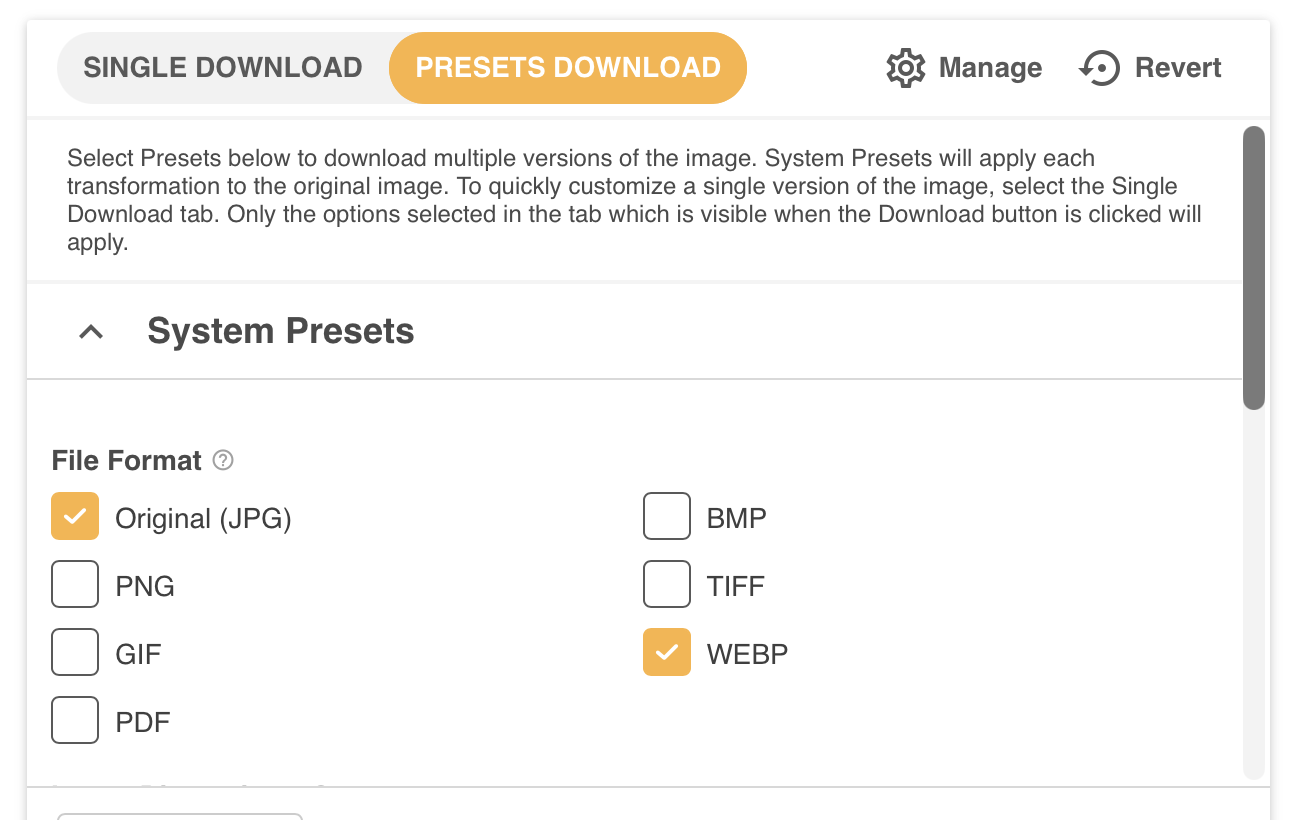
The Presets Download tab allows you to download multiple versions of the image at once. Multiple types of Presets can exist, and the different type of Presets are explained below.
System Presets
These are the default options that will always be available. System Presets will either include:
- File Formats supported by default include: the Original, JPEG, PNG, GIF, BMP, TIFF, PDF, WEBP
- Image Dimensions supported by default: Small (25% of the Original Dimensions), 50%, 75%.
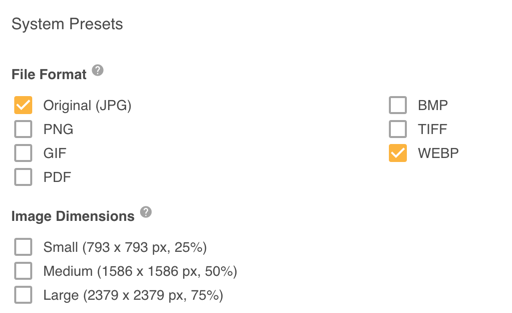
Note that for each of the options above, these will be applied to the original file separately. For example if you select PNG and Small, you will receive two files, the original file as a PNG and the original file with Small Dimensions. It will not download a PNG file which is Small. If you wish to do that, use an Ad Hoc Preset or Single Download.
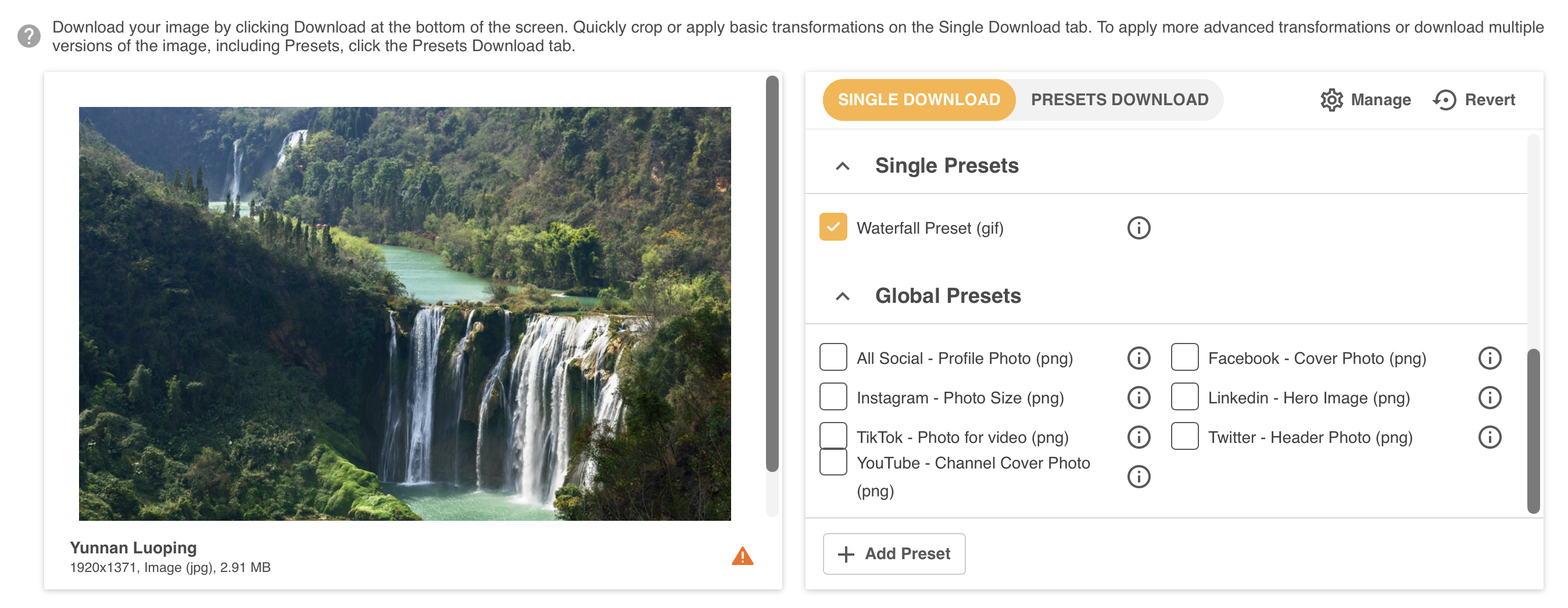
Single Presets
Single Presets are specific transformations for a specific image. Single Presets will only apply to the current image, ie you will not see another image's single presets on your current one. They allow you to quickly apply transformations, without needing to change anything.
They can be added / edited by clicking the Manage Icon at the top right of the Presets Download tab.
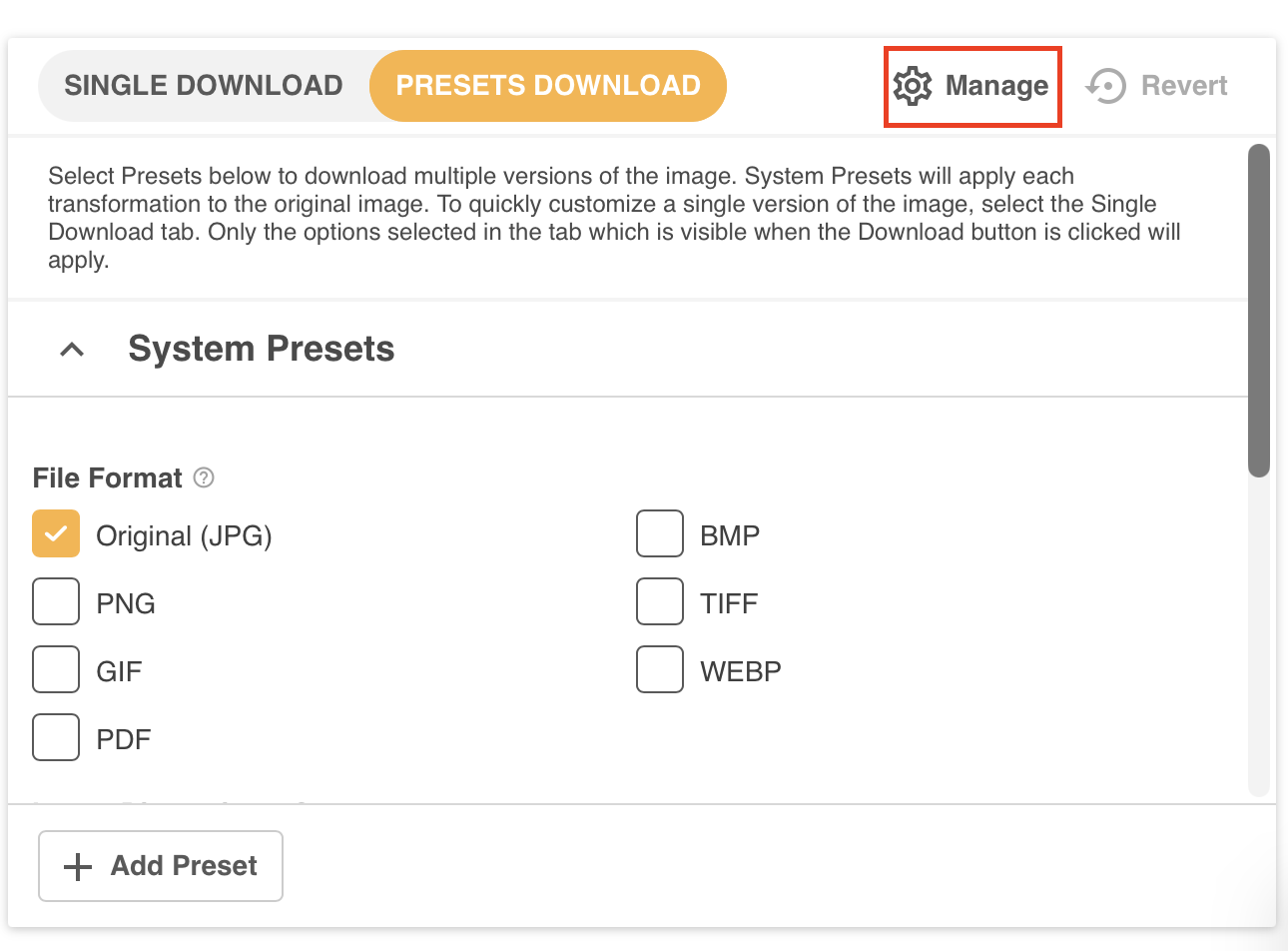
The Single Presets section (highlighted below) will only appear if Single Presets exist for your current image. To apply these, simply select the checkbox next to the name of the preset you wish to select.
Global Presets
Global Presets are created for common transformations that need to be regularly applied to images. These are available to be selected and applied in Single Download. Simply select the required Global Preset in order to include it in your download.
Global Presets can be added / edited in Single Download by clicking the Manage Icon at the top right of the Presets Download tab.
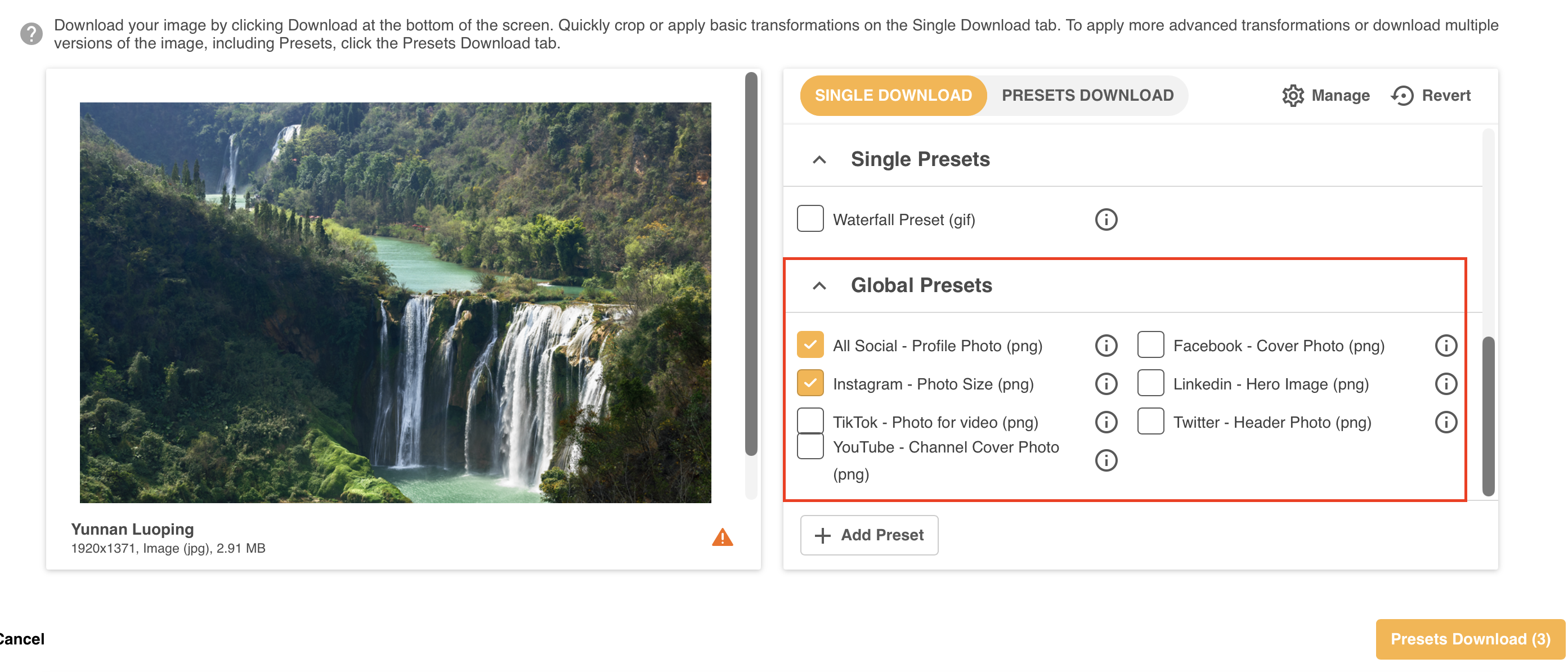
You can read more about creating new Global Presets here.
Ad Hoc Presets
Ad Hoc Presets allow users to add a one-off Transformation that is only available for the current download. The options available for Ad Hoc Preset copy the settings available for Single Presets, allowing users to crop their image on the page directly. You can see a full explanation of those options here.
Once you add an Ad Hoc Preset, it will automatically be pre-selected on the Transformation Options page, allowing you to quickly apply it to your images. Like with other transformations, presets will only be accessible once the image has been downloaded.
Estimate File Size
At the bottom of the Ad Hoc Preset page is an option to estimate the File Size that will be downloaded.
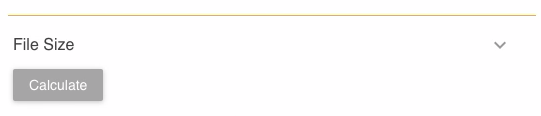
Click the Calculate button to get your estimate. Note that if a number of changes have been made this might take a moment.
Applying Presets
You can apply any preset by simply clicking the checkbox next to the preset name. Then click Presets Download to download all selected versions. By default, only the original will be selected. If you load the Presets Download tab and click download without making any changes, only the original Image will be downloaded.
Transformation Restrictions
In some instances, the image file will not be supported for transformations. This includes when:
- File format is not supported for transformations. This currently includes formats like indd, crw, raf.
- File size is over 500MB. Note that in some instances this limit can be increased. Please contact your Administrator or Customer Success Manager to find out more.
In these few instances, the original image file will automatically download.
Downloading your Image(s)
To Download your image transformations, click the Download or the Presets Download button at the bottom right of your screen (as you can see highlighted below). What is downloaded will be specific to each tab and only one button can be selected.
After you click a Download button, a number of things may occur:
- If you are only downloading the original image or a single image transformation, it will immediately download.
- If transformations were applied, the download process may take a little longer depending on the size of the file. Once the transformation has been applied, the file will immediately download to your browser.
- If there is more than one item in your download (ie: multiple selections off the Presets Download tab) they will be downloaded within a zip file.
Note that after download, if an option other than the original image is downloaded, the image file name will also contain the preset name (if applicable) and the width x height of the file.
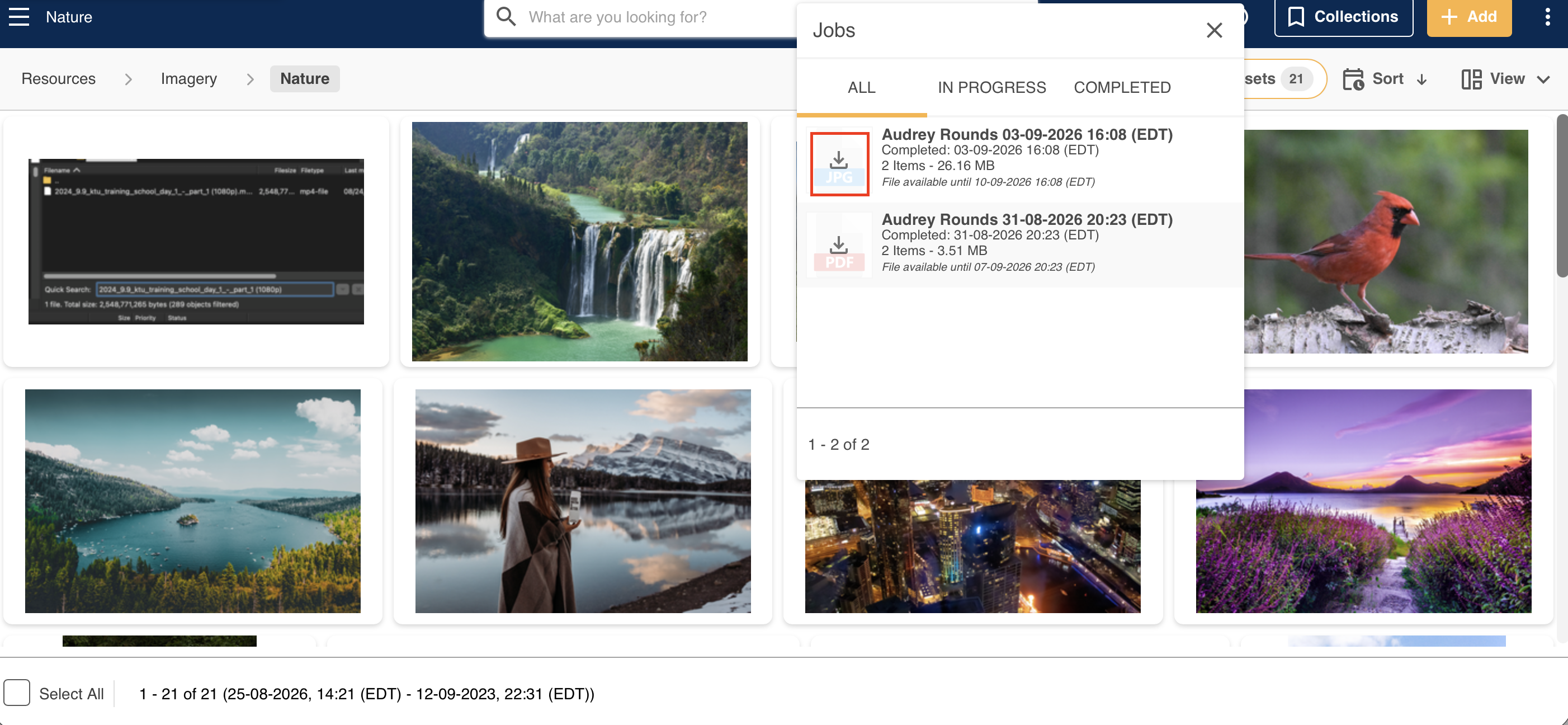
For downloads with more than one item, you will be able to view the progress of the download in the Jobs List Popup.
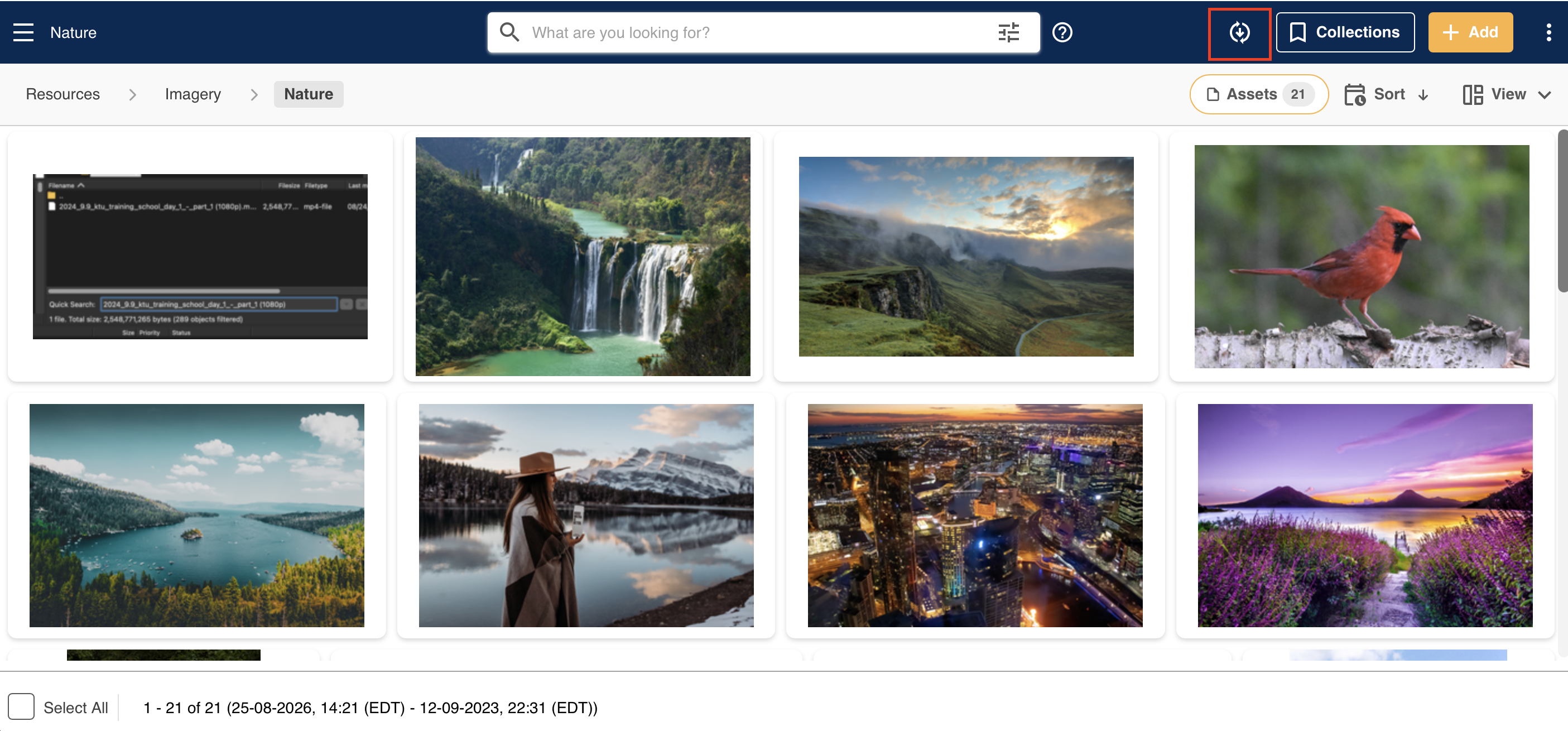
Once the download process is complete, the zip file will automatically download according to your browser's behaviour.
Note, It's important to ensure that popups are not blocked on your browser as this might prevent the file from downloading.
If you wish to download the zip file again, you can do so by clicking the Download action in the Jobs List Popup.
Previous download jobs will be available in this list for up to a week after they were originally downloaded.
Was this article helpful?
That’s Great!
Thank you for your feedback
Sorry! We couldn't be helpful
Thank you for your feedback
Feedback sent
We appreciate your effort and will try to fix the article