Folders and folder structures can be cloned within the Asset Library, which may make it more efficient to create folders, particularly if different teams/brands/entities will have their own folder structures that follow the same "template" format.
Rather than having to create each of those folders one by one, you can create that master template folder structure, then simply clone it for each team/brand/entity.
Note: folder settings enabled on the folder structure you're cloning off of will carry through on any cloned folders.
Folders in the Asset Library can be cloned by:
- Main Admins
- Asset/Resource Admins
- Folder Admins
How to Clone a Folder Structure
To clone a folder structure:
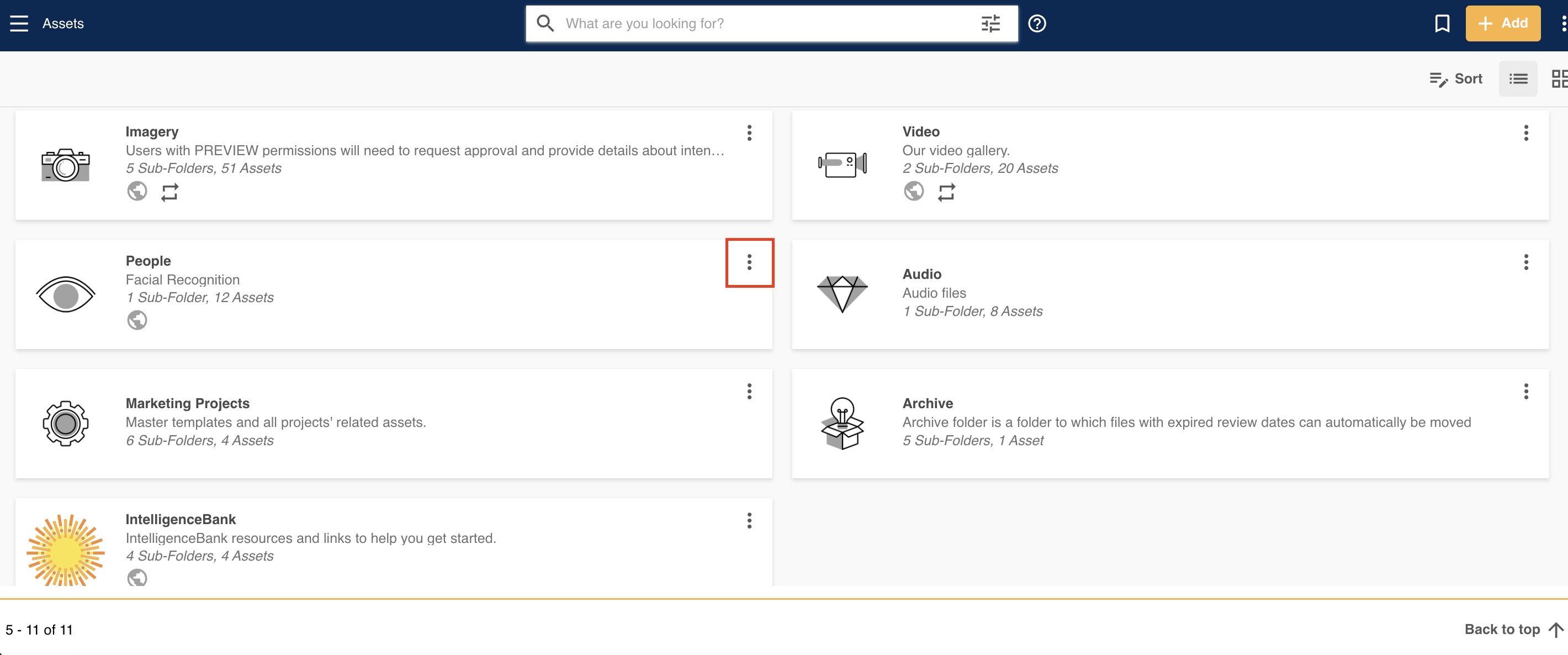
| 1 | Navigate to the folder you'd like to clone. Click on the three vertical dots to access that folder's action menu.
|
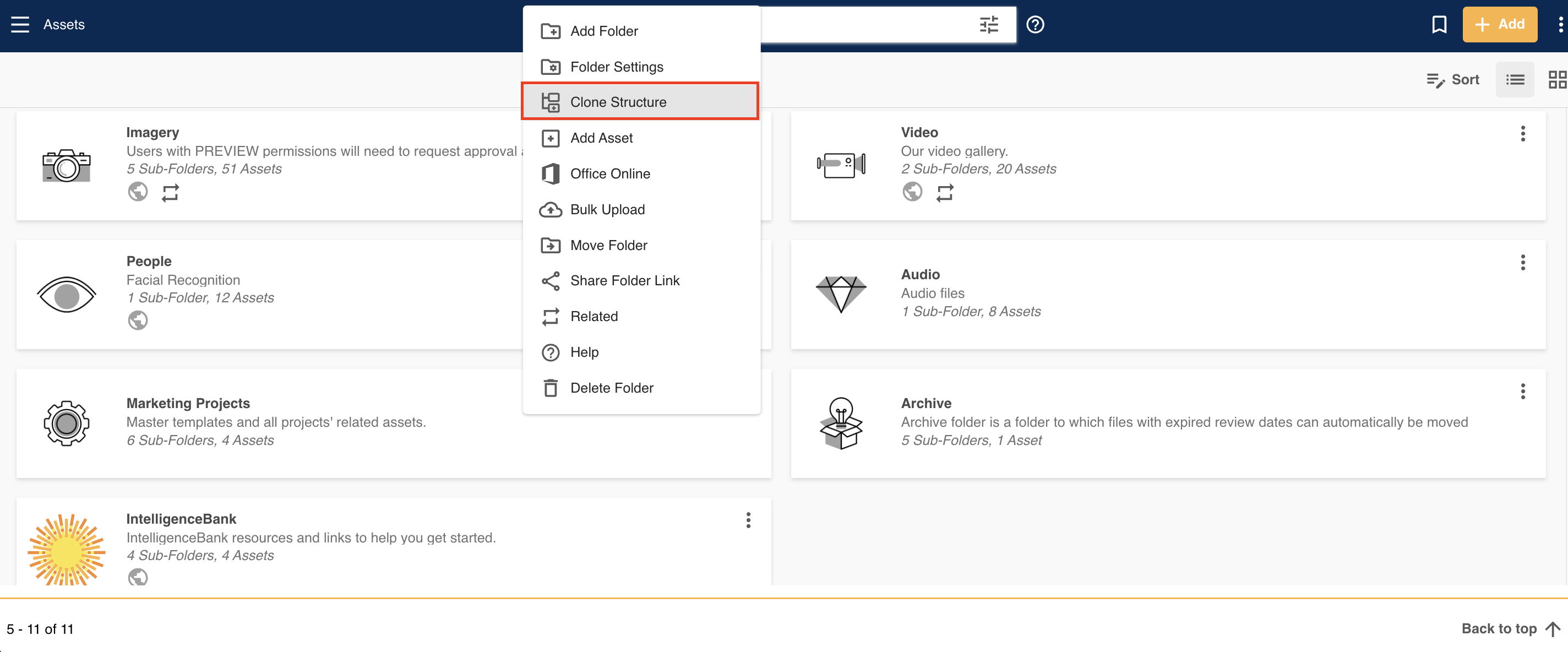
| 2 | Select Clone Structure.
|
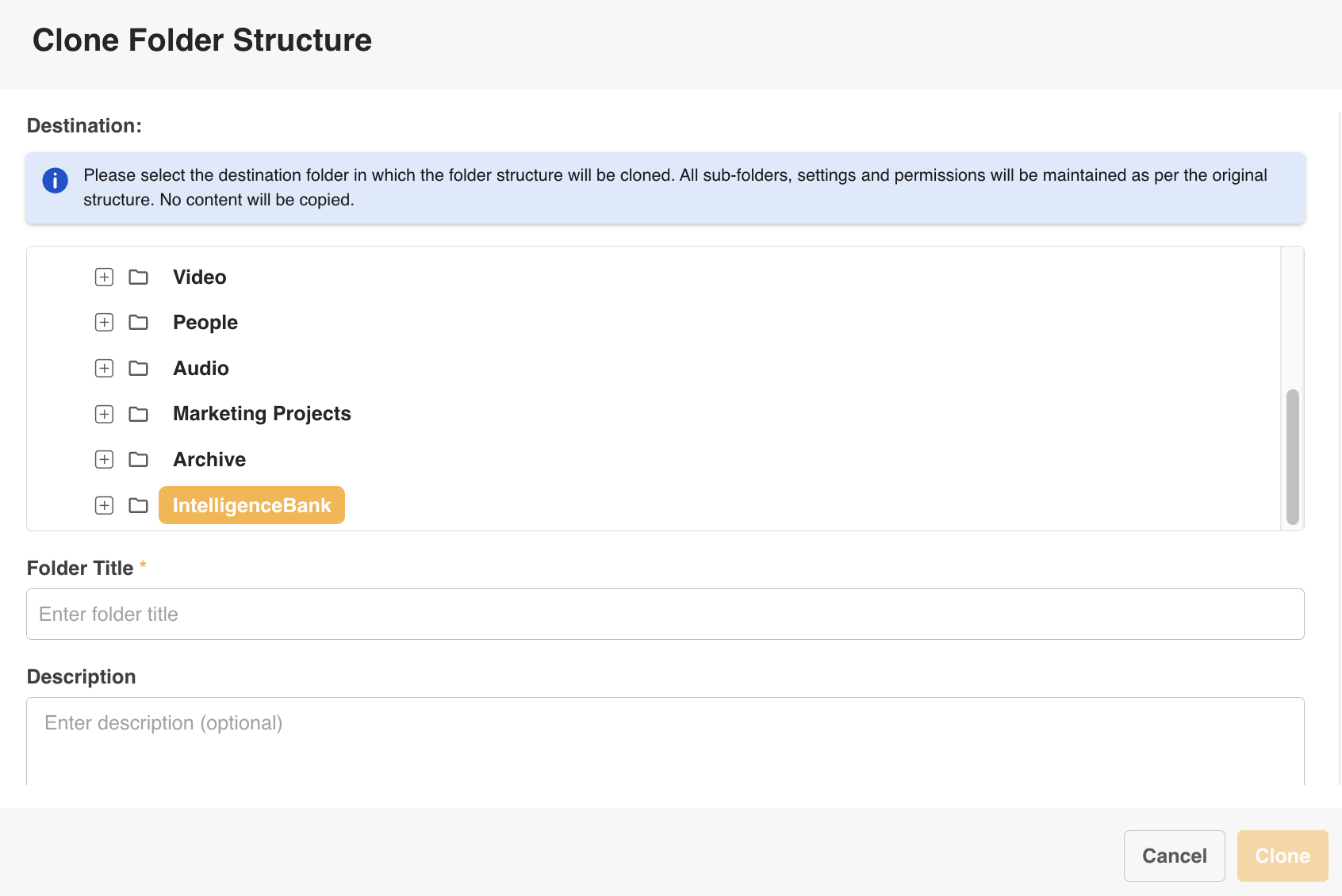
| 3 | A pop up window will display. Select the destination folder in which the folder structure should be cloned to. To make the cloned folder/structure a parent folder, select Assets or Resources at the top. Enter the name of the folder in the Folder Title field, an optional Description, then select Clone. All sub-folders, settings, restricted filters and permissions will be maintained as per the original structure. No assets will be copied.
|
Was this article helpful?
That’s Great!
Thank you for your feedback
Sorry! We couldn't be helpful
Thank you for your feedback
Feedback sent
We appreciate your effort and will try to fix the article