IntelligenceBank's Version Control feature allows users to upload an updated asset as a new version, on top of an older version that already exists in your Asset Library.
This feature is great for maintaining an audit trail of all versions of an asset. It also helps ensure that only the most up to date version of an asset is searchable/downloadable/shareable within the Asset Library, preventing older versions from being mistakenly used.
Table of Contents
Enabling Mandatory Versions
Version Control can be set as mandatory by Main Admins in the Admin>Settings area of the platform. To do so, check the box next to the Mandatory Versions field, then Save at the bottom of the page.
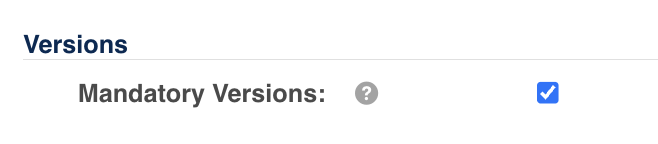
Mandatory Versioning means that when users add a new version of an asset to a folder, it will automatically create that asset as a new version (as opposed to giving the user an option to override the original asset).
Main Admins can see all previous versions of assets added to the platform. They can enable or disable the Versions module for select user groups by going to Admin>Groups, then editing a group's permissions. Versions permission can be found under the Assets/Resources module. Toggle on Access to give users in this group the ability to see previous versions of an asset.
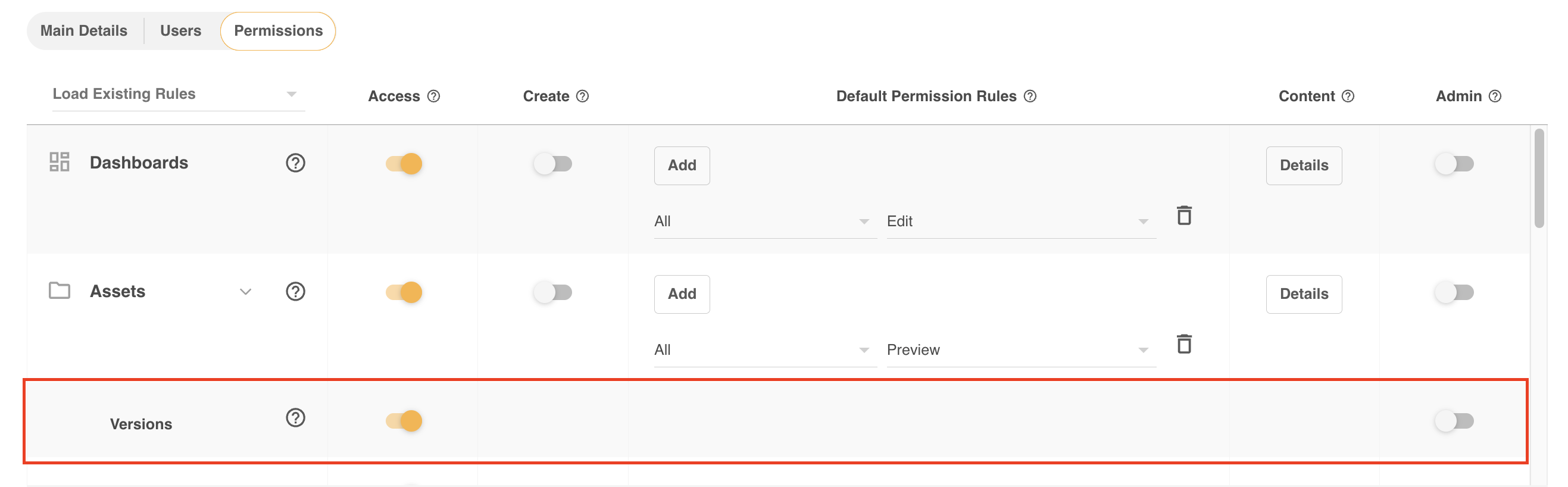
If disabled, these users will not be able to see the version number of an asset, nor access previous versions. They will however still be able to create new versions when uploading.
Groups with Admin toggled on Versions can also delete all previous versions.
How to Add a New Version
The ability to add new versions requires Publish permission or higher on folders the relevant assets are in.
To add a new version of an asset:
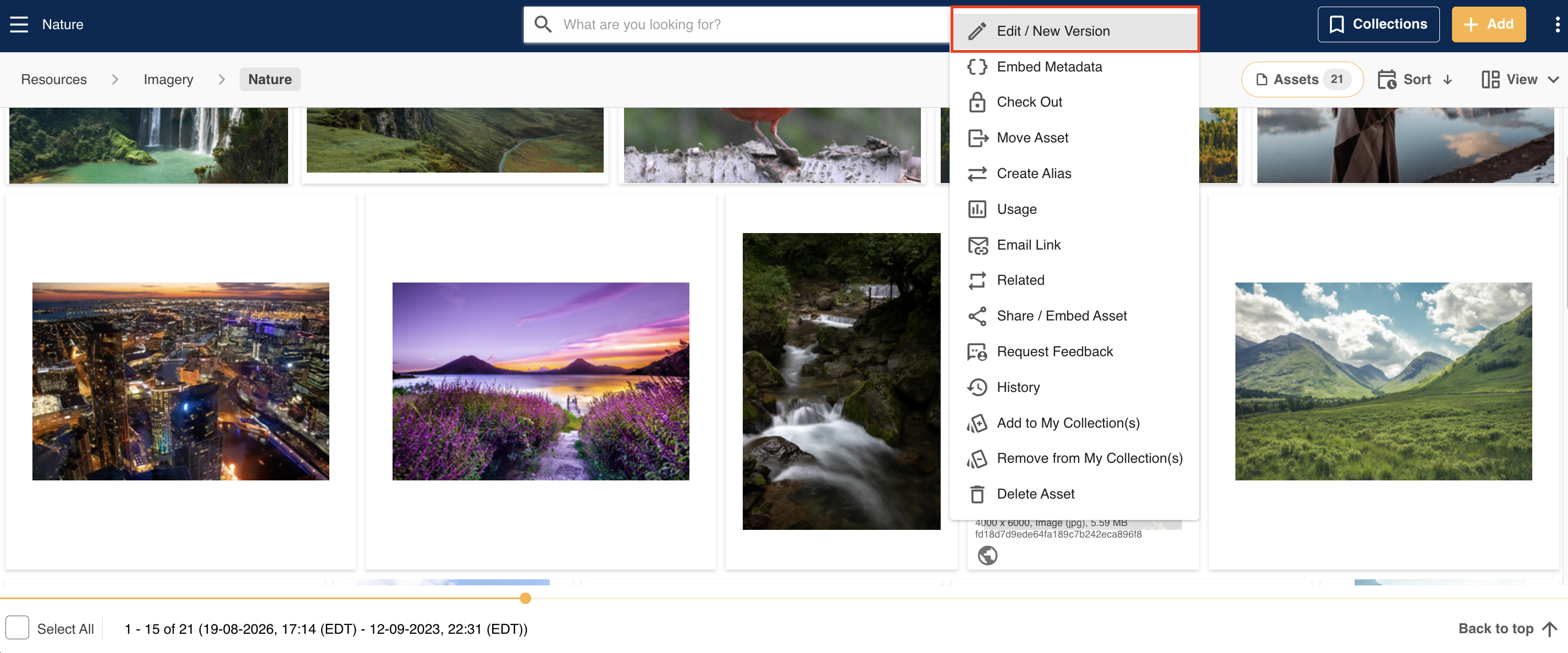
1. Navigate to the existing asset and click on Edit/New Version in the asset's dropdown action menu.
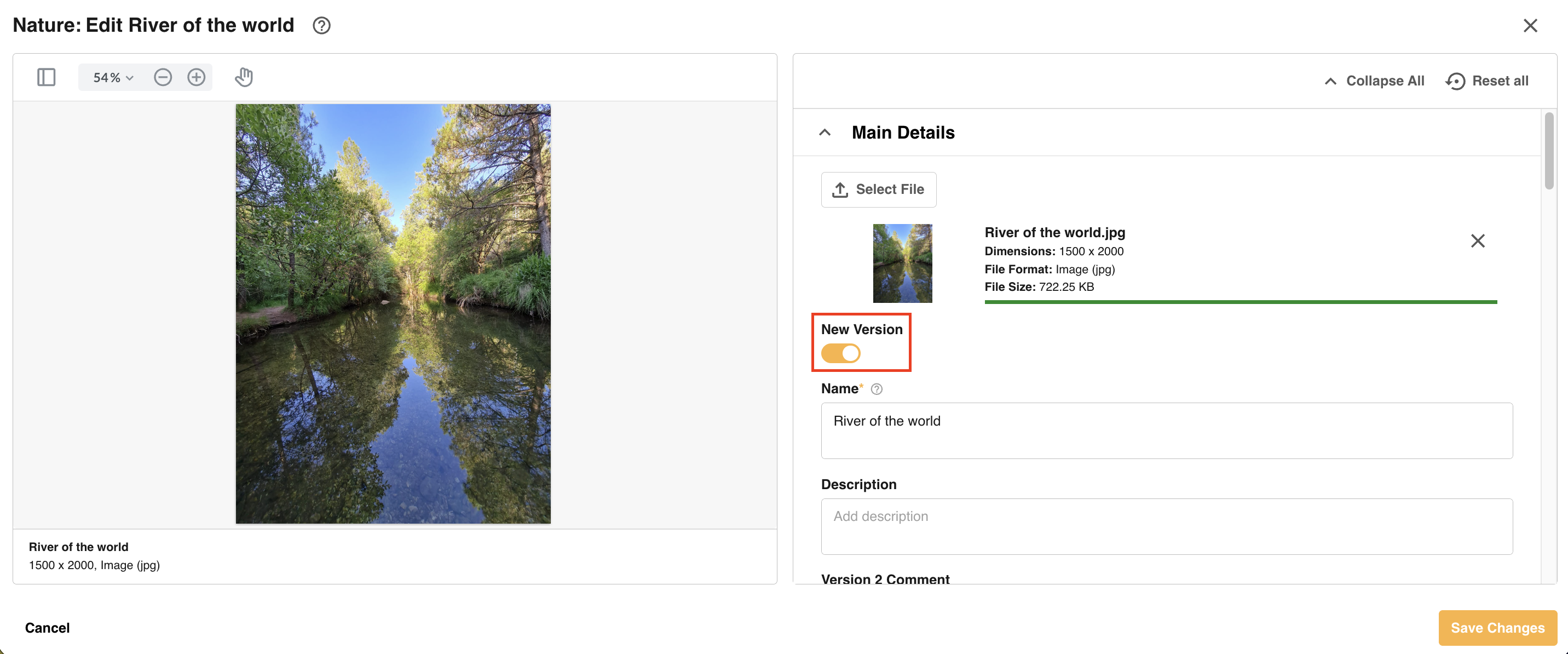
2. Click on Select File, which will allow you to browse your desktop for the new version. Add the file, which will begin to upload.
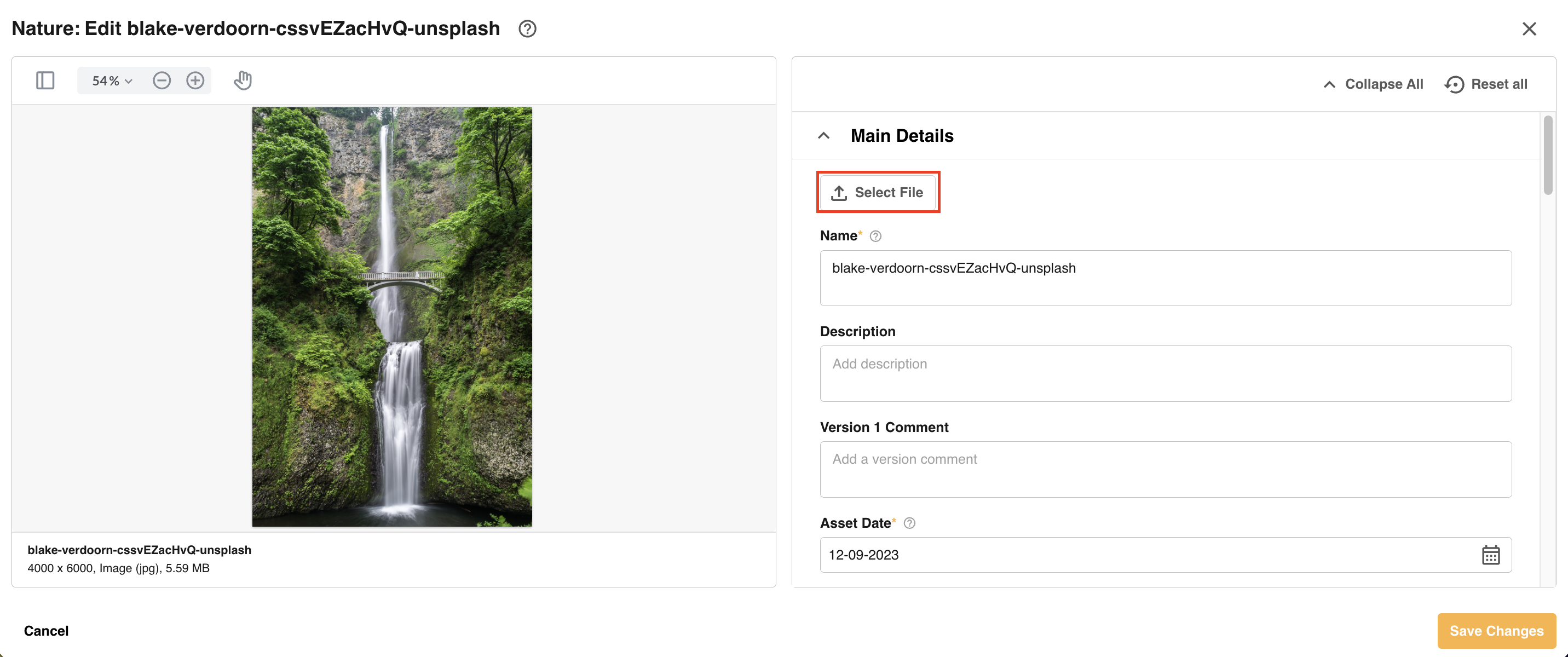
3. You'll notice a toggle appear called New Version (which, if mandatory versions is enabled, will not be able to be toggled off). You can also add a Version Comment to provide additional details about this file. This is particularly useful if you upload a file that is at an intermediary step, or updates of an existing file. Then, select Save Changes.
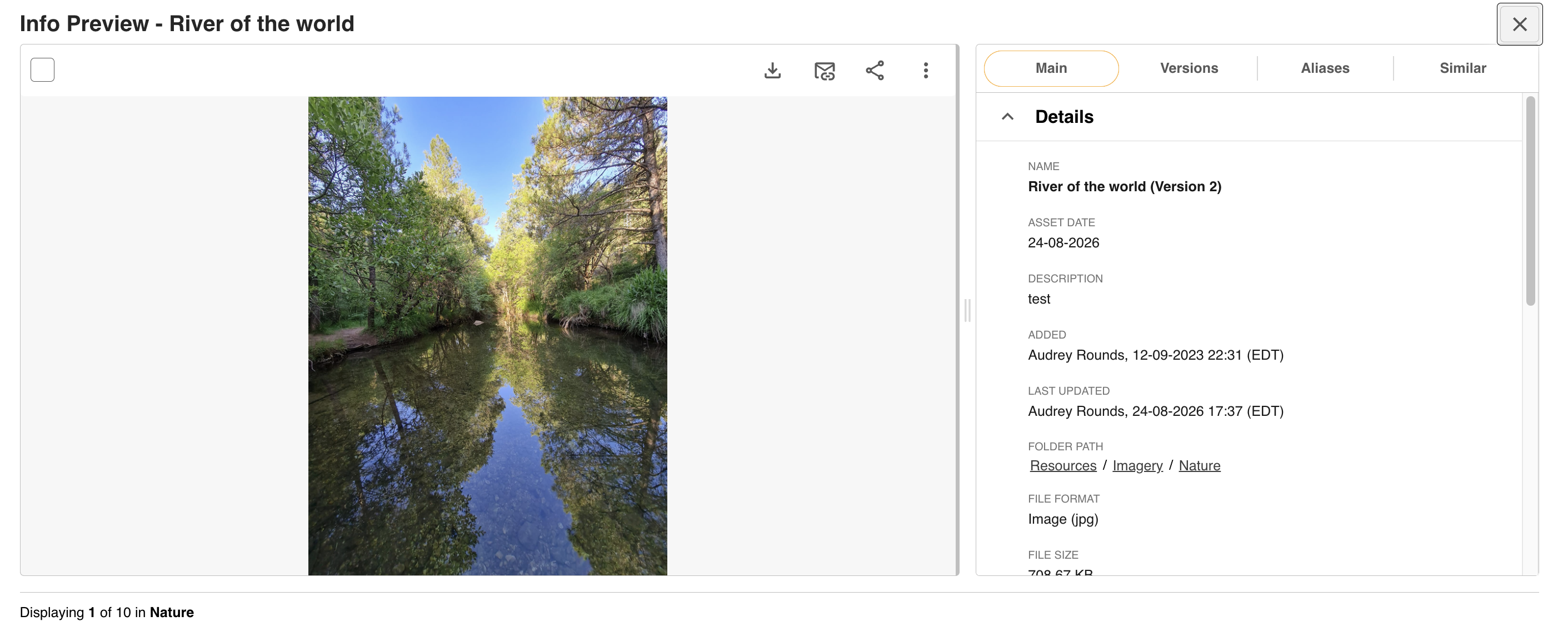
4. After saving, the new version will appear in the folder. A "V2 or Version 2" will automatically be applied to the end of the file name while viewing it in the platform.
Note, if your platform has a Publish Approval workflow in place on that folder, you will need to go through an approval process to add the new version. While pending approval, the old/original version of the asset will not be accessible in the folder.
Accessing and Comparing Versions
If an asset has multiple versions, you can access and compare these versions with each other. This enables you to view two versions side by side, view any changes, and restore or delete versions as required.
Accessing Previous Versions
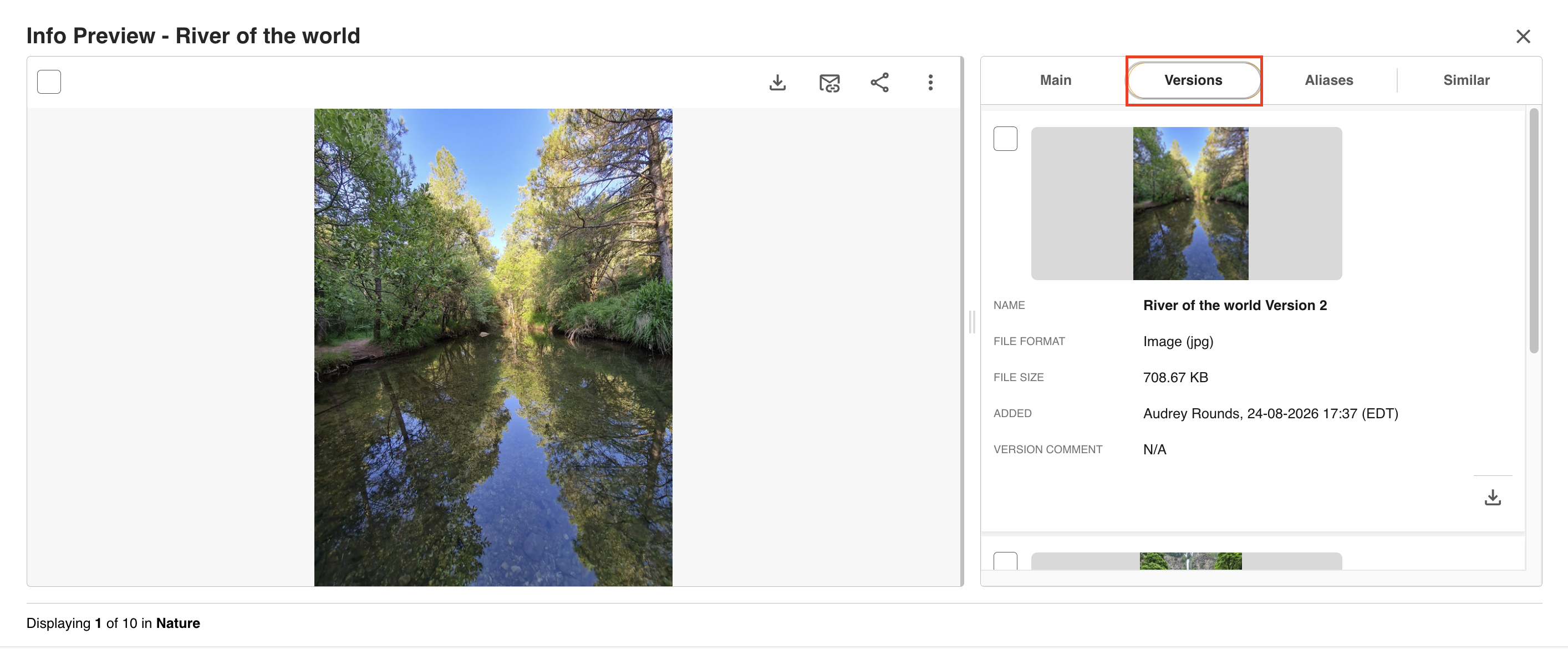
On the Info Preview page of an asset, click the Versions tab. A select square will appear next to each version in the list, including the current version (which will be the first version you see at the top of the list).
Comparing Versions
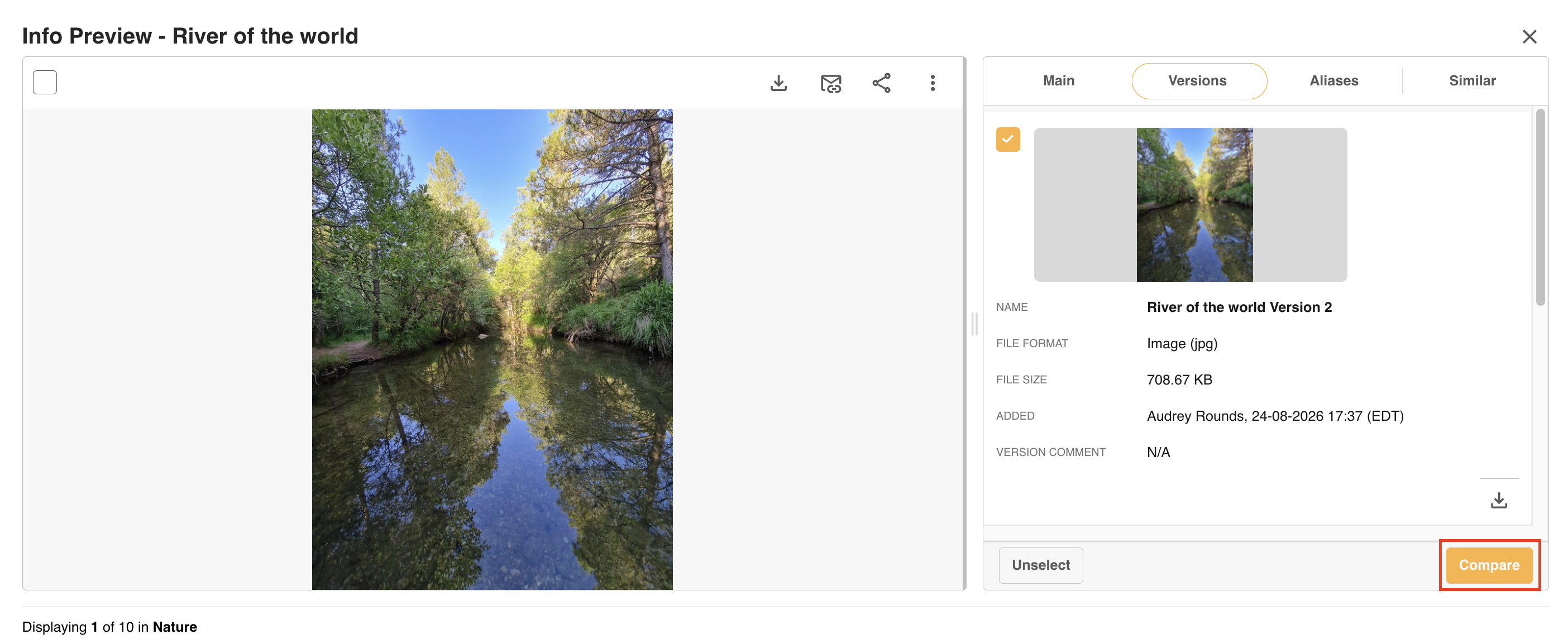
To compare versions, select two versions, then click the Compare button at the bottom of the page.
You can now view the two versions side by side.
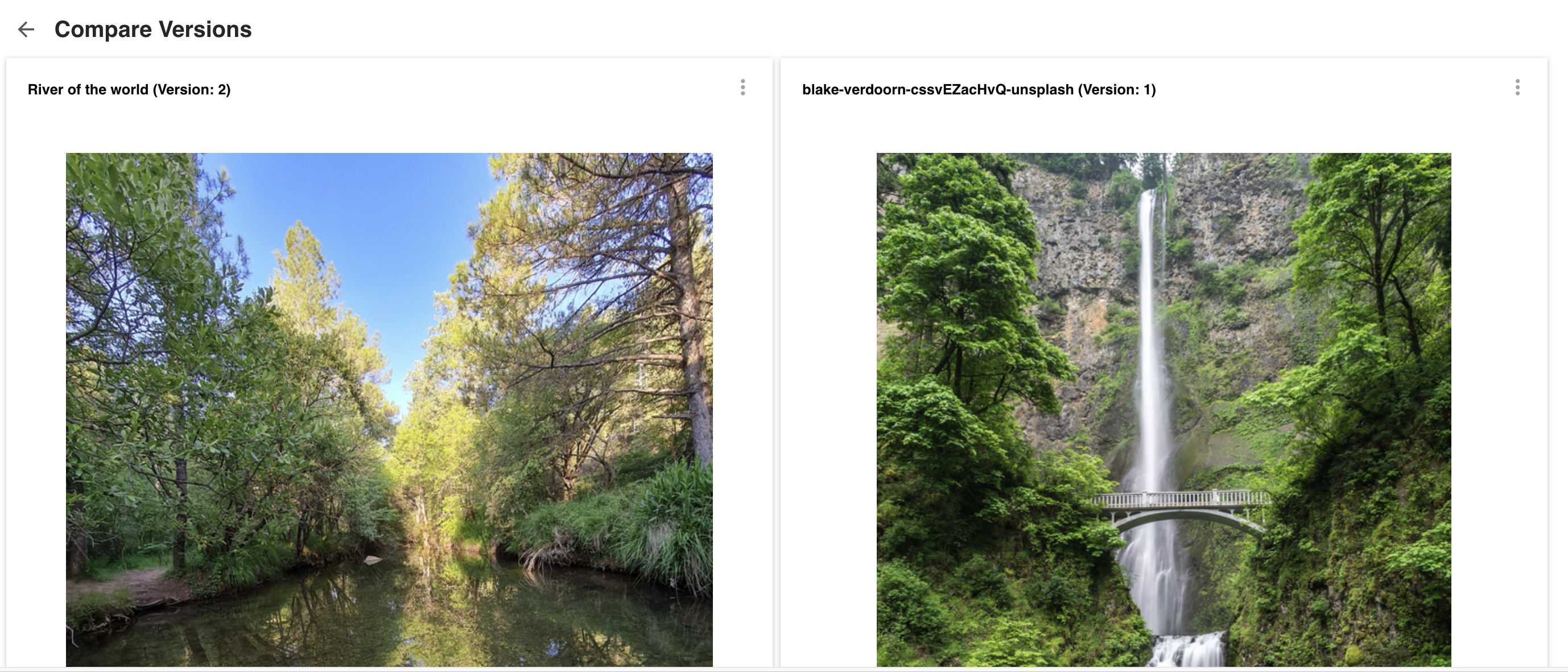
If you wish to delete, download or restore a version while comparing, select the 3 dots in the upper right hand corner of the relevant version.
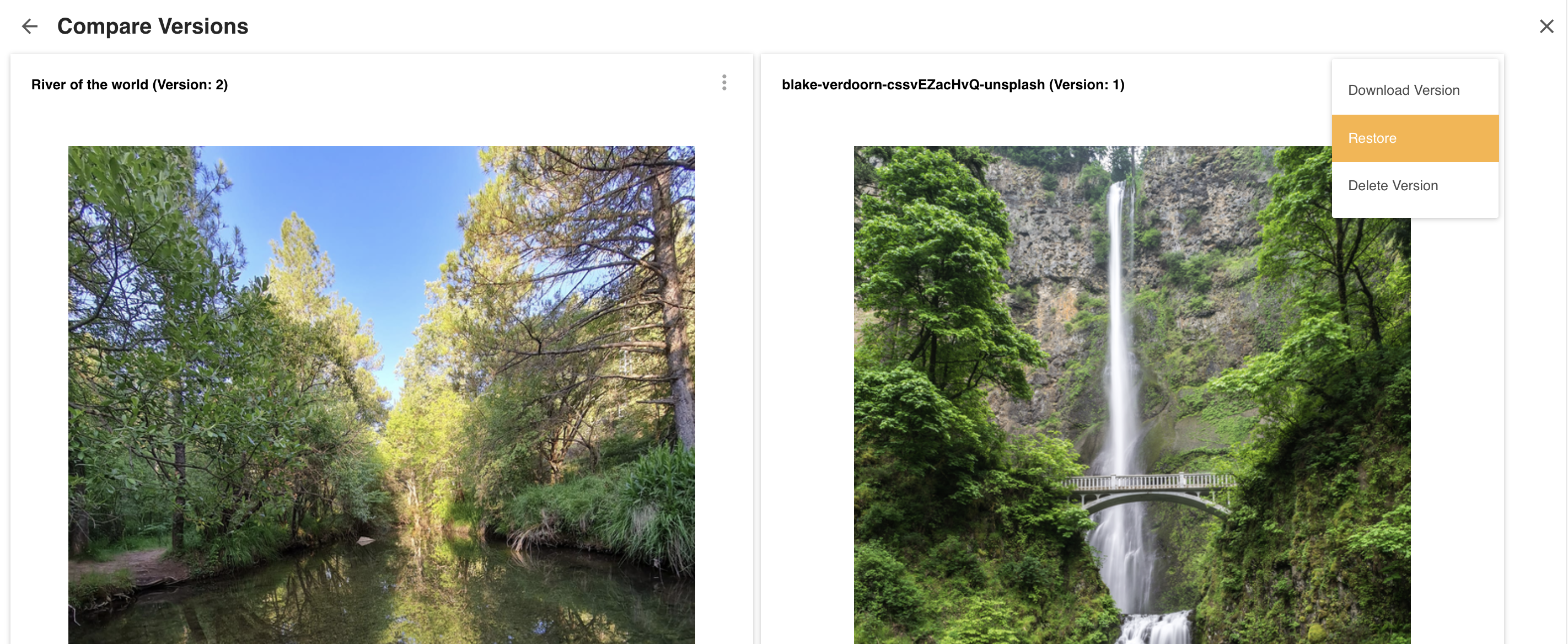
Click the Back arrow at the top of the page to be taken back to the Info Preview page.
Restoring Previous Versions
You may find you need to restore a previous version of an asset if it turns out the original version was preferred or needs to be made available instead of the newer version(s).
You can restore a previous version by going to the Info Preview page of the asset, then opening the Versions tab.
To restore a version, locate the version in the list and click the Restore this Version icon.
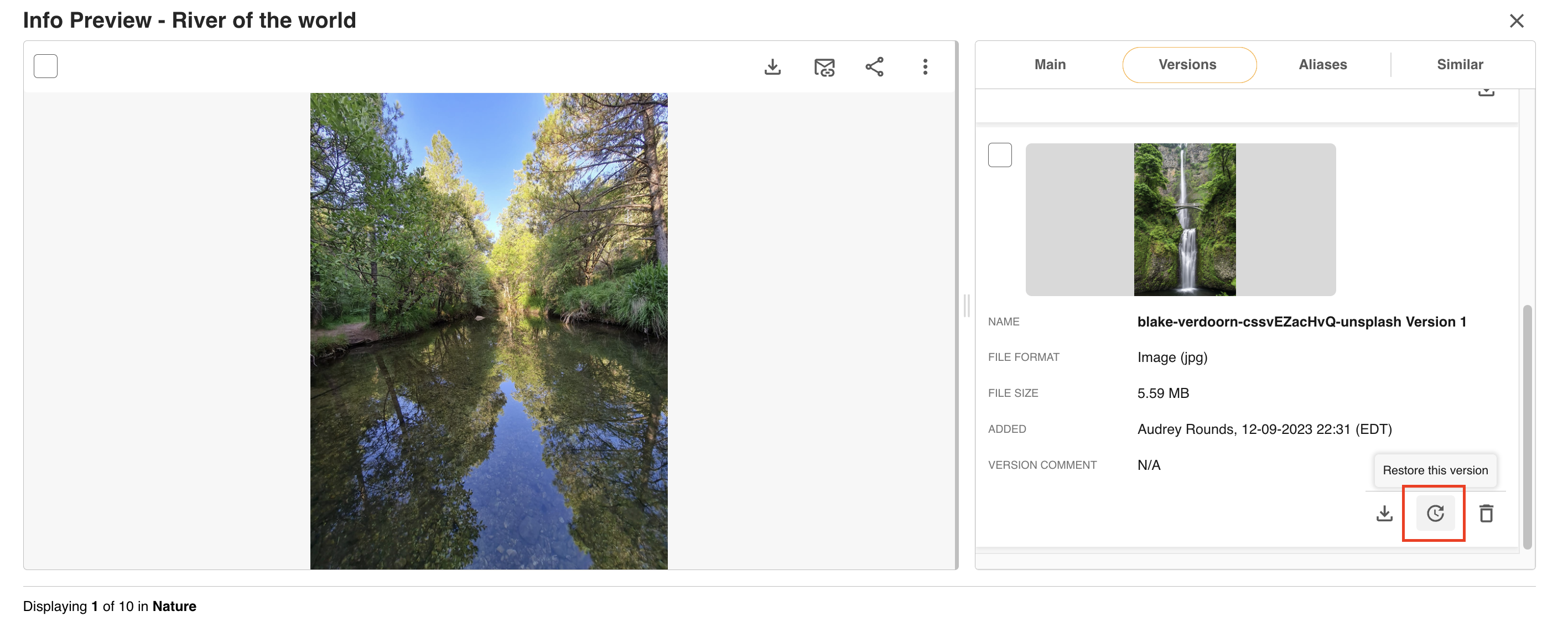
The restored version will become the most recent version number (current number + 1), and a Version Comment will be automatically added indicating the version this was restored from.

Note, users need at least Publish permission or higher and Access to Versions in their group permissions to restore a version of an asset.
Deleting Versions
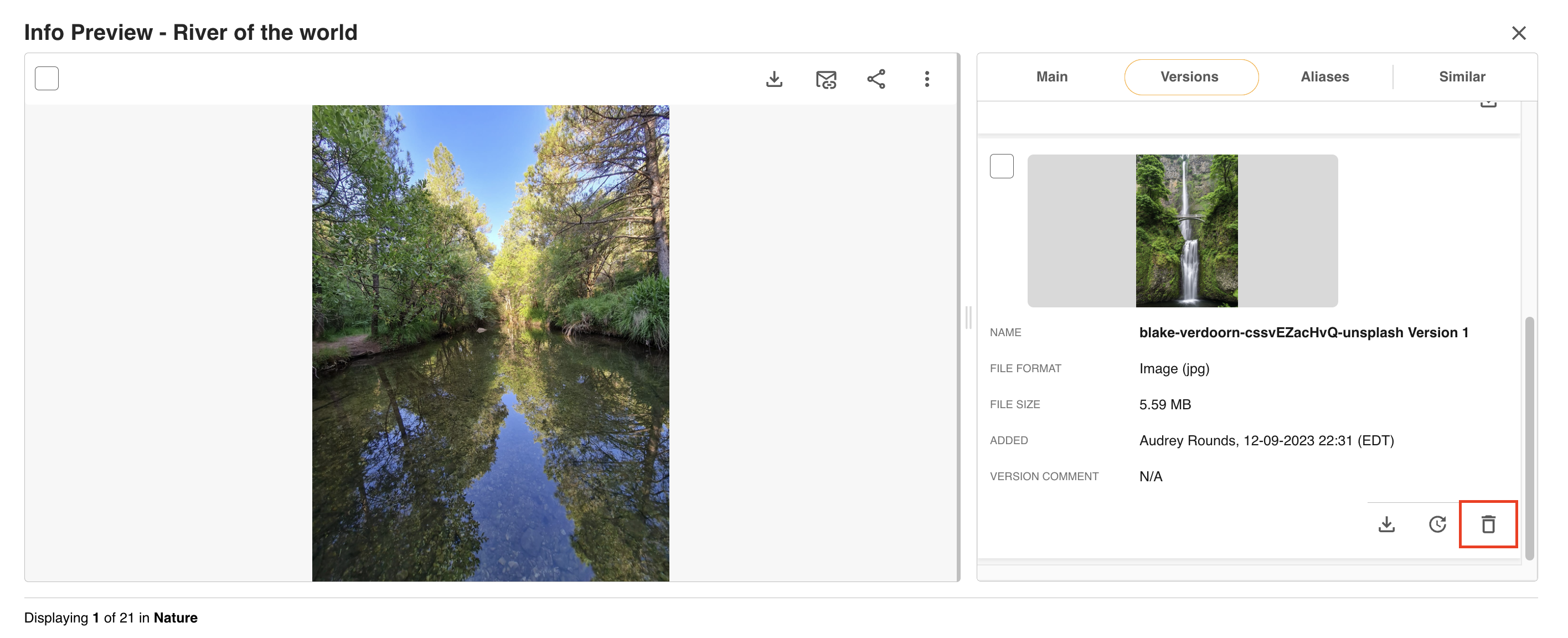
To delete previous versions, open the Info Preview page and click the Versions tab. Click the Delete icon to remove the version from the platform.
The following users can delete previous versions:
- Main Admins
- User groups with Admin permission on Versions and at least Preview permission on the relevant folder
Was this article helpful?
That’s Great!
Thank you for your feedback
Sorry! We couldn't be helpful
Thank you for your feedback
Feedback sent
We appreciate your effort and will try to fix the article