There are two ways to create an Agenda in IntelligenceBank.
Option 1 - Within the Agenda Module
Enter your Agenda module by clicking on the parent Agenda menu, which should appear along the top of your screen or within a dropdown in that section.
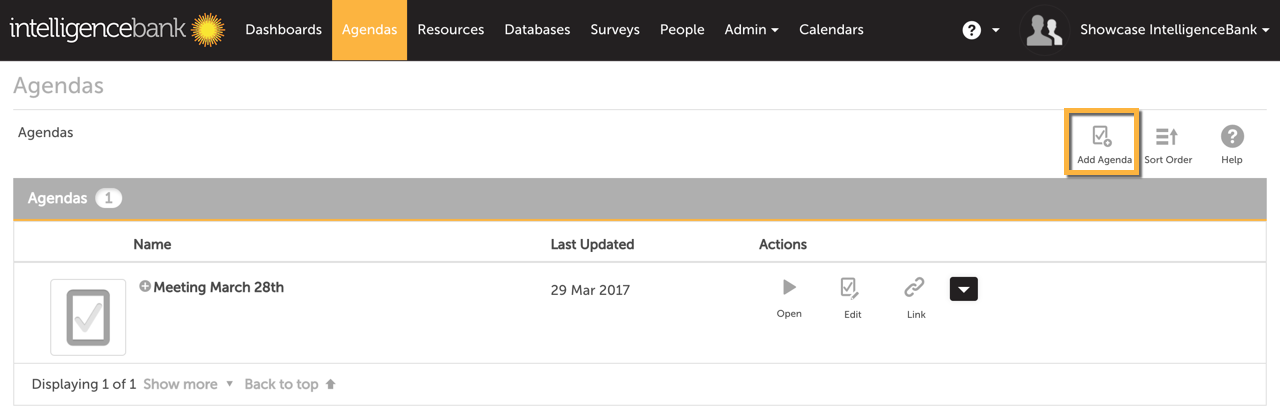
Once in the Agenda module, click the Add Agenda icon at the top right of your screen to start creating an agenda.
Option 2 - Within the Resources Module
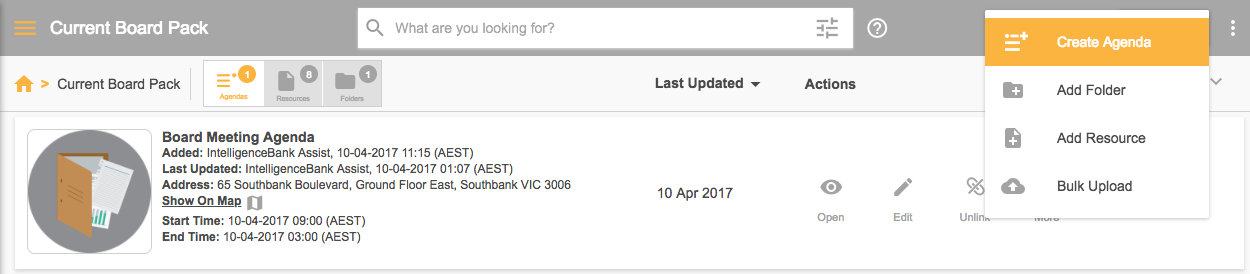
If you're within a Resources folder, you can also create an Agenda directly from that page. At the top right of your screen will be a small icon with 3 dots (the More icon). Clicking this will show a number of actions - select Create Agenda to open a new one in the Agenda module.
The Agenda Builder
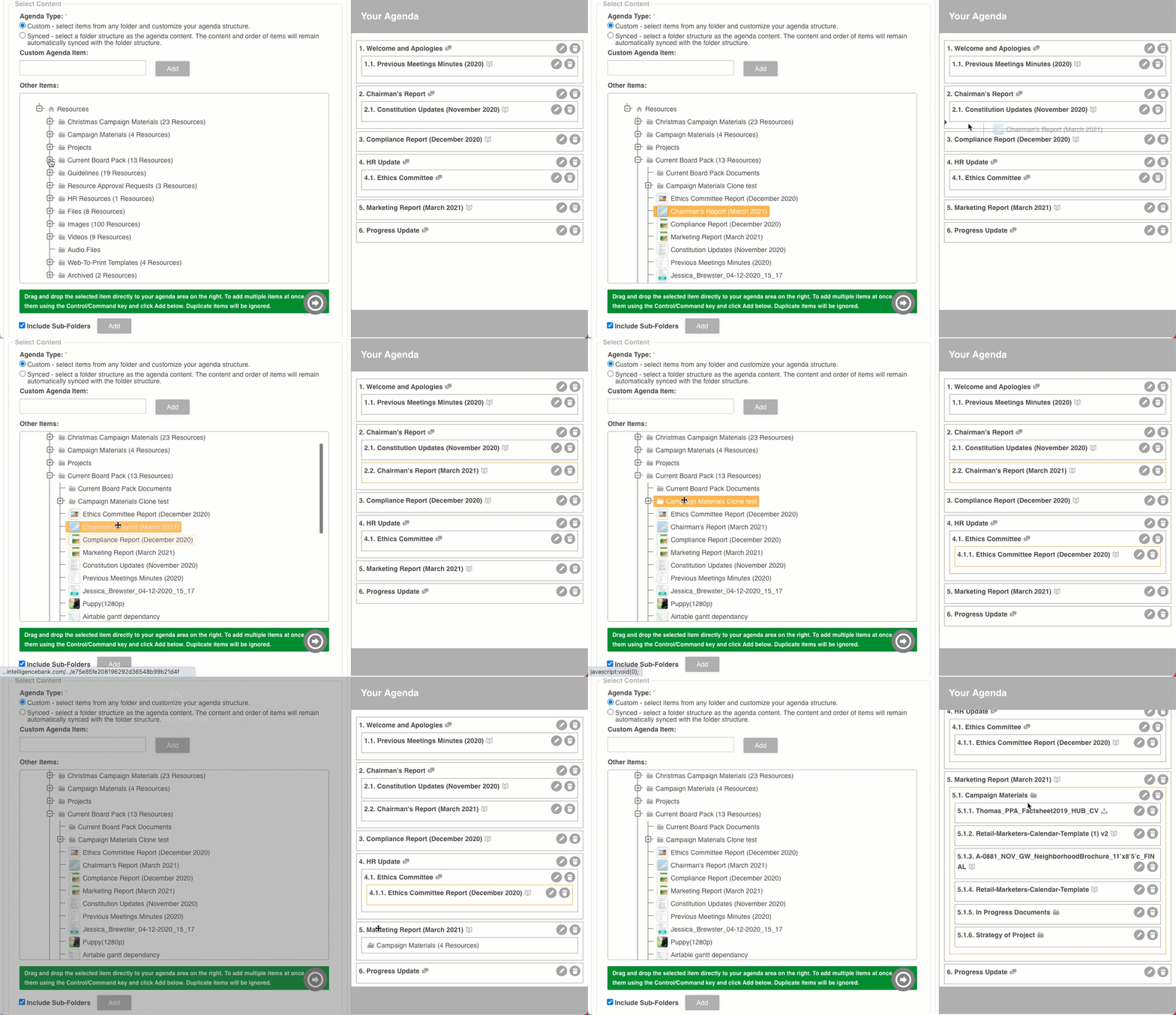
The Agenda Builder uses a split-screen view. The left side is for creating and selecting content. The right side is a preview of the Agenda, where you can re-order items and add times and descriptions. Folders and files from the left can be dragged and dropped to the desired location on the right.
On the left-hand side you must add an Agenda Name. You may want to include dates in the title to easily distinguish agendas if you have many.
You can also Link Calendar Events, connecting the meeting to an existing event in your Calendar module where an address and map are also displayed.

You can add a Custom Agenda Item, or select an item from your Resources to add as an agenda item. On the right-hand side you can also add an Item Description, times/duration, and Presenter information by clicking the edit icon next to each item.

At the bottom of the left side is Agenda Settings, where you can enable Automatic Numbering, select a custom icon for your agenda, and set Permissions.
Once finished, click Save to save your agenda.
Next
How to Add a Custom Agenda / Conversation Item
Related
Was this article helpful?
That’s Great!
Thank you for your feedback
Sorry! We couldn't be helpful
Thank you for your feedback
Feedback sent
We appreciate your effort and will try to fix the article