This article explains how to create a new prompt rule and how to edit an existing one directly in IntelligenceBank.
Table of Contents
Overview
Prompt rules (also called AI rules) are the only rule type you can create and edit directly in IntelligenceBank. Changes apply as soon as you save. There's no support ticket or approval step involved.
For every other rule type (disclaimer, logo or visual detection, source-of-truth, and legacy rules), see Requesting a Change to a Compliance Rule.
How Your Content Is Reviewed
When a prompt rule checks one of your files, it works from the text extracted from that file. This includes any text captured through OCR (optical character recognition) from scanned pages or from text that appears inside images. In other words, typed text, scanned text, and text found in images are all read and checked.
Who Can Do This
You'll need Admin permission on your IntelligenceBank site, and this feature needs to be switched on for your site.
Creating a New Prompt Rule
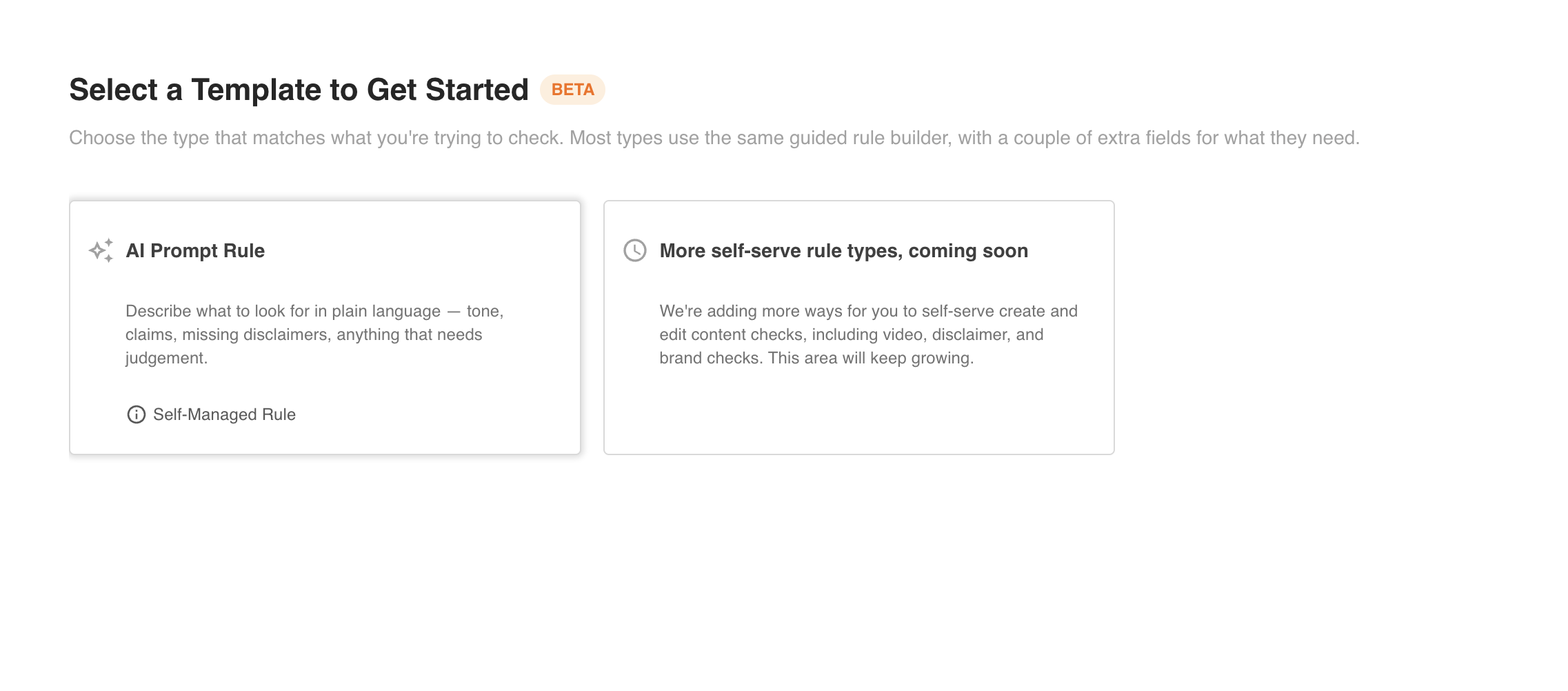
Prompt rules are the only rule type that can be created directly. Every new rule created this way is a prompt rule.
| 1Open Rules | Go to Admin > Risk Rules. |
| 2Start a new rule | Click + New Rule. |
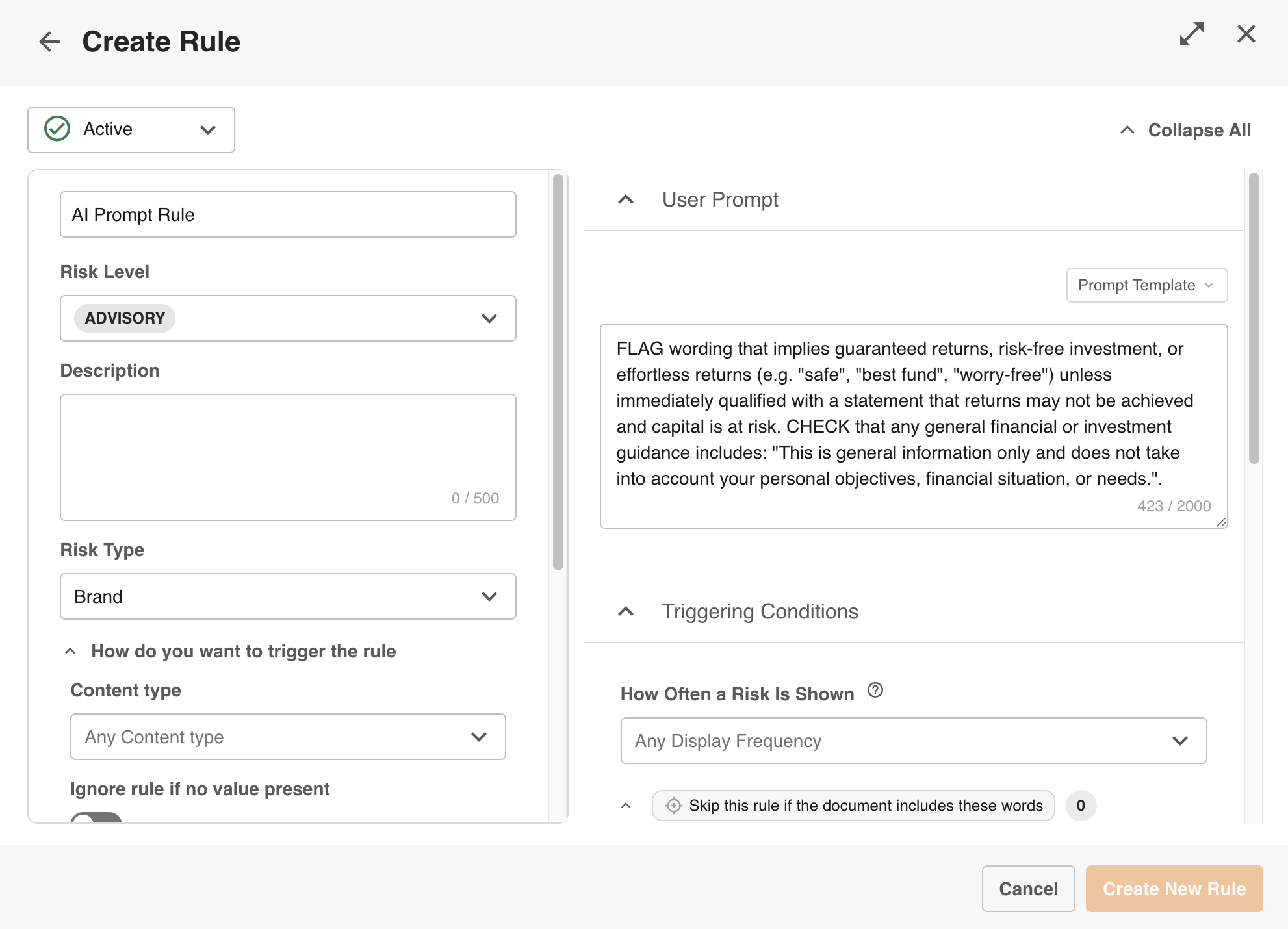
| 3Name and describe it | Fill in a Name, a Description, and a Risk Rating. |
| 4Write your prompt | In plain language, describe what you want the rule to check for. This is the Prompt field. |
| 5Save | Click Save & Apply. Your new rule is live immediately, with no review or approval step to wait on. |
Editing an Existing Prompt Rule
| 1Open Rules | Go to Admin > Risk Rules. |
| 2Open the rule | Find the prompt rule you want to change and click the pencil (Edit) icon. The form opens pre-filled with the rule's current setup. |
| 3Make your changes | Update the Name, Description, Risk Rating, or Prompt. |
| 4Save | Click Save & Apply. Your change is live immediately. |
Frequently Asked Questions
What content does the AI actually see when it checks my file?
The text extracted from your file, including text read via OCR from scanned pages or images. It doesn't see the original file as a whole (this is coming soon), and it can't check anything that has no readable text, such as pure design or layout choices.
Can I test a rule change before it goes live?
Not yet for prompt rules created or edited directly. This is on the roadmap. For now, save your change, check the result on a real file, and edit again if it needs adjusting.
Can I create or edit other rule types this way?
No. Direct creation and editing is available for prompt rules only. For disclaimer, logo or visual detection, source-of-truth, and legacy rules, see Requesting a Change to a Compliance Rule.
I don't see the New Rule or Edit options. Why?
You may not have the right permission, or this feature may not be turned on for your site. Contact your Customer Success Manager.
Does this affect my existing rule count or pricing?
No. This changes how you manage rules, not what you're charged for them. If your plan includes a rule count limit, that limit still applies to new rule creation.
Need More Help?
Contact your Customer Success Manager, or raise a support ticket through the Help Center.
Visit the Help CenterWas this article helpful?
That’s Great!
Thank you for your feedback
Sorry! We couldn't be helpful
Thank you for your feedback
Feedback sent
We appreciate your effort and will try to fix the article