This article explains how to request a change to a compliance rule, and how to view the history of change requests you've submitted.
Table of Contents
Overview
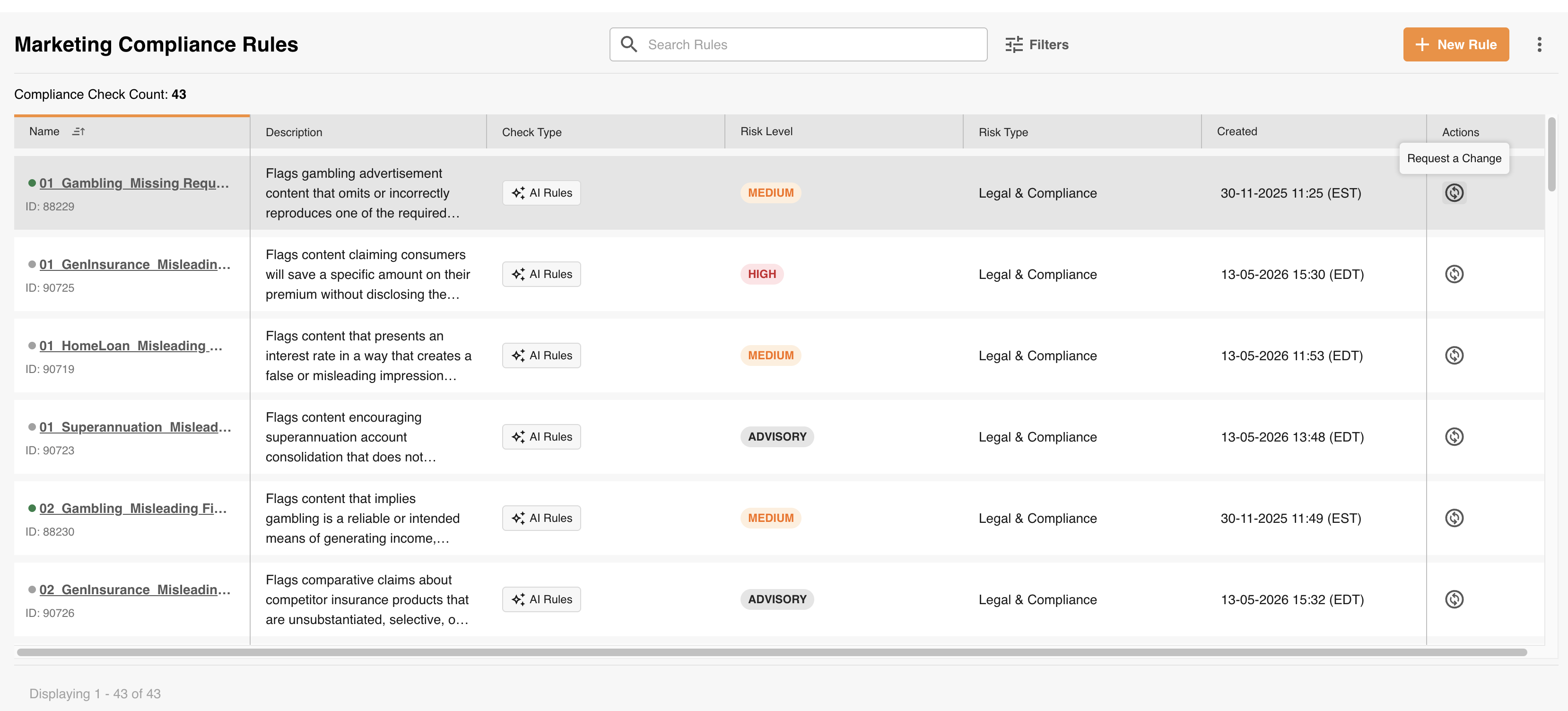
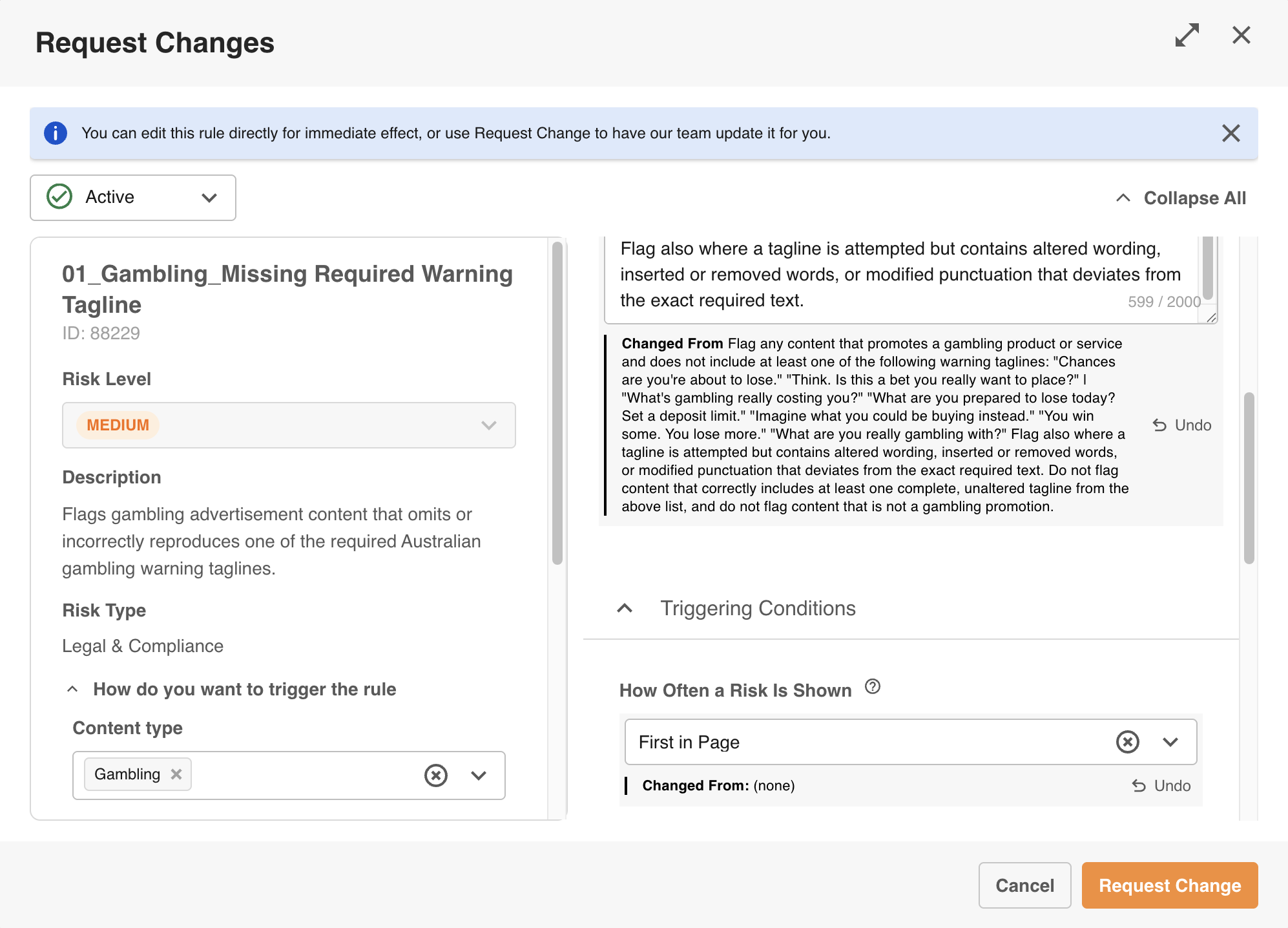
Most rule types (disclaimer, logo or visual detection, source-of-truth, and legacy rules) are changed by submitting a request to the IntelligenceBank Rules Team. The Request Change form shows exactly what's changing, field by field, before you submit it.
Who Can Do This
You'll need Admin permission on your IntelligenceBank site, and this feature needs to be switched on for your site.
Requesting a Change
| 1Open Rules | Go to Admin > Risk Rules. |
| 2Start a request | Find the rule you want changed and click Request Change. |
| 3Make your edits | As you change fields, you'll see a summary of exactly what's changing, with the old and new values side by side. |
| 4Add detail | Use the Additional Detail box for anything you can't express through the form fields. |
| 5Submit | Click Submit. Your request goes to the Rules Team, and both you and your account manager will receive confirmation. |
Viewing Rule Change History
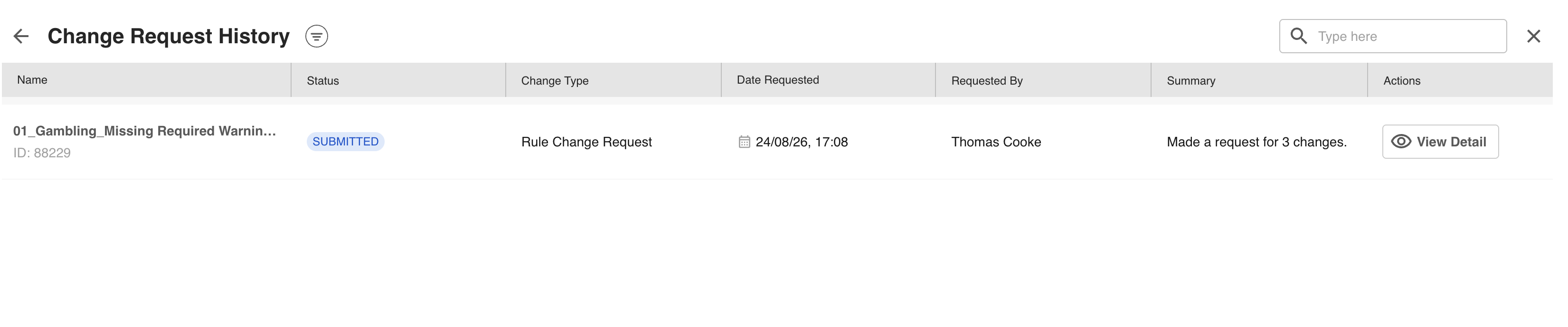
Click View History on the Rules screen to see every change you've requested through Request Change, including who requested it, when, and exactly what was asked for. You can search or filter by rule name, rule ID, or requester.
Frequently Asked Questions
What happens after I submit a change request?
The IntelligenceBank Rules Team reviews and applies it. Your request shows exactly what's changing, field by field, rather than a single free-text description, so the Rules Team can action it without going back and forth with you.
Can I create a brand-new disclaimer, logo, or source-of-truth rule myself?
Not directly. Self-serve creation is currently available for prompt rules only (see Creating and Editing Prompt Rules). Other rule types are still built by the Rules Team on request, using the same Request Change process described above. The Rules Team may reach out to you about more complex requests.
I don't see the Request Change or View History option. Why?
You may not have the right permission, or this feature may not be turned on for your site. Contact your Customer Success Manager.
Does requesting a change affect my existing rule count or pricing?
No. This changes how you manage rule changes, not what you're charged for them. Requesting a brand-new rule still counts toward your plan's rule count limit, if it has one.
Need More Help?
Contact your Customer Success Manager, or raise a support ticket through the Help Center.
Visit the Help CenterWas this article helpful?
That’s Great!
Thank you for your feedback
Sorry! We couldn't be helpful
Thank you for your feedback
Feedback sent
We appreciate your effort and will try to fix the article