Enabling auto created folders lets you to maintain a relationship between the brief/form and the associated assets (pending, approved and/or declined status). You may consider using this feature if, for example, you want assets developed off a campaign or creative brief to be stored in the Asset Library and linked to their brief.
To access the linked folder from your brief/form:
- Navigate to and select the required briefs/forms in the platform
- Search and select the individual brief/form
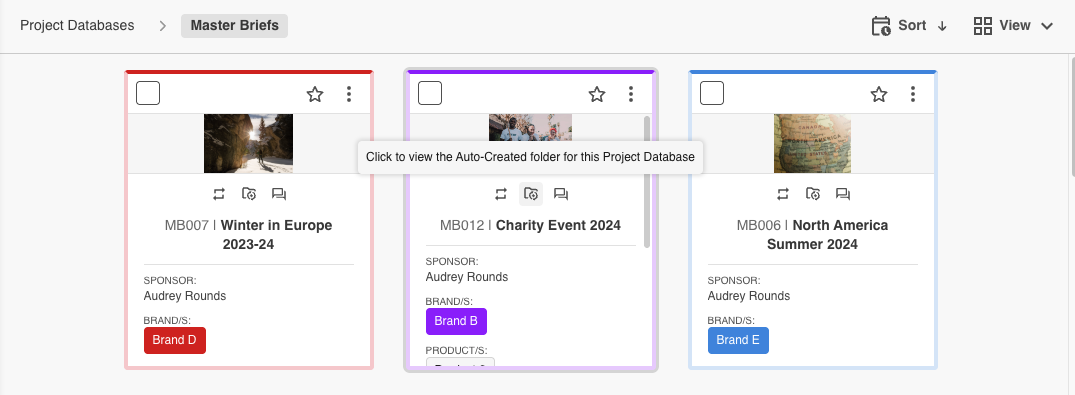
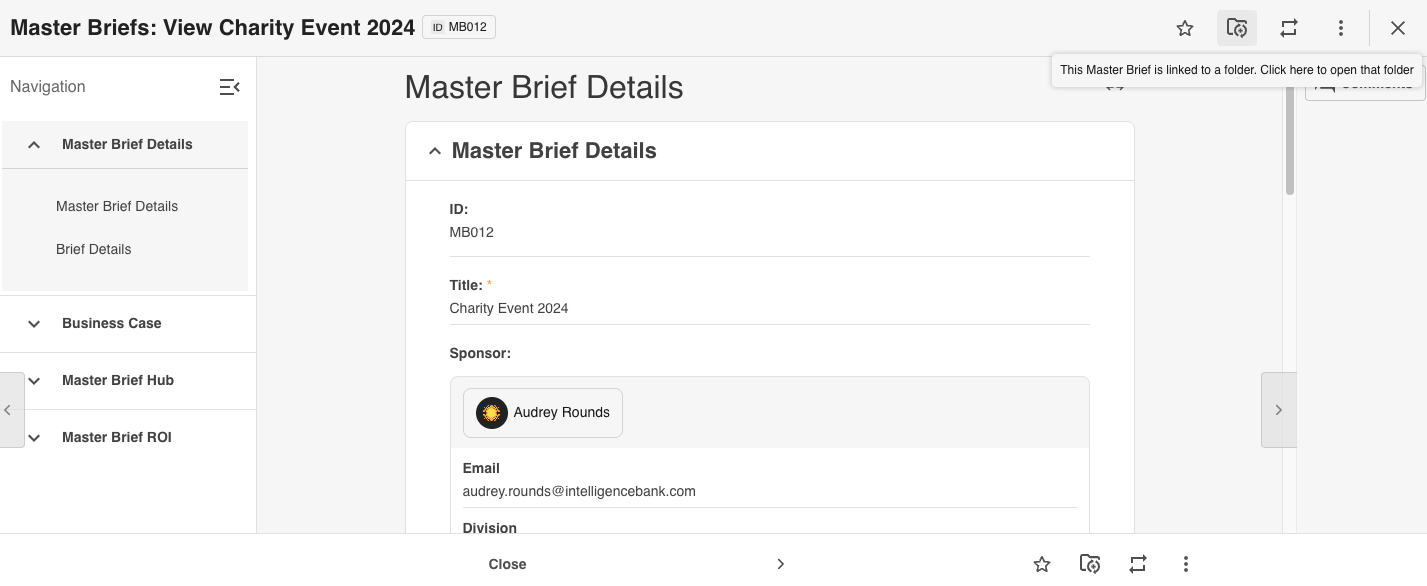
- The auto created and related folders are accessible via two options:
- Record card/thumbnail - auto created folder icon in the middle of the card
- Within the record - linked folder icon on the top right hand corner of the record
- Record card/thumbnail - auto created folder icon in the middle of the card
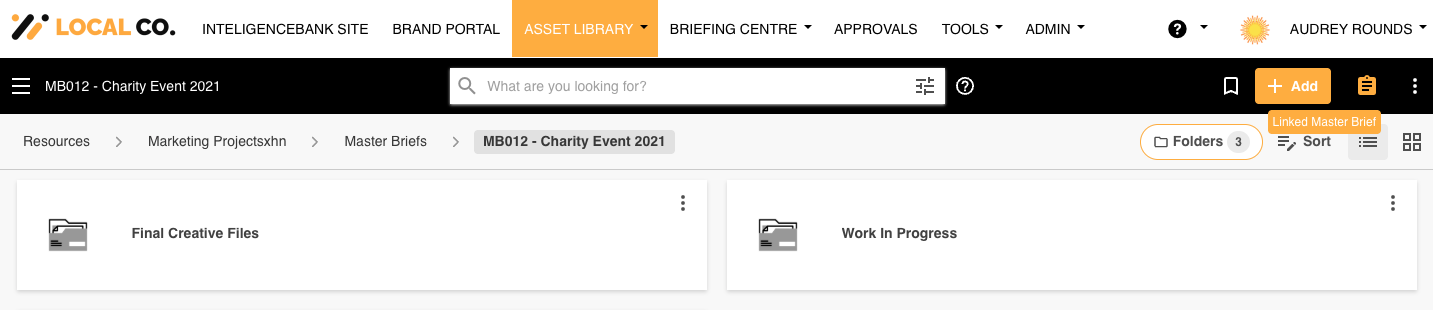
- Selecting either icon will take you directly to the linked folder content
- To be taken directly back to the brief, select the linked brief icon on the top right hand side of the page under your user account name
Further information - click here
Was this article helpful?
That’s Great!
Thank you for your feedback
Sorry! We couldn't be helpful
Thank you for your feedback
Feedback sent
We appreciate your effort and will try to fix the article