You can copy a Brief or Form which can be useful if you need to fill out multiple records that contain mostly the same information. This is great for creating efficiency as it allows you to make small changes to a brief that's already created instead of having to create entire new ones from scratch.
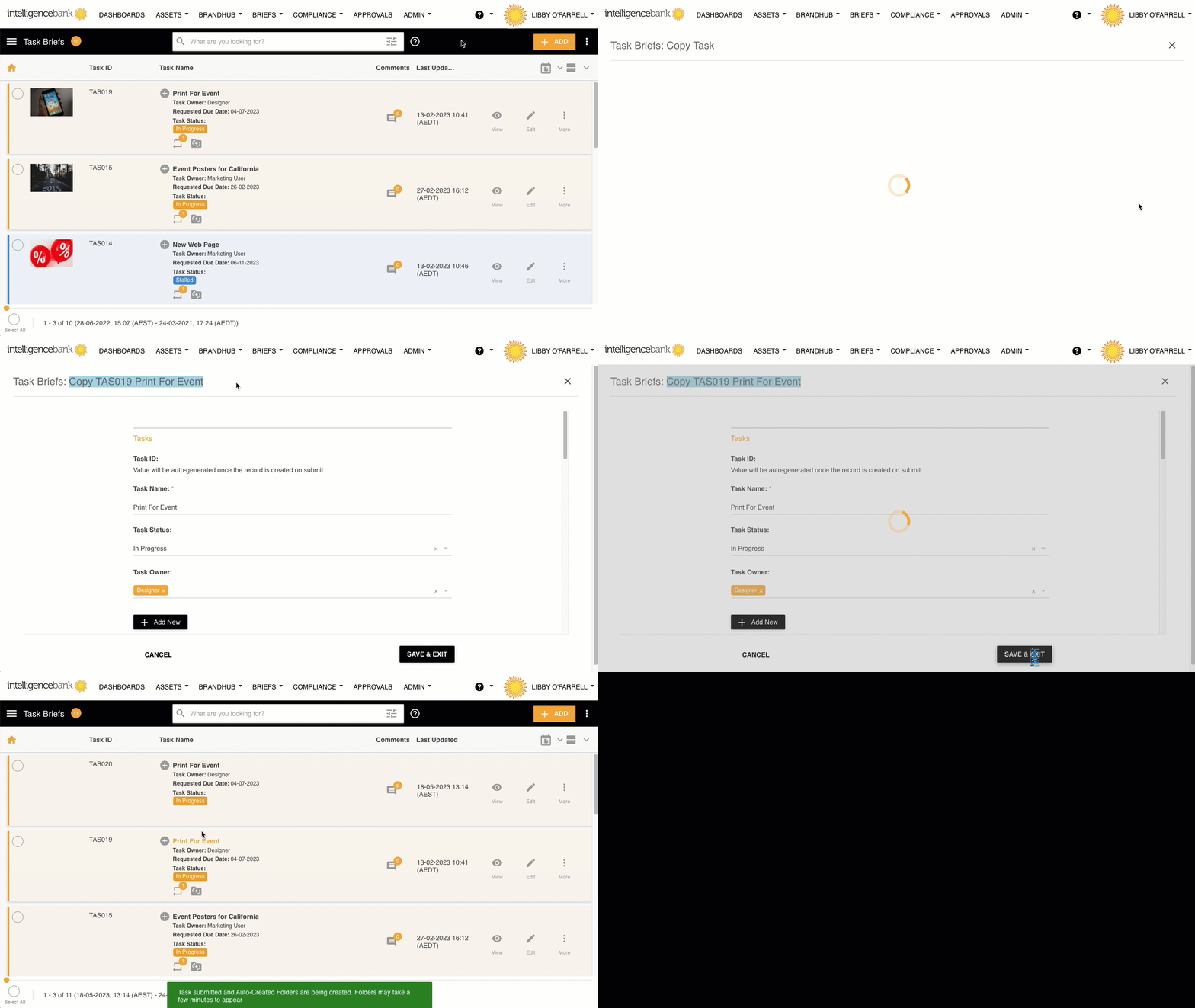
Follow the steps below:
- Navigate to the brief/form record you wish to copy
- Click the three dots menu (⋮) view more actions menu drop-down
- In the drop-down locate and select "Copy Brief"
- A duplicate will open up - containing the original content, including any uploaded assets
- Make any required edits
- Submit the brief to save and to progress to approval (if applicable)
Key Points:
- Single briefs or forms - users can copy the entire nominated form fields
- Not all fields may be copied from the original- what copies over depends on what Admins have configured in the Brief/Form's settings. To read more about how to determine which pages/fields can be copied, please read our article here
*Please note that the brief/form must have the ability to copy enabled by a Main Admin
Was this article helpful?
That’s Great!
Thank you for your feedback
Sorry! We couldn't be helpful
Thank you for your feedback
Feedback sent
We appreciate your effort and will try to fix the article