Sometimes you may need to edit a brief or form after it has been created or completed to make updates or correct errors on the brief.
Follow the steps below to learn how you can edit a brief/form.
Note: You need to have Edit permission in order to edit a brief. Please check with your site administrator if you have questions on whether you have this permission level.
There are two main ways to make an edit:
-
From the brief/form homescreen:
- Click the Three Dots Menu (⋮) on the particular brief/form record you wish to edit, and then click Edit
- Make the required changes
- Scroll to the bottom of the page and click SUBMIT, SAVE AND EXIT, SAVE AS DRAFT or SAVE AND NEXT. The selections you see will depend on your brief's configuration.

-
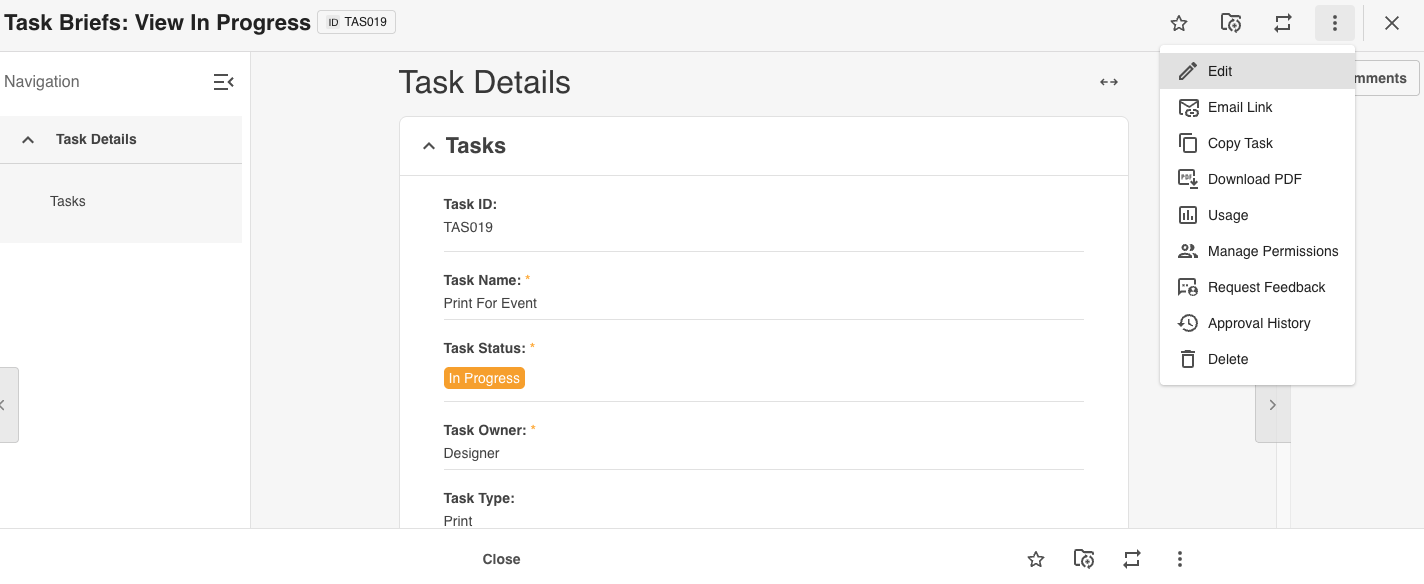
From within the individual brief or form
- Select the brief or form you wish to edit
- In the top right hand corner, click the Three Dots Menu (⋮) and click Edit
- Make the required changes
- Scroll to the bottom of the page and click SUBMIT, SAVE AND EXIT, SAVE AS DRAFT or SAVE AND NEXT. The selections you see will depend on your brief's configuration.
Was this article helpful?
That’s Great!
Thank you for your feedback
Sorry! We couldn't be helpful
Thank you for your feedback
Feedback sent
We appreciate your effort and will try to fix the article