Aliases provide the ability to create a linked copy of an existing asset in another folder.
When you create an Alias, the Alias will share metadata from the original asset. Users will not have the ability to edit the actual Alias. If you edit the original asset, the changes will apply to the Alias. Likewise, if you add a new version of the original asset, that new version will display across any Aliases within the platform as well.
Contents
Relevant Permissions
- Users with Publish or Admin permission are able to create an alias.
- Viewing an alias requires at least Preview permission.
- Users with Publish or Admin permissions will also be able to view Indicator Icons for Aliases and Original Files with an Alias.
Key Benefits
Aliases let organisations create copies of their assets at a fraction of the storage space.
The most common use cases for Aliases are:
- If there are multiple user groups who need access to the same assets, but the original assets are stored in a folder that other groups do not have access to. Assets can be aliased into folders the other groups do have access to, so they can download or share.
- Assets may fall into multiple "categories" and could technically be saved in multiple folders according to the customer's organisation system. Instead of having to choose only one folder, or upload duplicate files, Aliases can be leveraged.
How to Create an Alias
To create an Alias, you can either use the Bulk Actions options, or do this on a single asset.
On a Single Asset
| 1Navigate to the asset | Navigate to the desired asset you'd like to create an Alias of. Click the three vertical dots against the asset. Within the action menu, select Create Alias.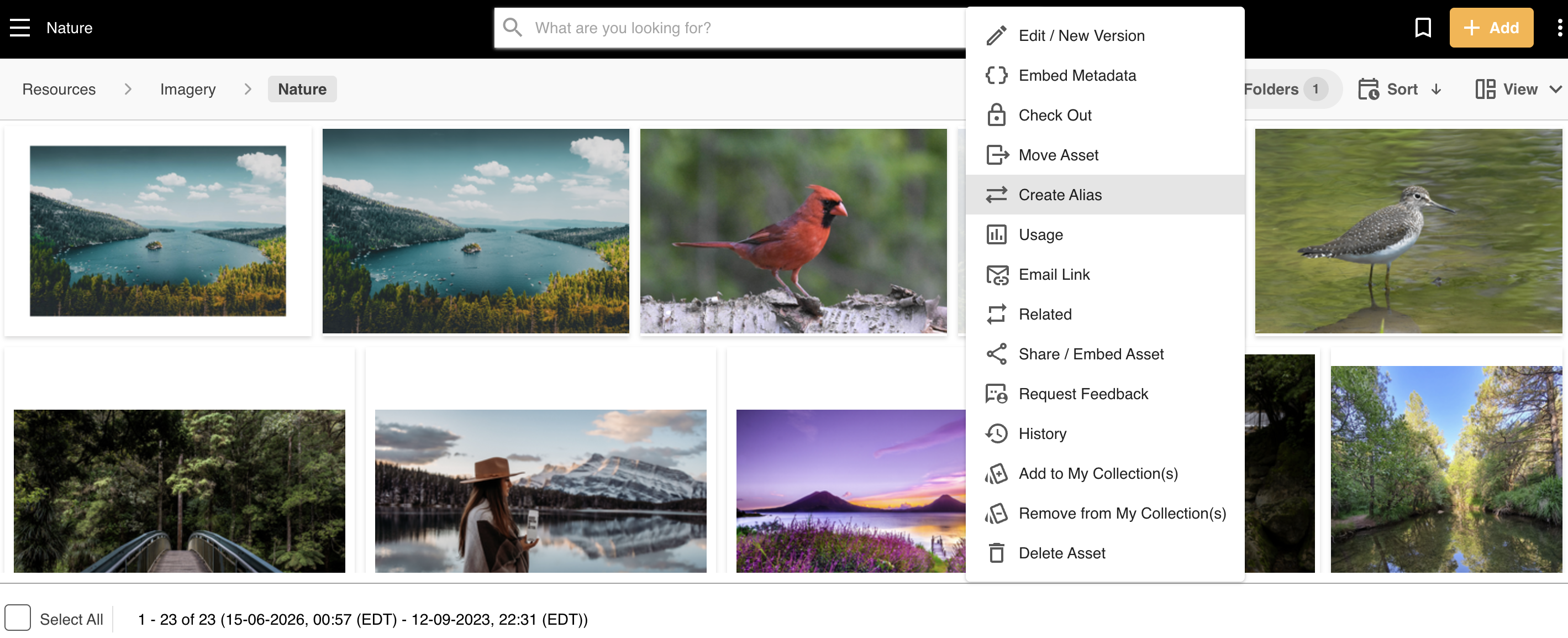 |
| 2Select a destination folder | A window will then open with the folder structure to your Asset Library. Select the folder where the Alias should reside. You can click the '+' buttons to delve into subfolders if needed. Your current folder, as well as any folder you don't have Publish permission on, will be disabled in this list.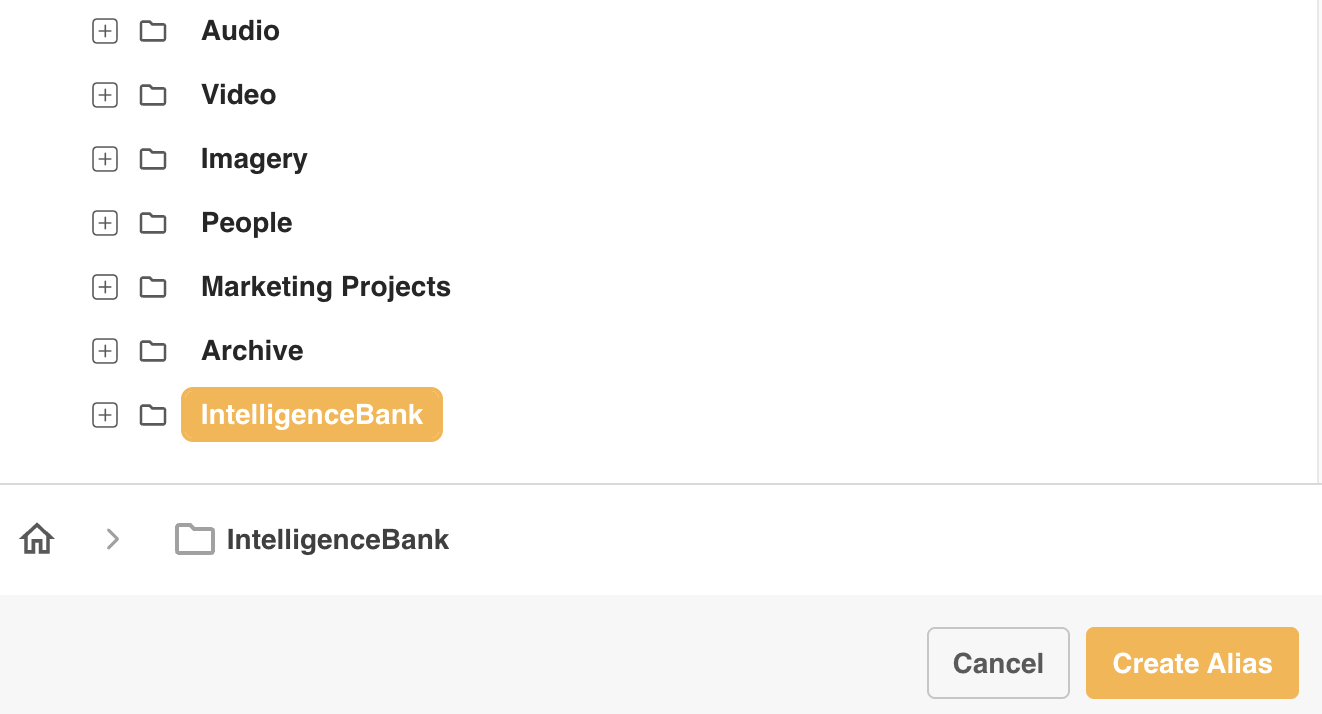 |
| 3Create the Alias | Once you've selected the folder, click Create Alias. |
Bulk Creating Aliases
| 1Select your assets | Select all of your desired assets, then use the Bulk Actions bar to select Create Alias.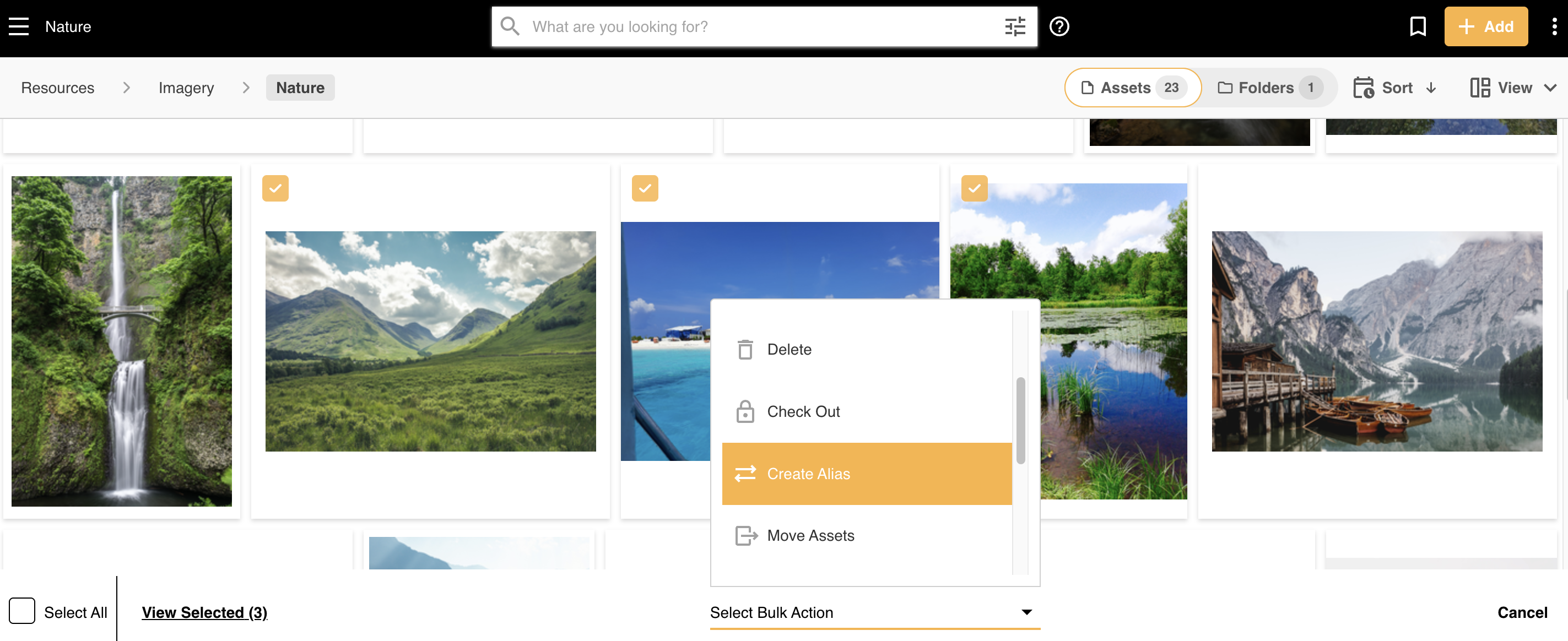 |
| 2Select a destination folder | A window will then open with the folder structure to your Asset Library. Select the folder where the Alias should reside. You can click the '+' buttons to delve into subfolders if needed. Your current folder, as well as any folder you don't have Publish permission on, will be disabled in this list.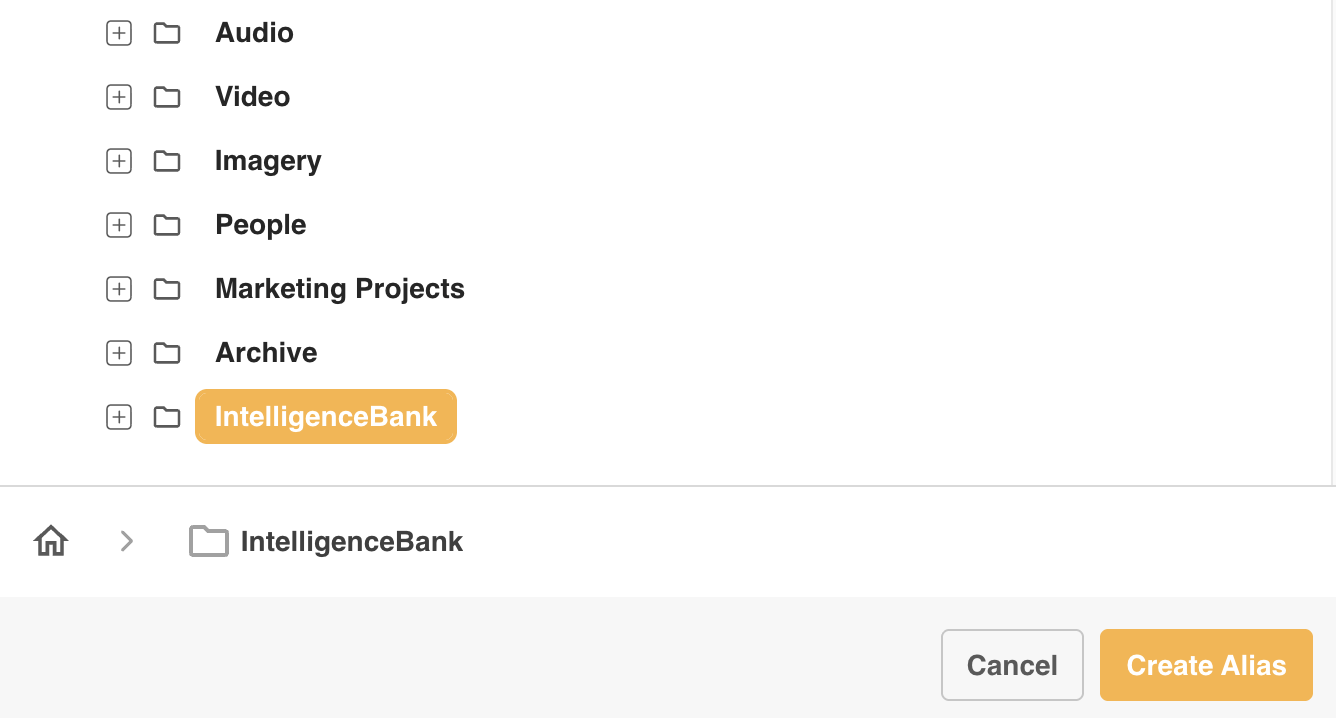 |
| 3Create the Aliases | Once you've selected the folder, click Create Alias. |
Alias Indicators
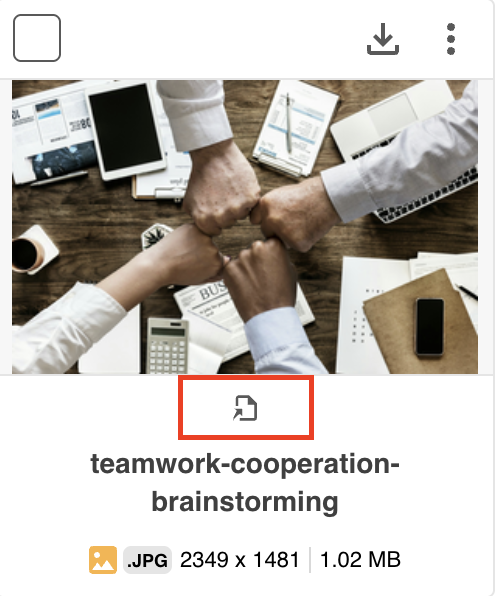
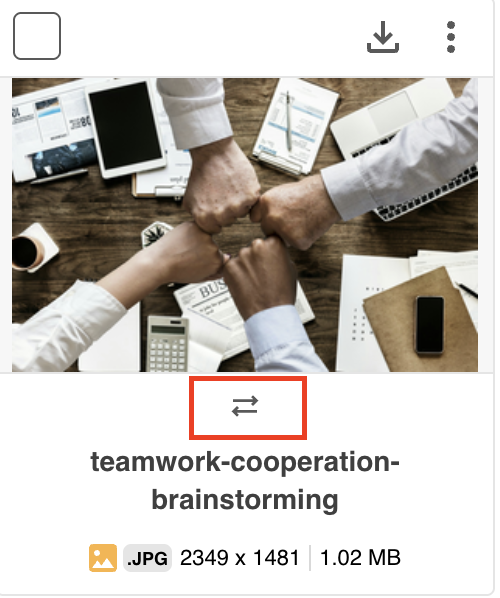
If you have the required permissions, (Publish and/or Admin), you will be able to view indicator icons against your files.
This helps you determine whether an asset you're viewing either has an alias in another folder, or is an alias itself.
If the asset has an Alias (ie: it is the original,) you will see this indicator:
If the asset is an Alias, you will see this indicator:
Viewing Aliases on Info Preview
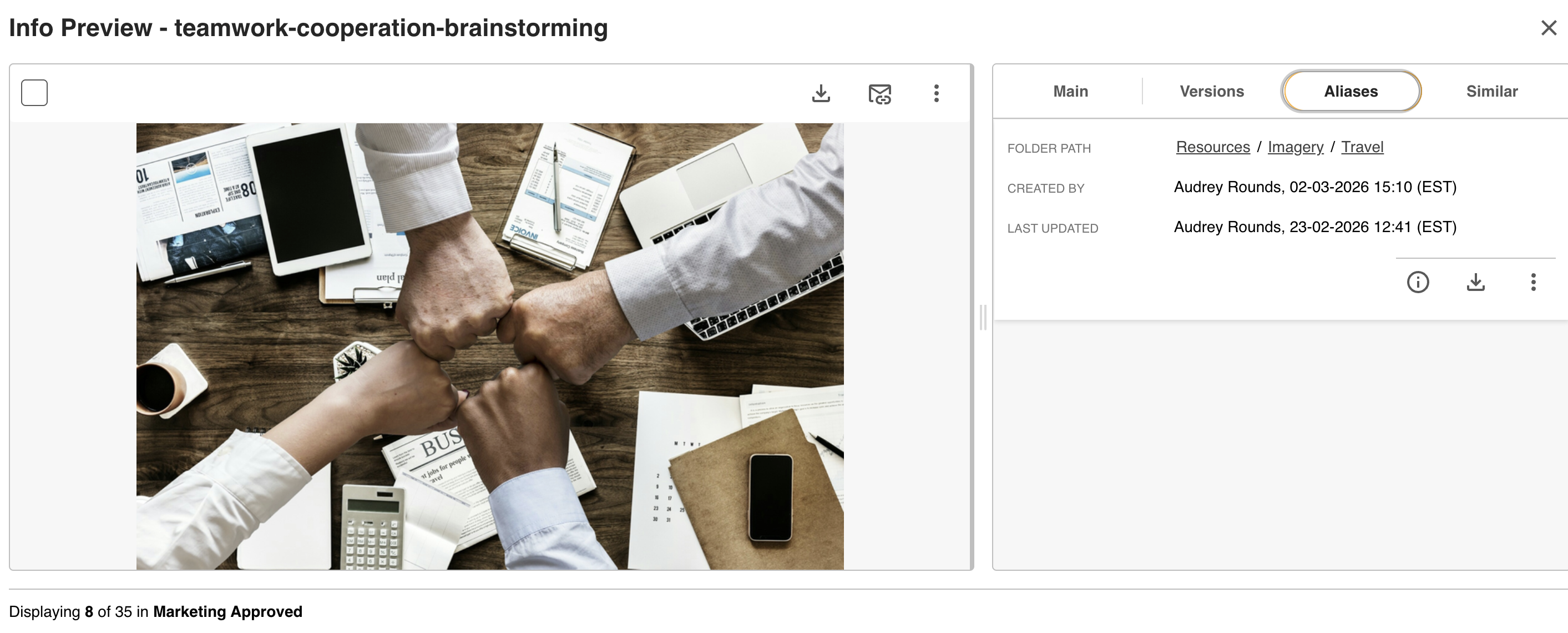
When viewing an original asset's Info Preview page, you will see an Aliases tab. Click on the tab, and it will display the Folder Path for each Alias the asset has, along with when the Alias was created and last updated and by whom. You will also be able to view the Alias's Info Preview page, download, and access various other actions directly from this view.
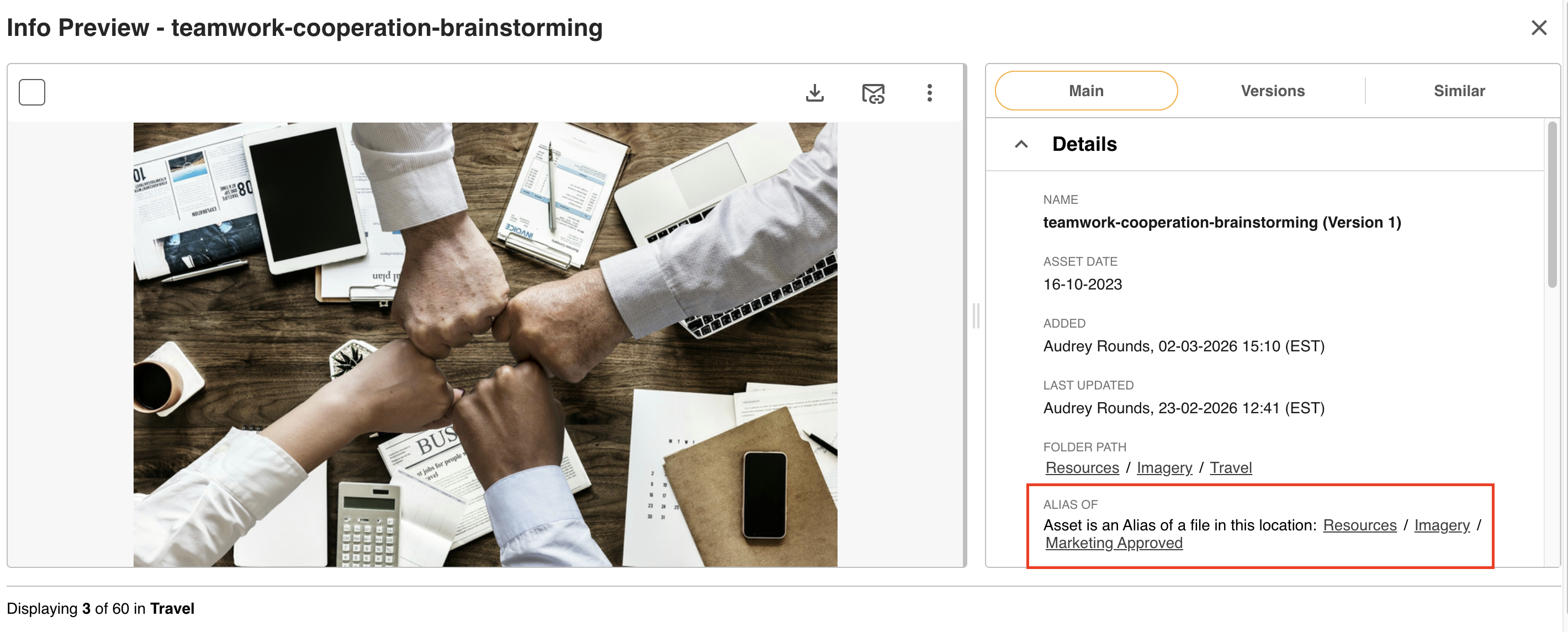
If you are viewing an Alias's Info Preview page, you will see a field called Alias Of in the Details section. This displays the folder path to the original asset.
Important Considerations on Aliases
The following asset types cannot have Aliases:
- Web2Print Templates
- WebURLs
- Embedded Creative Templates
Frequently Asked Questions
What happens if you delete an asset that has Aliases?
Both the original and any Alias(es) will get deleted from the platform.
What happens if you delete an Alias?
The Alias will be removed from the platform, but the original asset remains.
Are Aliases included in search results?
By default, both Aliases and their original assets may be included in search results, depending on your search location, and the folders both the original and Alias reside in. You can however apply a custom rule filter to filter out any Aliases (or originals) as needed. To learn more about how to do this, refer to the Custom Rules section of the article here.
Are Aliases reportable?
Yes, you can create and pull a report on Aliases within the platform by leveraging Data Report Conditions (configuring by Type) to display a report of just Aliases. You can also include Type as a data point/column within a data report. To learn more about data reports, please reference this article here.
Can an asset have multiple Aliases?
Yes
Was this article helpful?
That’s Great!
Thank you for your feedback
Sorry! We couldn't be helpful
Thank you for your feedback
Feedback sent
We appreciate your effort and will try to fix the article