Within the IntelligenceBank DAM/Asset Library, you can choose to display supported assets with a watermark logo or user details.
Table of Contents
Key Benefits
Watermarking digital assets helps ensure ownership is protected by your organisation and deters unauthorised use. Displaying assets with a watermark makes it harder for others to claim ownership or potentially misuse/misattribute your content.
How to Set Up a Watermark
Main Admins can set up a logo to display as a watermark on assets by navigating to Admin > Templates, then scrolling down to the Watermarking section. Here, they can set the following options:
- Watermark Logo: Upload a logo file to be used as the watermark.
- Watermark Text: Input custom text to appear as part of the watermark
- Watermark Lines: Add lines to the watermark for additional security to your watermark logo.
- User Details Watermark Type: When using User Details as a Watermark decide if you want Repeated watermark stamps of the current user's details, or one Central one
- Watermark Opacity Level (15-99%): Set the opacity level for the watermark logo (e.g., 50%).
- User Details Watermark Opacity Level (15-99%): Adjust the opacity level specifically for watermarks that include user details (e.g., 80%).
Watermark Options in General Settings
Within Admin > General Settings, there is a Watermark Options setting. This determines the types of watermarks that can be applied to the assets in your platform.
The options are:
- Both: Allows either image-based or user detail watermarks to be used.
- Image: Only image-based watermarks are used.
- User Details: Only user detail-based watermarks are used.
- None: Disables watermarking.
Folder-Level Watermark Settings
On a folder level, Admins can configure the Force Watermark option in the Folder Settings (Advanced Options). Consider forcing watermarks if you want to ensure watermarks apply (or are hidden) across all assets within the folder, as opposed to leaving it up to the users uploading or editing the asset to apply a watermark.
The three options are:
- Force Display: Always shows a watermark on assets within the folder.
- Force Hide: Always hides watermarks, regardless of the asset's origin (e.g., aliases).
- Asset/Resource Level: Displays a watermark only if the asset or its source alias has one.
How to Apply a Watermark to an Asset
If a folder has Asset/Resource Level selected in the Force Watermark setting, then users with Publish or Admin permission can choose to apply a watermark to assets.
To apply a watermark (either from uploading or editing), find the Watermark Type field and select Image or User Details.*
Image will display the watermark logo that was added in the Admin>Templates area. User Details will display the name and current date/time stamp of the user who is viewing the asset.
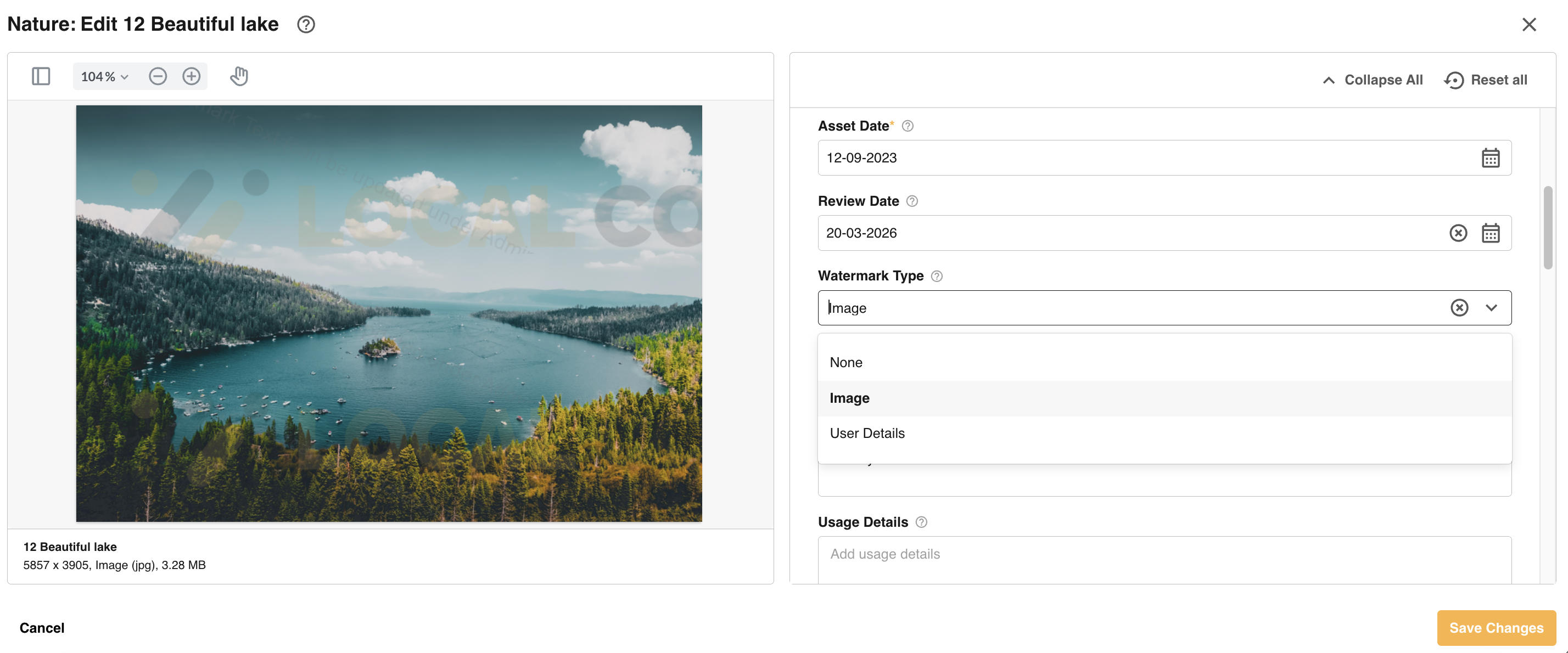
*Note that whether you see Image and/or User Details as options depends on what Watermark Options were selected in the Admin > General Settings area of the platform.
Once the asset is saved, users will be able to preview (and for supported files, download) it with a watermark displayed.
Key Things to Note About Watermarking
There can only be one watermark logo used within the platform. There is no way to use different watermark logos for different folders or assets.
The following asset types will display watermarks while being previewed in the platform (if watermarking has been enabled):
- Images
- Documents
The following asset types will display watermarks when downloaded (if watermarking has been enabled):
- PDFs
- Videos (but only if a user is doing a Custom Download and has Enabled a Watermark) Otherwise, videos do not download with a watermark by default
Images will not download with watermarks.
Assets shared publicly via Share/Embed links will not display watermarks.
Images and Documents shared publicly via Email Public Share Link will display watermarks when viewed on the shared link. However, they will not be downloaded with watermarks.
Was this article helpful?
That’s Great!
Thank you for your feedback
Sorry! We couldn't be helpful
Thank you for your feedback
Feedback sent
We appreciate your effort and will try to fix the article