Assets can be moved from one folder to another if you have Publish permissions or higher on both the current, and destination folder.
Table of Contents
Moving assets can be primarily performed from:
- Within a folder
- From search/filter results
- From the Info Preview page for an asset
Moving a Single Asset
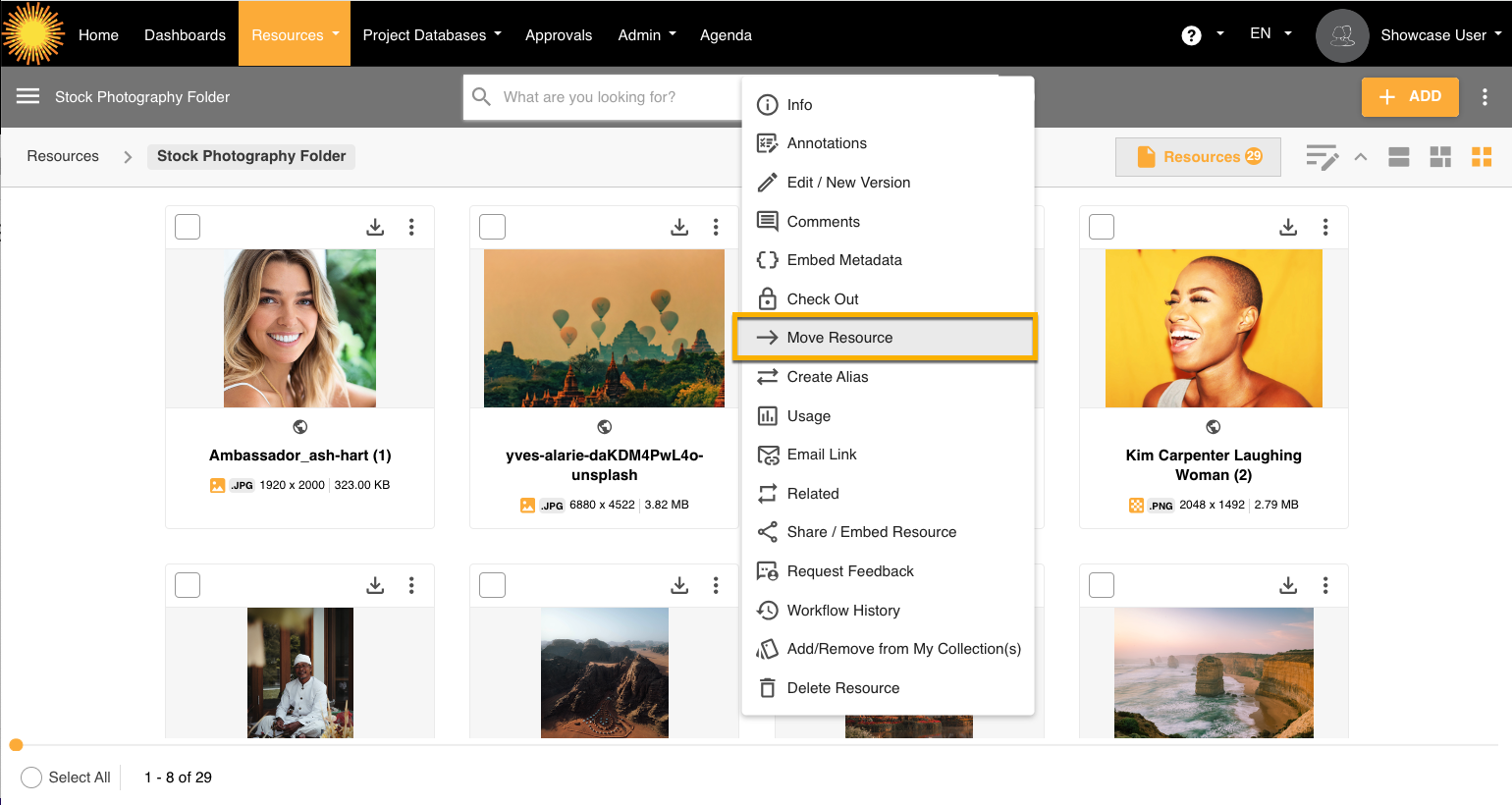
To move an asset, click on Move Resource (or Asset) from the dropdown action menu.
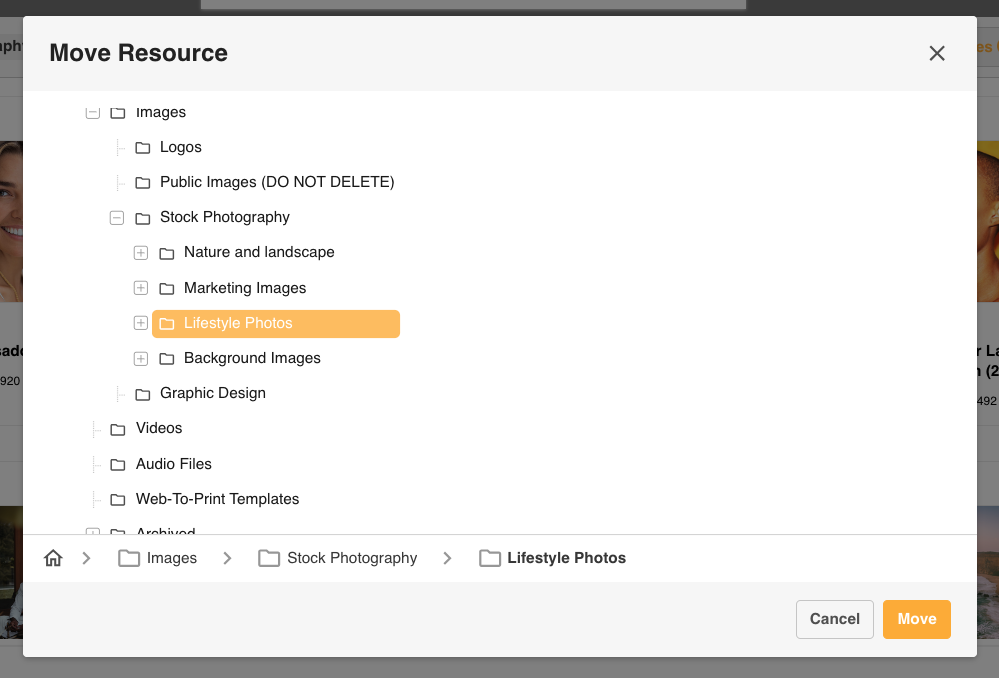
A pop up will appear with the folders where the file can be moved into. Click on the desired folder and then click the Move button. The asset will then be moved to that folder accordingly.
Moving Assets in Bulk
The Move Bulk Action option gives a user the ability to move multiple assets at once, instead of one-by-one.
You can move up to 300 assets at a time.
Assets can be bulk moved from either within a folder location, or from a search/filter results page (which may involve moving assets from different source folders together to a single new destination).
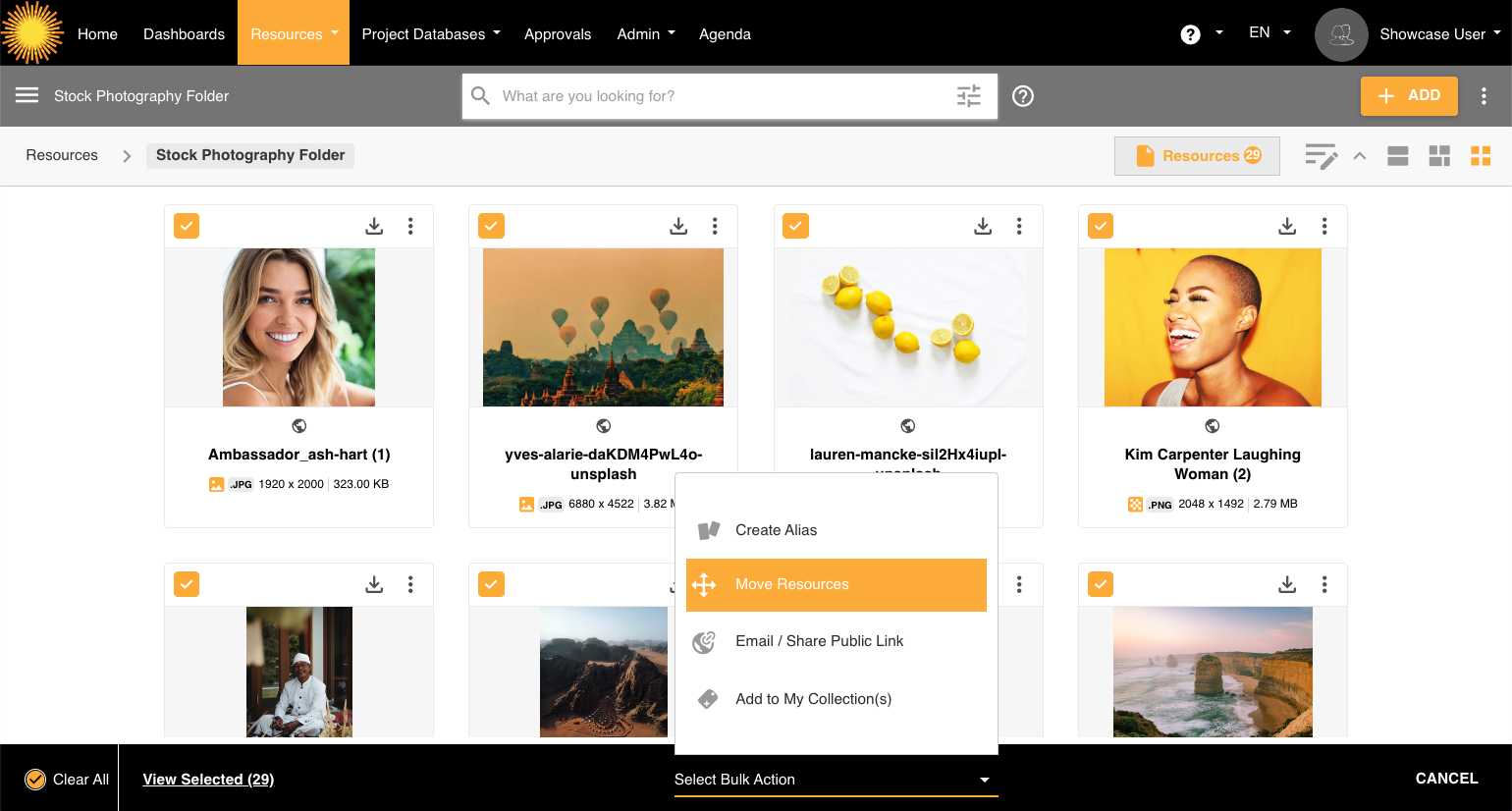
To do this, select the checkbox next to each asset on Card and List Views, or on hover on Mosaic View. Then, from the Select Bulk Action menu click Move Resources (or Assets).
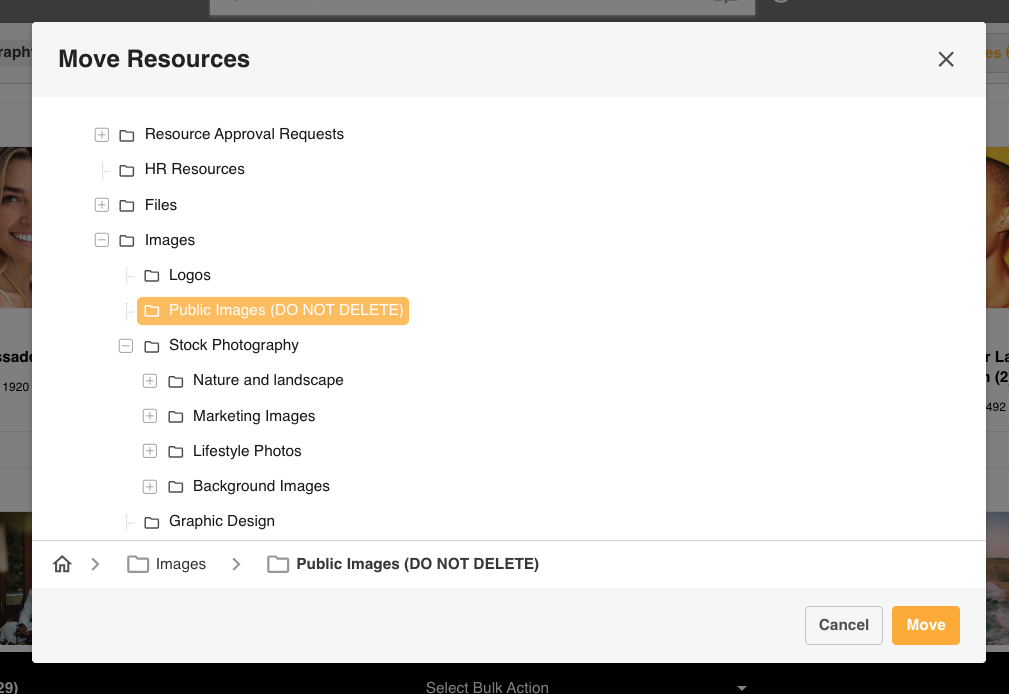
A pop up window will appear, where you can select the folder you wish to move the assets to. Click on the desired folder and then click Move.
Who can Bulk Move Assets?
Users require Publish or Admin level permission on a folder to be able to move its assets. Likewise, the same level of permission is required on the desired destination folder.
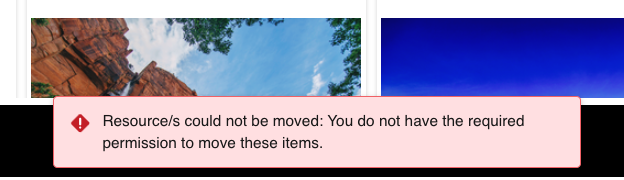
Users who cannot bulk move all assets they selected via search/filter results will be notified when they click on the Bulk Move action, and no folder tree will open:
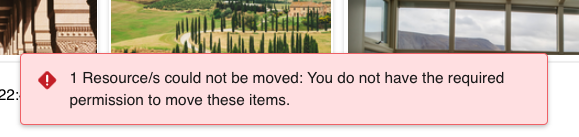
Users who have permission to move some, but not all, assets they have selected in bulk via search/filter results will see snackbars informing them of this after they have successfully moved the items they had permission to:
Users who have permission to move an asset from its current folder will be shown the below in the folder tree for any possible destination folder they lack permission to move into:

Note that permissions also factor heavily into what users can see in the folder tree. If they have access to a top level folder, for example, not its sub-folder, but then have access again to the next level down, the user will only see that top level folder. (The 'Branch' cuts off at the point where a user loses all permission.)
What Assets Can and Cannot be Moved?
All asset file types are supported for move, with the exception of Office Online 'Working Files'. This feature is included in the Microsoft 365 Create + Edit integration, which is typically a separate add on. Please speak to your dedicated Customer Success Manager if you have any questions about whether this is included in your platform.
There are some scenarios where even a Main Admin cannot move assets.
A main one is if an asset is 'Checked Out' - meaning it is locked from editing and moving potentially by all but the user who checked it out. The asset may need to be checked back in before it is eligible to be moved again.
Keep reading to learn more about other restrictions.
Restrictions - Why Can't I Move Assets to Certain Folders?
There are a few reasons why you may not be able to select a folder to move selected assets into. These are broken down below:
Mandatory Review Dates on Destination Folder
If all selected assets lack Review Dates, any folder that is set to Mandatory Review Dates will be disabled from selection.

It is recommended that those assets are first edited to add these missing values in, then try again.
If a mix of assets are selected where some already contain a Review Date, but some do not, then these folders can be selected but only the asset with Review Dates will be successfully moved.
Publish Approvals on Destination Folder
If a Publish Approval Workflow is set up on a folder, then most users will be unable to move to that folder and will see the below in the folder tree:

Only Main Admins, or users who have both 1) Publish permission to that folder, and 2) are Approval Admins, can bypass this restriction and select these folders to move assets into.
Other Notes & Restrictions
- Any asset that is in currently Pending Publish Approval cannot be moved via its Info Preview page, which can be accessed within the Approvals List.
- When a single asset is being moved, or when moving multiple assets from the same folder, that folder will be disabled from selection in the folder tree:

- There are no restrictions around filters, even if the source and destination folders have different restricted and/or mandatory filters enabled - Move is still allowed. You may want to just consider adding those missing filter values (particularly mandatory ones) the next time the moved asset is edited.
- If an asset is being publicly shared via Share/Embed, moving the asset to a different folder location will break any share/embed links. Click here to read more.
- If an asset is being publicly shared via Email Link and is moved to a destination folder where Public Sharing has been disabled, that asset will no longer be accessible in the public share link previously generated.
- Usage reports track moving assets as an 'Edit' action.
Was this article helpful?
That’s Great!
Thank you for your feedback
Sorry! We couldn't be helpful
Thank you for your feedback
Feedback sent
We appreciate your effort and will try to fix the article