Bulk Actions refer to carrying out a desired action across multiple assets at once, saving time and effort.
For example: Downloading, Deleting, or Moving multiple files at one time. For how to Bulk Edit multiple assets, please click here.
How to Select Bulk Actions
Within List or Card layout view, there will be select squares to the left of each asset that you can individually click.
In the Mosaic layout view, you will see the select square appear once you hover over an asset.
If the change is to be applied to all assets within the folder, click the Select All square at the bottom left of your asset view.
The Bulk Actions menu will appear at the bottom of your page as soon as you have selected an asset. Click where it says Select Bulk Action to see the selection of actions available.
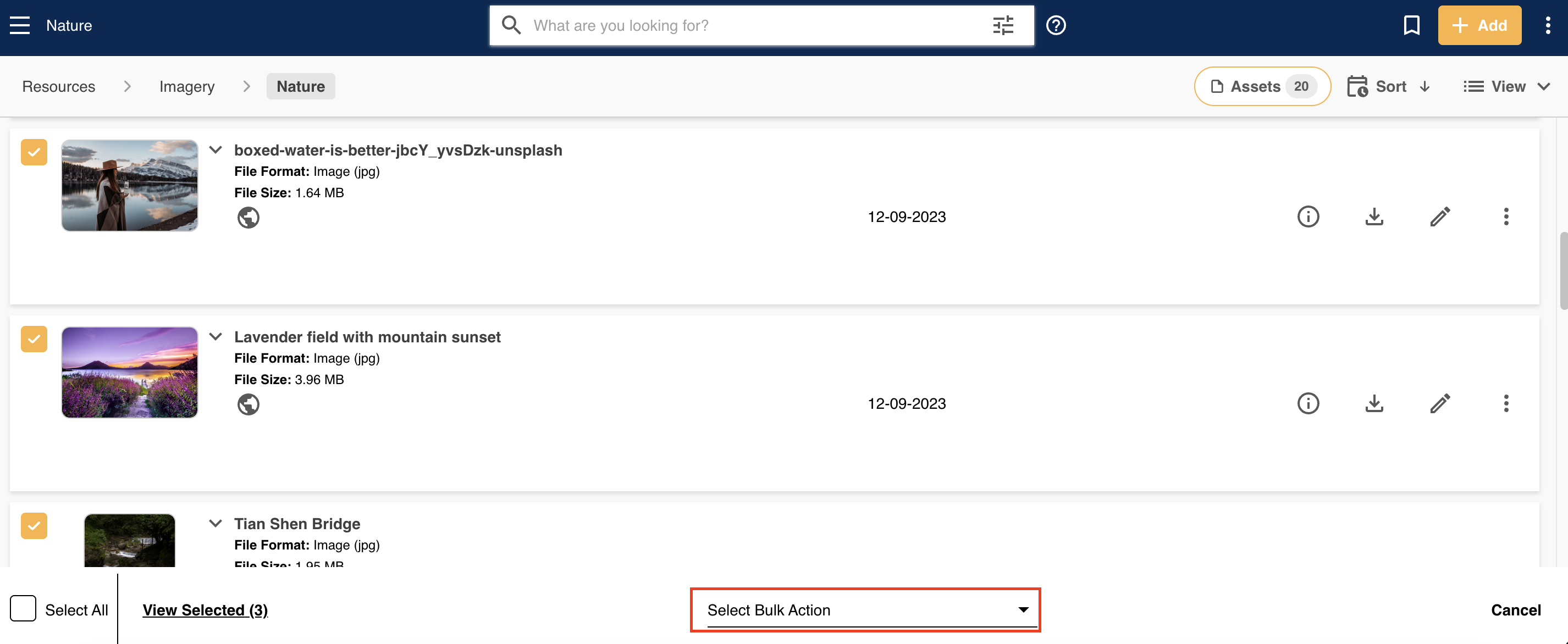
If you wish to cancel or exit the Bulk Actions mode, you can unselect the assets or click Cancel on the bottom right of the Bulk Actions bar.
Was this article helpful?
That’s Great!
Thank you for your feedback
Sorry! We couldn't be helpful
Thank you for your feedback
Feedback sent
We appreciate your effort and will try to fix the article