Folders can be moved within the Asset Library, which allows greater flexibility when managing your folder structure.
Parent folders (and any subfolders) can be moved into other folders, and subfolders can be moved out to become parent folders, if needed.
Folders in the Asset Library can be moved by:
- Main Admins
- Asset/Resource Admins
- Folder Admins
How to Move a Folder
To move a folder:
| 1 |
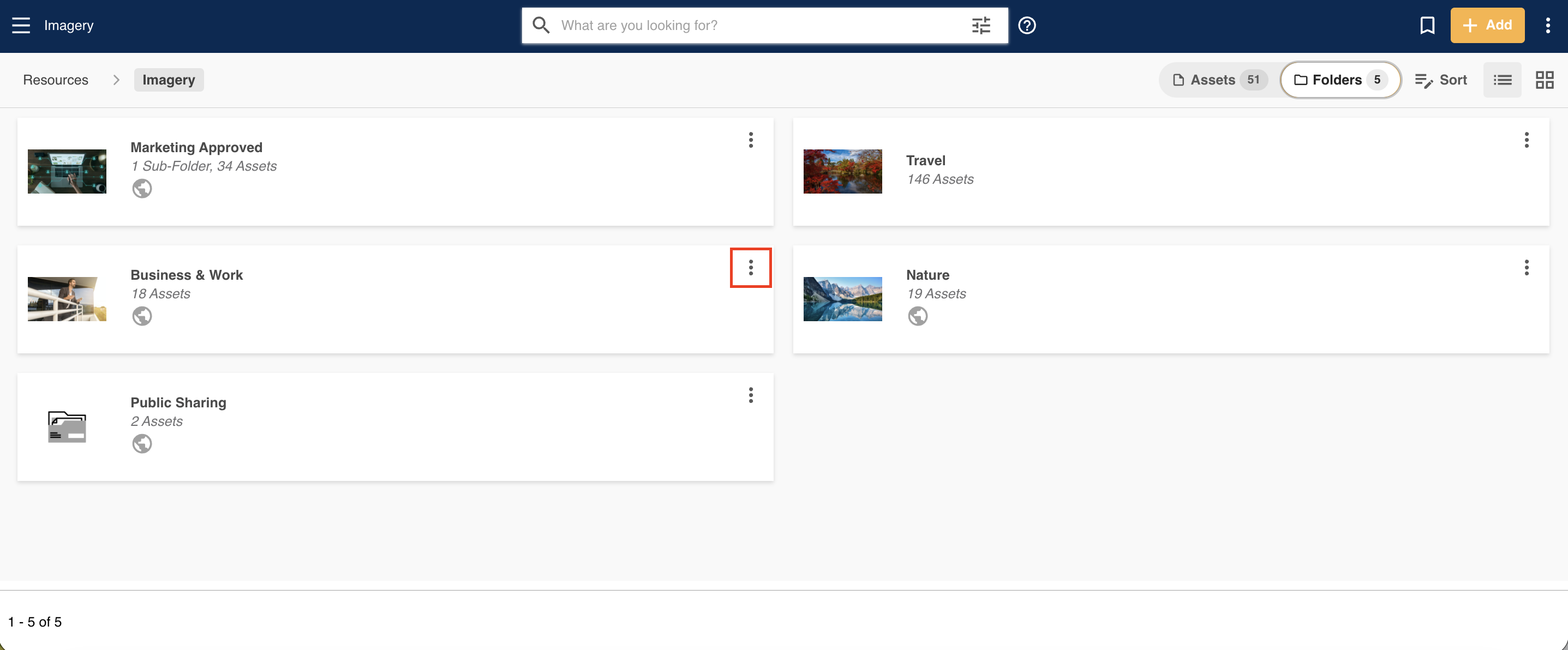
Navigate to the folder or subfolder you'd like to move. Click on the three vertical dots to access that folder's action menu.
|
| 2 |
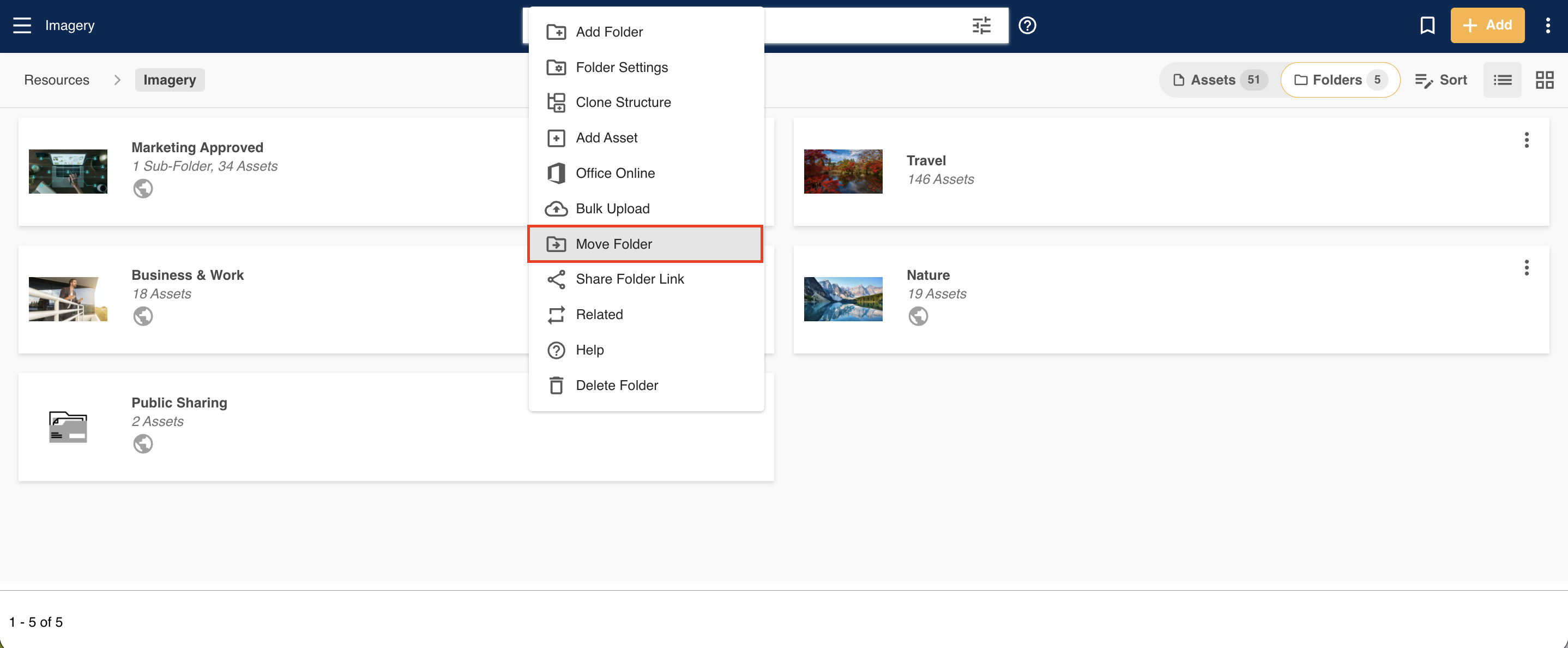
Select Move Folder.
|
| 3 |
A pop-up menu with a folder tree structure will appear, so you can choose where to move this folder to. All folder settings, such as permissions, will ‘move’ with the folder. To confirm the change, click Move.
|
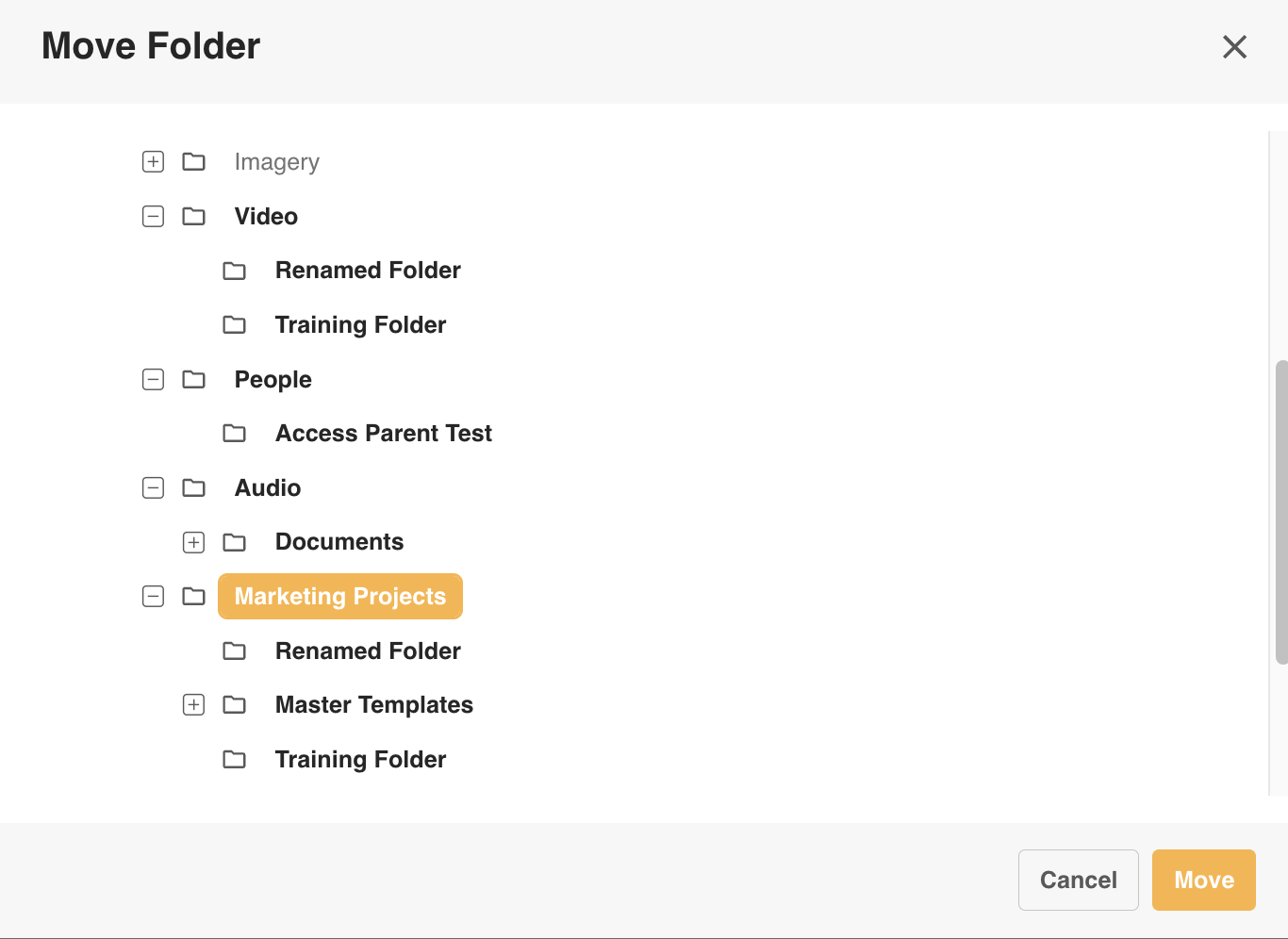
To move a subfolder so it comes a parent folder, select Assets or Resources at the very top of the folder tree.

*Note that the name given to modules, features and information items may vary in your platform as they can be customized by Main Admin users.
Was this article helpful?
That’s Great!
Thank you for your feedback
Sorry! We couldn't be helpful
Thank you for your feedback
Feedback sent
We appreciate your effort and will try to fix the article