This article covers the options available for Markup Comment Alerts and the customisation methods that are supported. To learn more about the Markup Comments feature in general, refer to this article.
Table of Contents
What Alerts are Available?
There are two types of markup alerts available:
1. Instant Alerts
Instant Alerts are email alerts sent immediately once an action has been performed (such as a comment being added within the markup panel).
2. Digest Frequency
Digest Frequency alerts group a series of triggers together and send out a single notification based on the frequency selected. Consider using the Digest option if you want to cut down on the number of email alerts you receive. The available frequencies and triggers are:
- Never - All
- Hourly - @mentions, New Comments, New Replies
- Daily - @mentions, New Comments, New Replies
- Weekly - @mentions
- Session - All (see below)
- Digest alerts are only sent when relevant activity has occurred. For example, a Daily Digest of @mentions will only be sent if the user has been mentioned in that 24-hour period.
- If multiple triggers are selected for the same frequency, they will appear in a single email. For example, enabling a Daily Digest for both @mentions and New Replies will combine all activity into one email.
- If enabled in Admin settings, thumbnails will appear for images, video, and some other file types (not documents). These use CDN links.
Session Based Digest Alerts
Session Based Digest alerts group all feedback added to a single request into one email notification. When a Markup Comment page is opened and a trigger is created (such as a new comment being added), the Markup Session begins. All subsequent activity is grouped together and sent to participants once the session has ended.
This makes it easier for participants to keep track of all activity that occurred during an asset's review session in a single email notification.
Ending a Markup Session
A Markup Session is automatically ended when the user closes the tab or window, navigates to another page or module, or refreshes the page. Once this occurs, the digest email for that session will be sent to applicable participants. A session also ends if there has been no activity on that page for 1 hour.
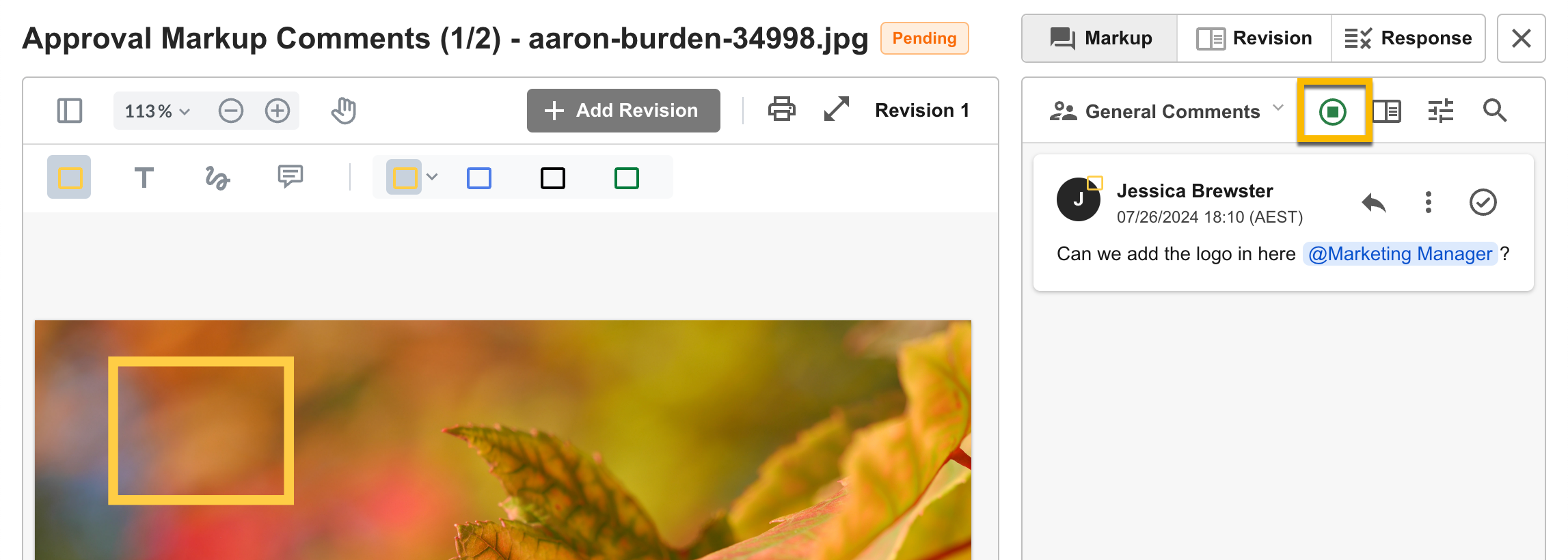
Manually ending a Markup Session: If the Manual Markup Comment Session setting in Admin > Settings is enabled, users will also be able to end the session manually. Once a session has started, an end session button will appear in the Markup Comments page (highlighted below). Clicking it at any time will end the session and trigger the digest email.
Where Can I Customise the Alerts?
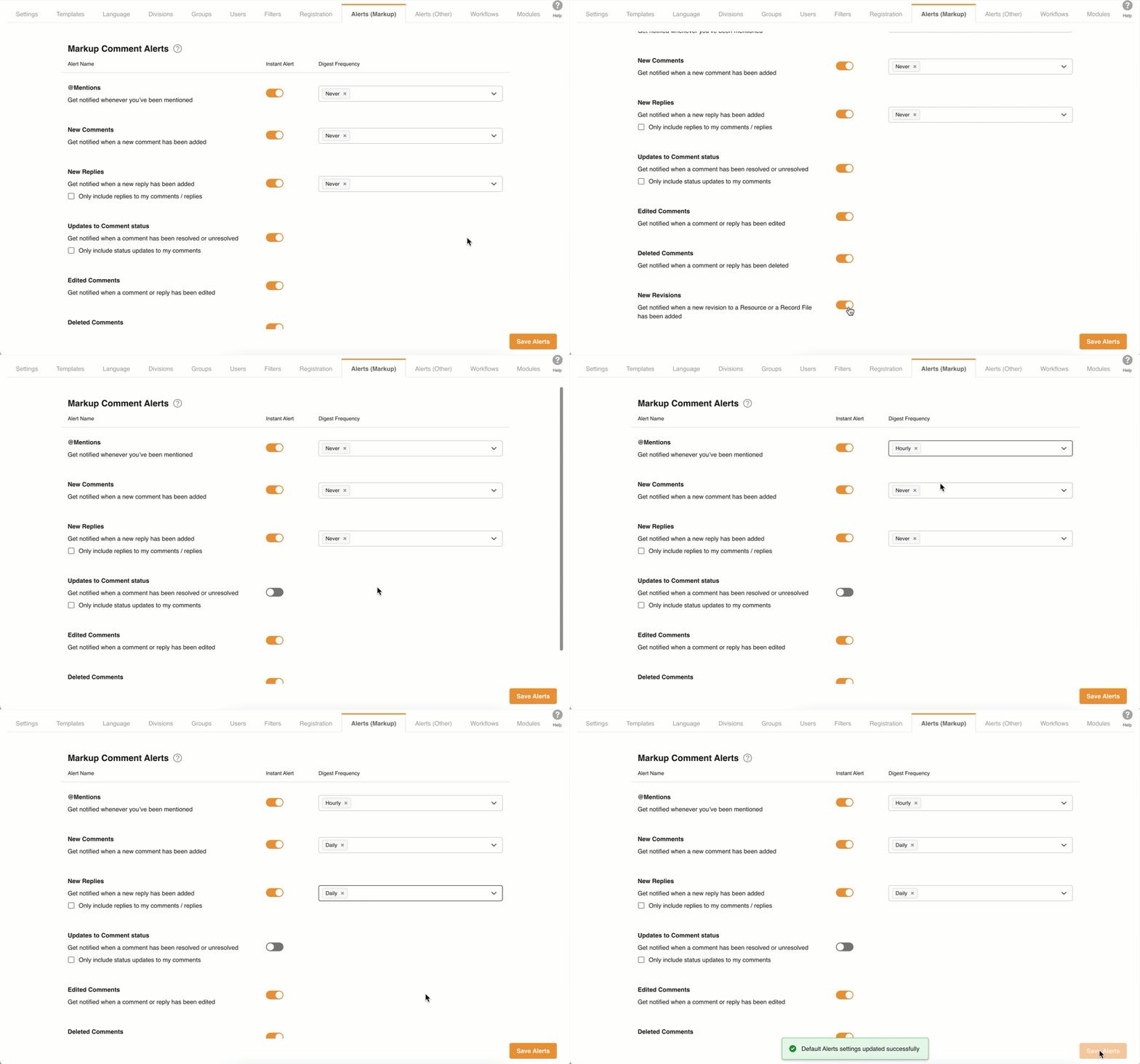
Markup alerts can be customised by Main Admins in the Admin > Alerts (Markup) area of the platform.
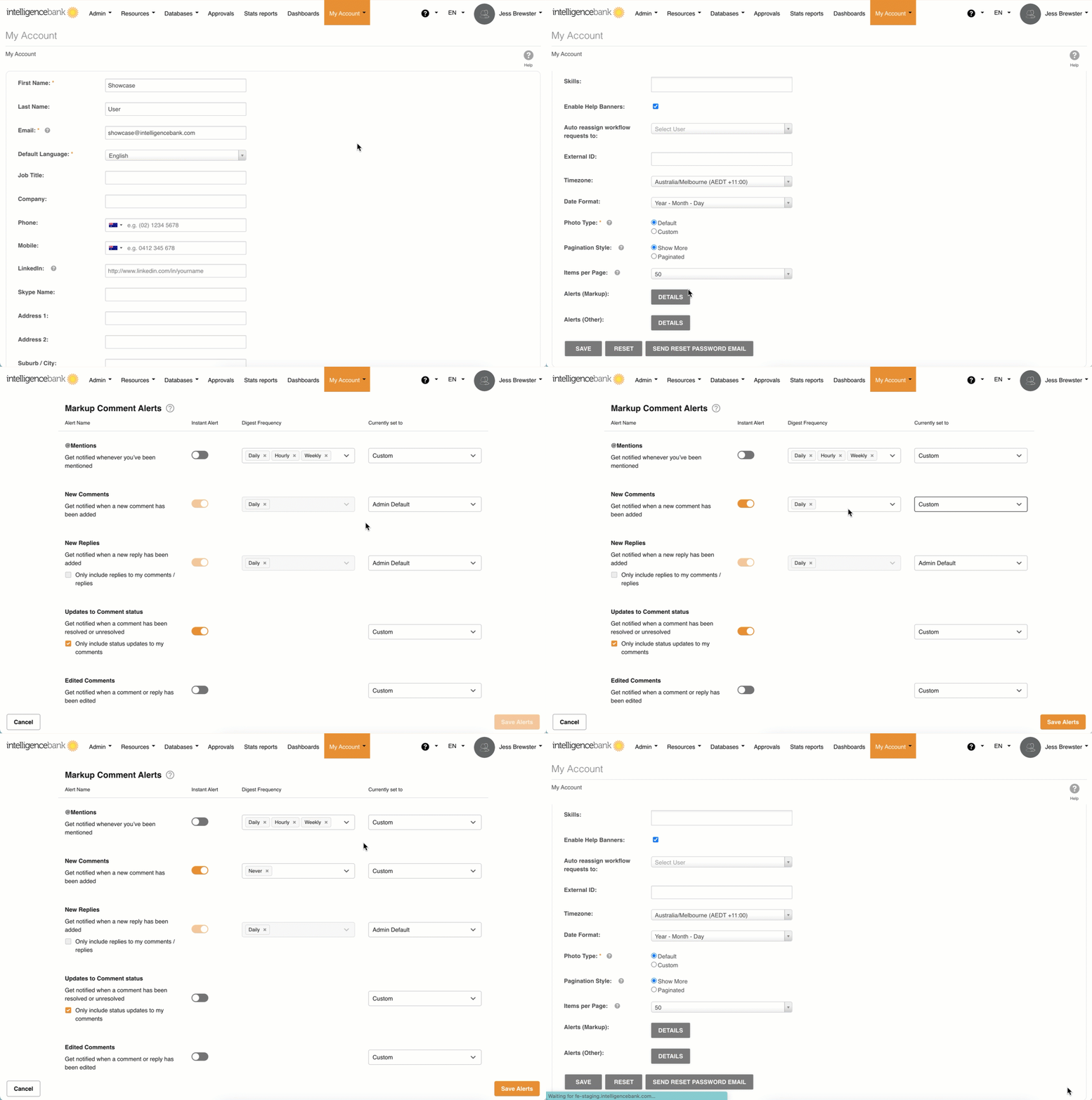
Individual users can also customise their own markup alert cadence by navigating to their My Account area and selecting Details in the Alerts (Markup) field.
Customisation options relate to the events that prompt an alert. For instance, users can choose whether they want to receive an alert for every new reply or only for replies responding to their own comments.
Alerts in Admin
Alerts can be customised by Main Admins in the Admin > Alerts (Markup) area. The options set here are the defaults for all users until they customise their own settings via My Account.
If the Admin settings are updated, the changes will automatically apply to any new users and to existing users who have not yet updated their own settings via My Account. Users who have already customised their settings in My Account will not be affected by Admin changes.
Alerts - My Account
By default, all users have the alert settings enabled that are configured in the Admin area. However, individual users can customise these alerts so they are only notified about the updates they care about. Any changes made here will only apply to the logged-in user.
To access Markup Alerts in My Account, navigate to the My Account area and scroll down to the Alerts (Markup) button. Click Details to open the alerts page. Once any changes have been made, click Save Alerts to apply them.
Default Options in My Account
Users can select from 3 types of markup alerts in My Account:
- Admin Default - follows whatever is set in the Admin area. This is the default selection.
- Custom - the user can customise the Alert (Markup) options in the triggers section. By default, the current Admin settings will be pre-populated.
- Off - the user will not receive any Markup Alerts.
Users have the same trigger and frequency options available as in the Admin section above.
When will Users Receive Alerts?
Even when default alert settings are enabled, alerts are only sent when the user is involved in the request. Users will receive markup alerts in the following scenarios:
- The user is directly involved in the request - as a reviewer, requester, collaborator, or someone mentioned in General Markup Comments.
- For Staged Workflows, only reviewers involved in the current stage will receive alerts.
Alert Triggers
Below is the list of current triggers (events) and a brief explanation of the email alerts they will send when enabled:
- @Mentions: Alert for any @mention added.
- New Comments: Alert for any new comment (standalone or with annotation) added.
- New Replies: Alert for any reply added. Includes a sub-option: Only Replies to My Comments / Replies - only available when New Reply is selected; alerts only for replies made to the user's own comments.
- Updated Comment Status (Resolved / Unresolved): Alert when any comment is resolved or unresolved. Includes a sub-option: Only My Comments - only available when Updated Comment Status is selected; alerts only when the user's own comments are resolved or unresolved by others.
- Edited Comments: Alert when any comment is edited (excluding the user's own). Note that only the creator of a comment can edit it.
- Deleted Comments: Alert when any comment is deleted (excluding the user's own). Note that only the creator of a comment can delete it.
- New Revisions: Alert when a new revision has been added to the request.
Markup Comments Default Settings
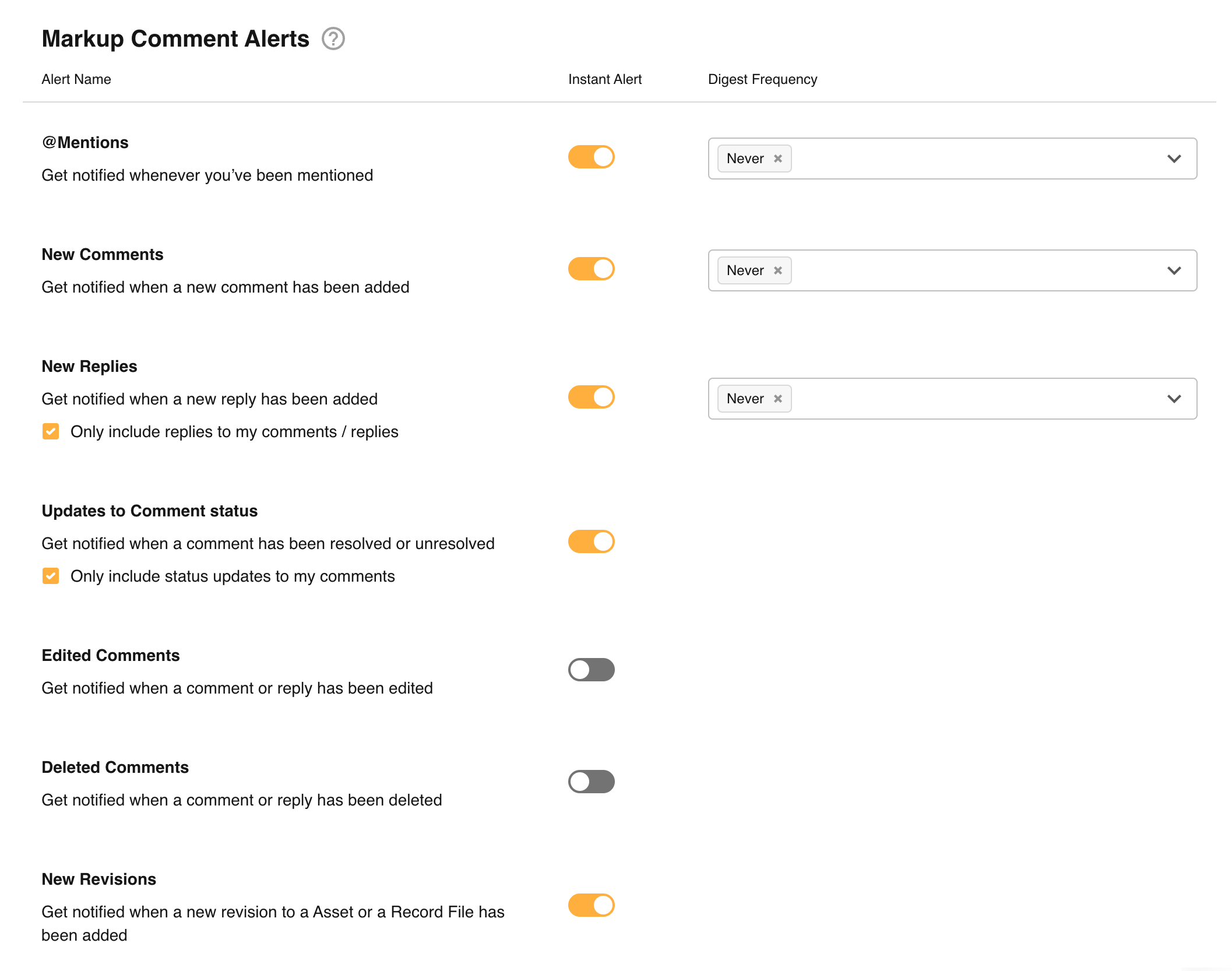
By default, the following options will be selected in the Admin area and applied to all users via My Account:
If you have any further questions about Markup Comments, please contact your Customer Success Manager.
Was this article helpful?
That’s Great!
Thank you for your feedback
Sorry! We couldn't be helpful
Thank you for your feedback
Feedback sent
We appreciate your effort and will try to fix the article