This article provides an overview of to Bulk Download assets within the IntelligenceBank platform.
Bulk Downloading assets allow users to easily download multiple assets at the same time, saving time and effort.
Currently you can select and download up to 300 assets at a time.
The ability to download assets is available for users who have Access level permission or higher.
How to Bulk Download
You can bulk download assets within a folder, collection, or off of a search.
To bulk download assets:
| 1Locate and select assets | Locate and select the assets you'd like to download. |
| 2Select Download | From the Bulk Actions menu that appears on the bottom of the page, select Download.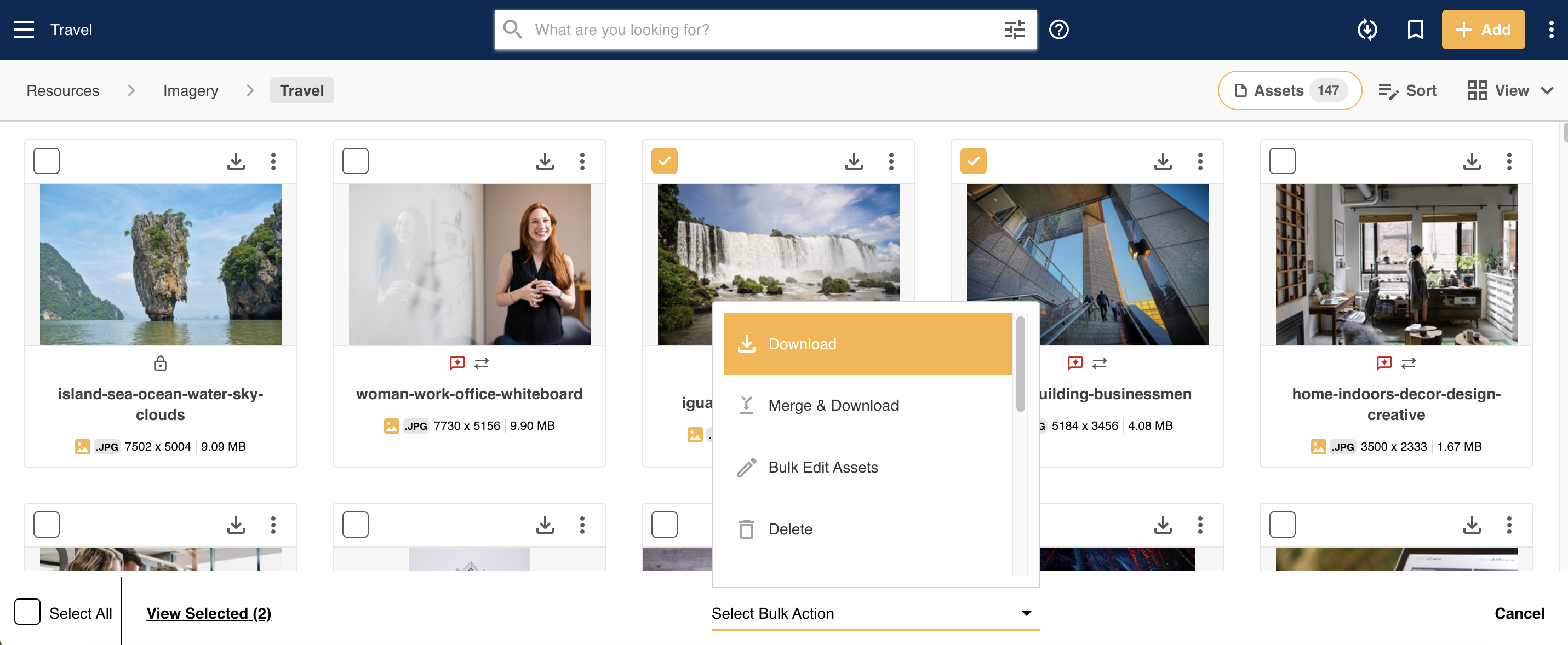 |
| 3Bulk Download overlay | If you have permission to download all the selected assets, you will be taken to the Bulk Download overlay (pictured below):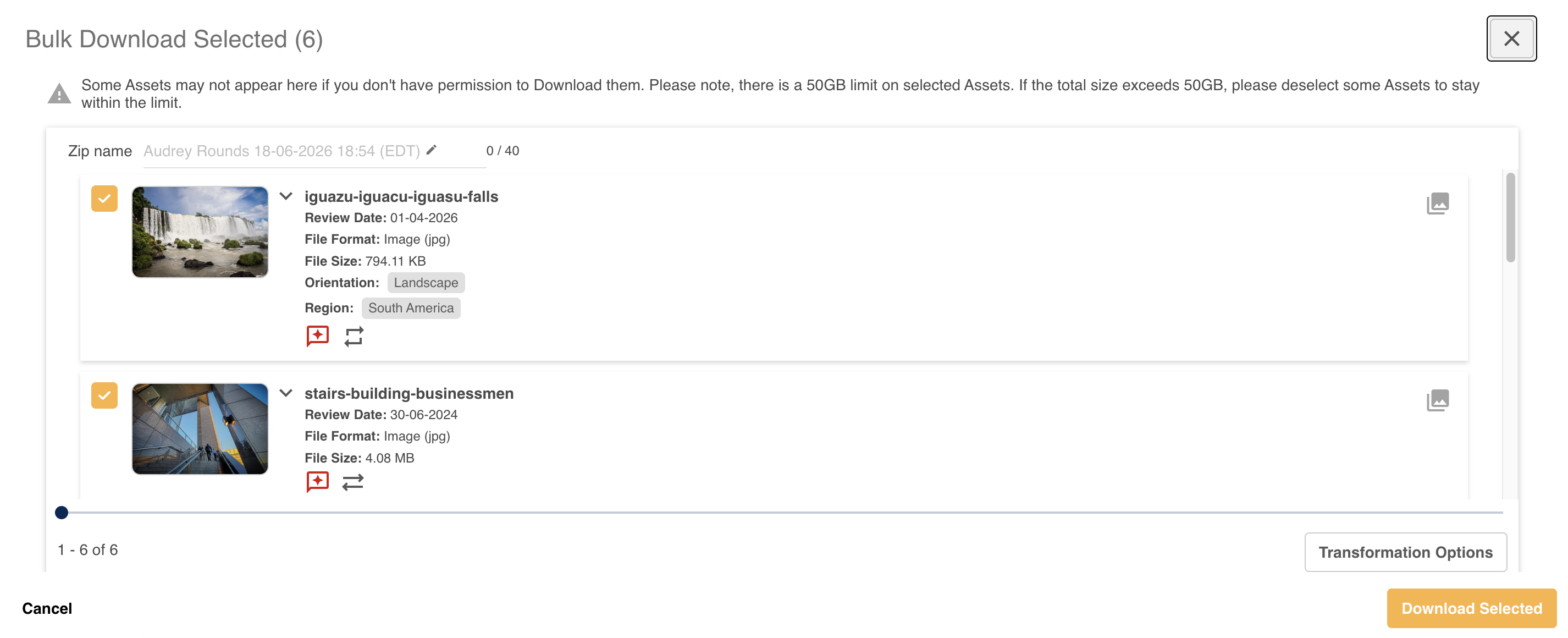 |
| 4Click Download Selected | To download your assets, click Download Selected at the bottom right of the page. Once clicked, all selected assets will be zipped together and automatically downloaded as a zip file to your device, depending on your location on the platform. From this overlay, you can also customise your zip file name (up to 40 characters) in the Zip name field. If nothing is entered here, then the default name for the Zip file will be your User Name and the time you clicked Download. If any of your selected assets are supported images (and you have permission to make asset transformations), you may also be able to apply download transformations to them in bulk. This is helpful if you need to download multiple images in specific parameters (ie: in specific file formats) for a particular use, avoiding the need to do that manually. Click the Transformation Options button to access those transformations. To learn more about this feature, please read the article here. 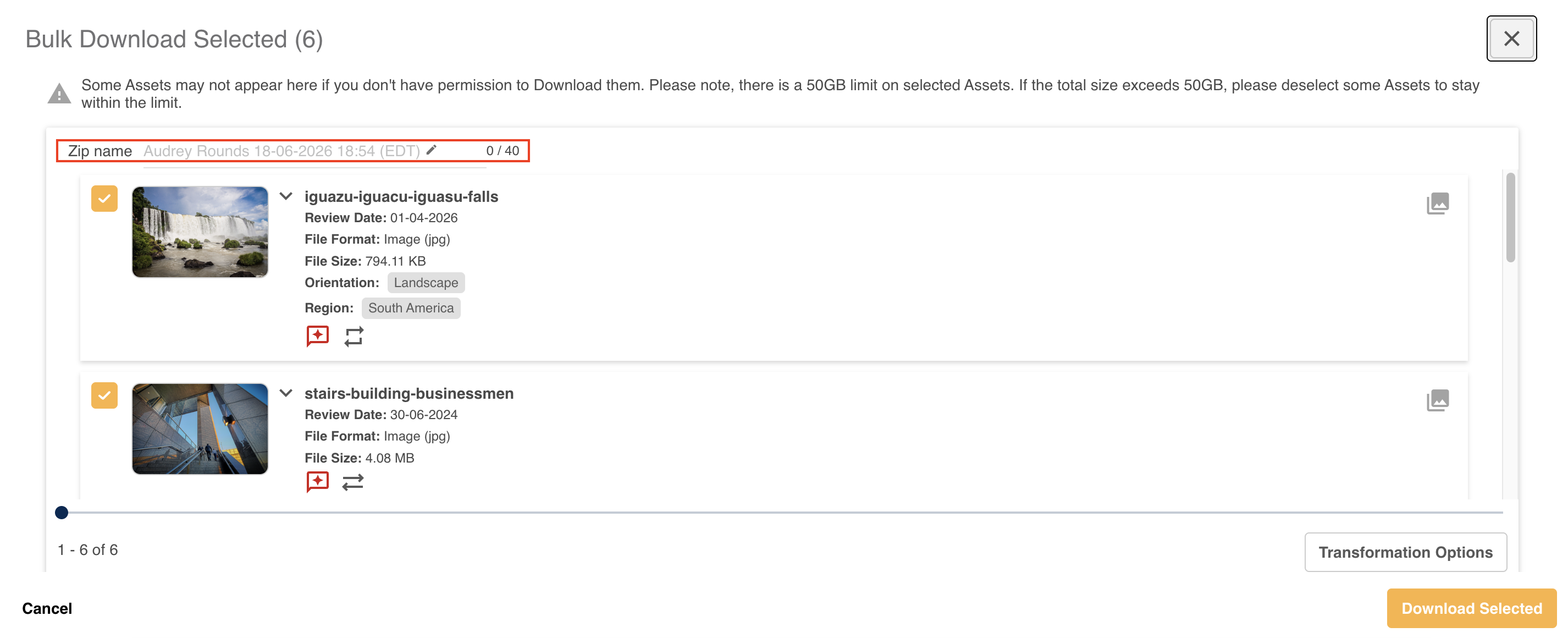 |
| 5Download processes | Once you've clicked Download Selected, the overlay will close and take you to the screen where you selected your assets for Download. While this is happening, your zip file is being created (ie the job is being processed). Once this process is completed, the file with automatically be downloaded to your device, according to your browser's default behaviour. Note, if you have any pop up blockers on your browser, the download may not start right away. It is recommended that you disable pop ups on your browser in order for the download to happen automatically. |
| 6Unzip and access assets | Once your zip file is downloaded, you can unzip it and access the assets from your device. Note that when the files are unzipped, image file names will also contain the preset name (if applicable) and the width x height of the file. Please also note that the length of time it takes to download your assets will depend on the number of assets selected and the size of those files. |
Tracking your Download Progress
You can track the progress of your download, or access past downloads via the Jobs popup. This is located at the top right of your screen, accessible by clicking the loading icon.
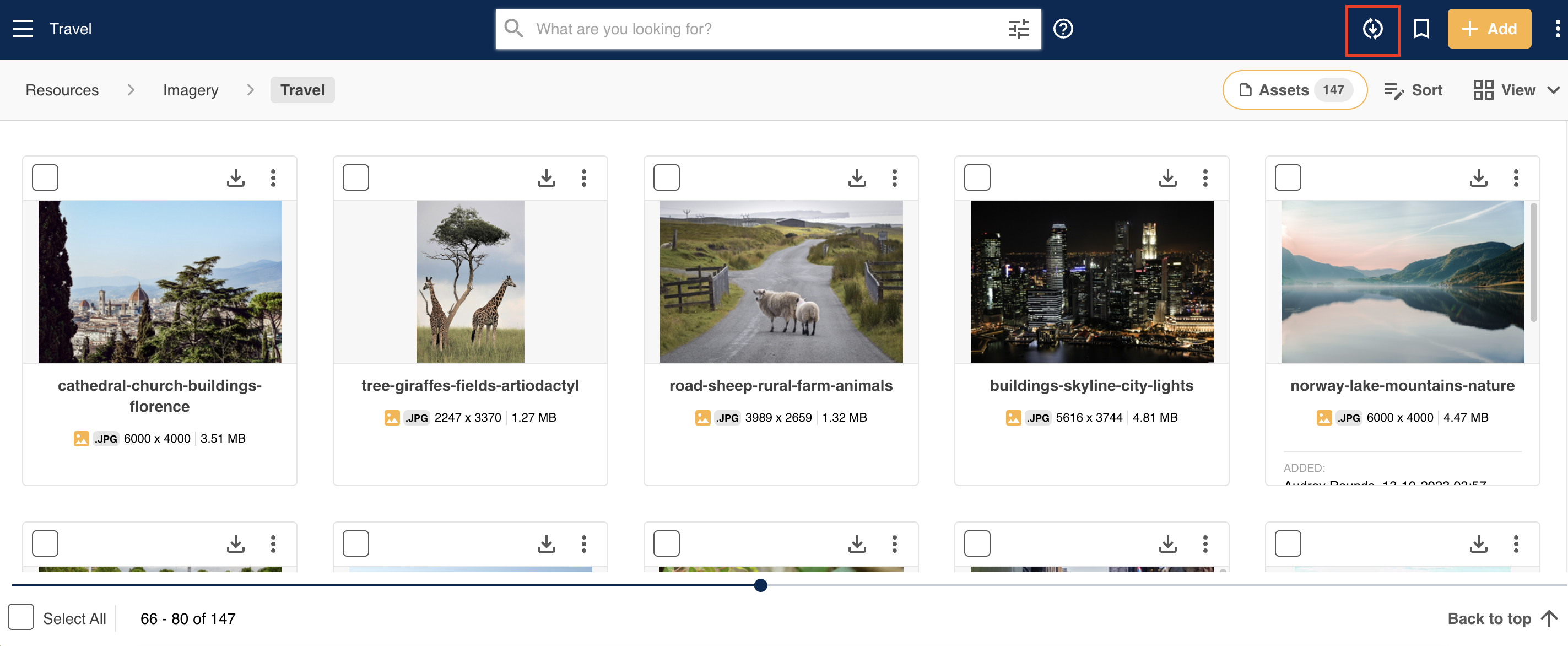
If there is an active Job (so something is processing), then there will be also be a count next to the icon.
When you open the popup, you can view All, In Progress or Completed Jobs.
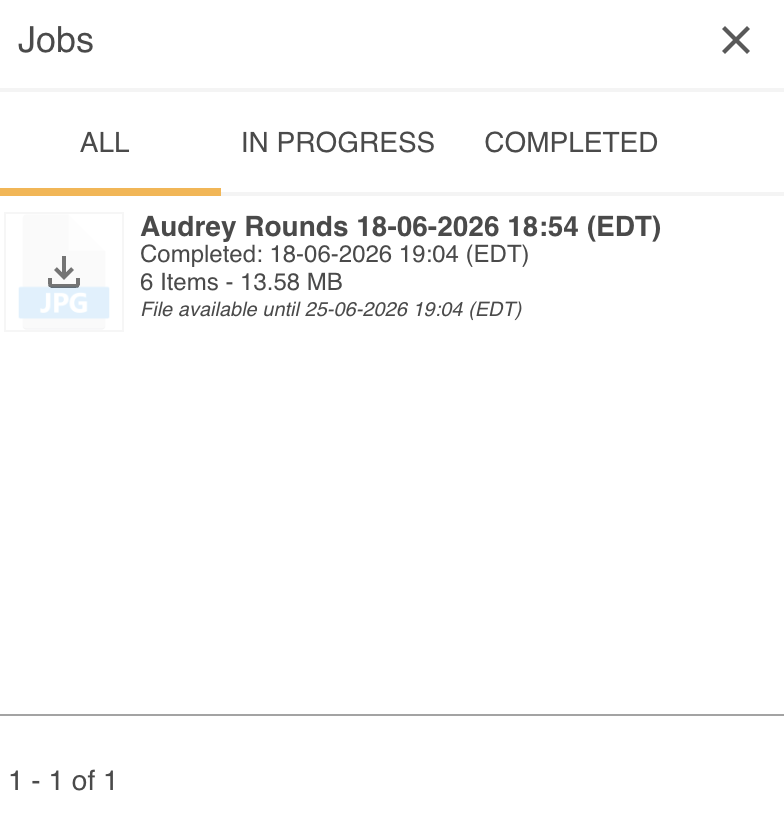
In the Completed and All tabs, you can download previous Jobs that have been completed. These are stored for 7 days before the Download Job will be removed from the list. Note that this does not use additional storage.
The In Progress tab will display Jobs that are currently running, providing an indication of its progress.
File Naming
By default, files downloaded use their original File Name.
This setting can be updated by Main Admins so that downloaded assets use the Resource Name instead. This might be beneficial if your original file names don't follow your desired naming convention, or aren't particularly intuitive.
This can be updated in the File Name for Downloads field in the Admin>Settings area of the platform.

Please note that the 'Assets' terminology referenced above may appear differently in your platform as these are customisable terms. You can view alternative options here.
Was this article helpful?
That’s Great!
Thank you for your feedback
Sorry! We couldn't be helpful
Thank you for your feedback
Feedback sent
We appreciate your effort and will try to fix the article