Field Mapping is a new capability for Databases. This article covers what it is, why it matters, how to set it up, how it works day to day, how to make changes, how to confirm a mapping worked, and answers to common questions.
Table of Contents
What Is Field Mapping?
A Database record often has an upload field where files are submitted, and those files can be published into a folder as their own Resource. Field Mapping lets you pre-fill that new Resource's fields automatically from the record's own form values, so whoever publishes the file doesn't have to re-enter the same information a second time.
Why it matters: if your Database records already capture useful information, like a project name, a category, or a description, Field Mapping carries that information straight onto the published Resource. That means less duplicate data entry and less risk of the Resource's details drifting out of sync with the record they came from.
Getting Started
Confirm two things before you configure anything:
| Requirement | Details |
|---|---|
| Field Mapping is switched on for your account | Field Mapping needs to be enabled for your account before it appears anywhere. If you believe it should be part of your package and you don't see it, contact IntelligenceBank Support or your Customer Success Manager, they can confirm what's included and get it turned on for you. |
| You have the right permission | Setting up or changing a Field Mapping requires admin permission on the Database. Your IntelligenceBank admin can confirm or update your permission level. |
What Can and Can't Be Mapped
Check this before you start, it'll save time working out why a field isn't showing up as an option.
| Field type | Can be mapped to |
|---|---|
| Text, Text Area | Another text-type field only. |
| Email, URL, Phone, Number, Currency | The exact same field type only, a Number field only maps to another Number field, and so on. |
| Select, Radio | Another single-choice field, and only if both fields pull their options from a filter, not a plain custom list. |
| Multi-Select, Checkbox | Another multiple-choice field, same filter requirement as above. |
| A field inside a repeatable (duplicable) section | Not supported, as a source or a target. These fields won't appear in the mapping list at all, this is expected, not a bug. |
A few other things worth knowing before you configure:
- A field can be mapped to more than one place at once, for example a field can feed a Resource Custom Upload Field and the Resource's Description at the same time.
- A field can't be mapped to two different Resource Custom Upload Fields at the same time, setting up a second one replaces the first rather than adding to it. See the warning under Making Changes.
- Two different source fields can't be mapped to the same target, each target can only be fed by one source field.
- The target is always the standard Resource form, there's currently no option to map to a specific folder's own custom form.
Setting Up Field Mapping
| 1Open the Database's form builder | Go to the Database and open its Custom Form builder. |
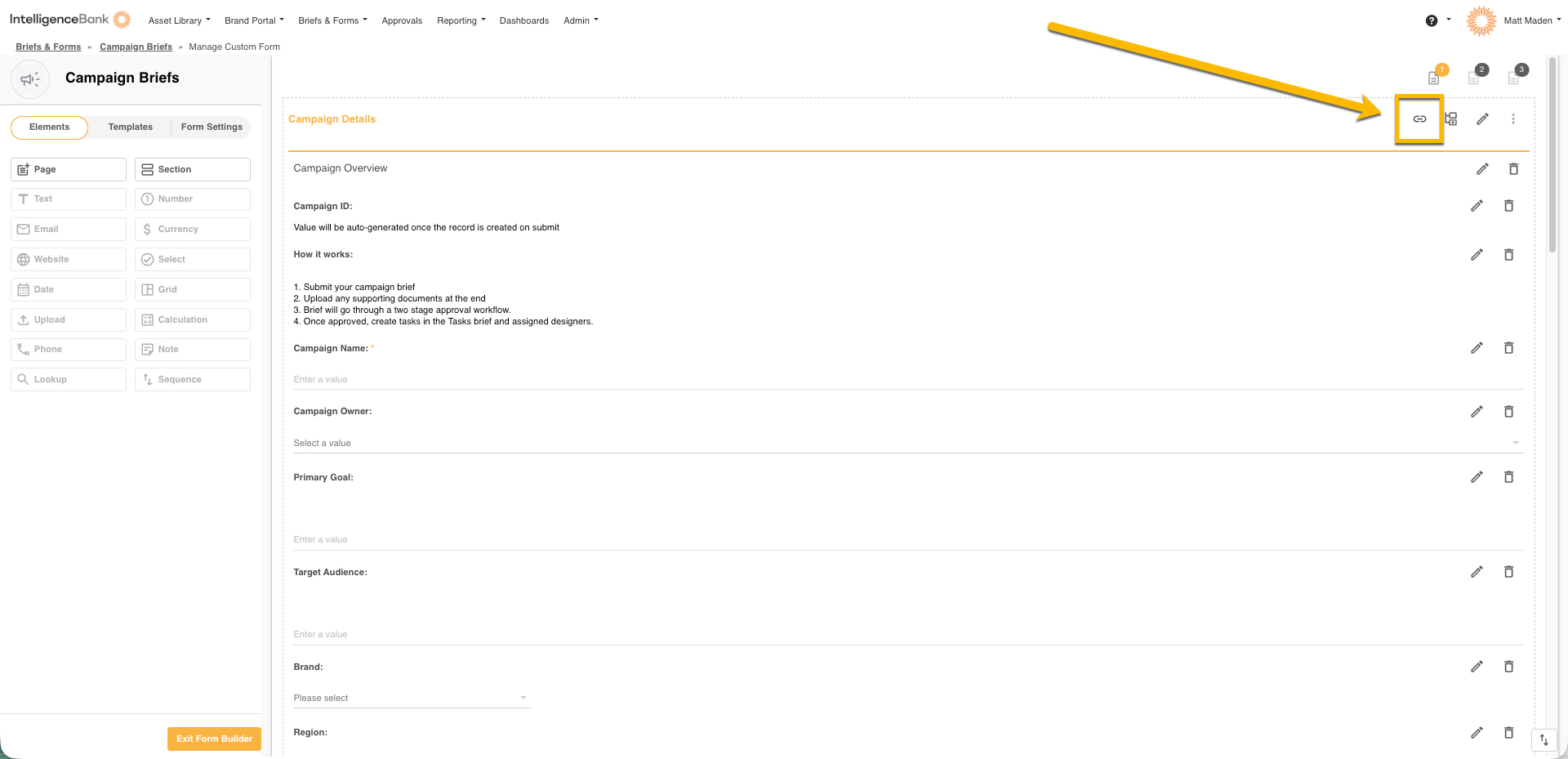
| 2Open the mapping tool | On the page with your upload field, open the page's action menu and choose Configure Field Pre-fill on Publish. |
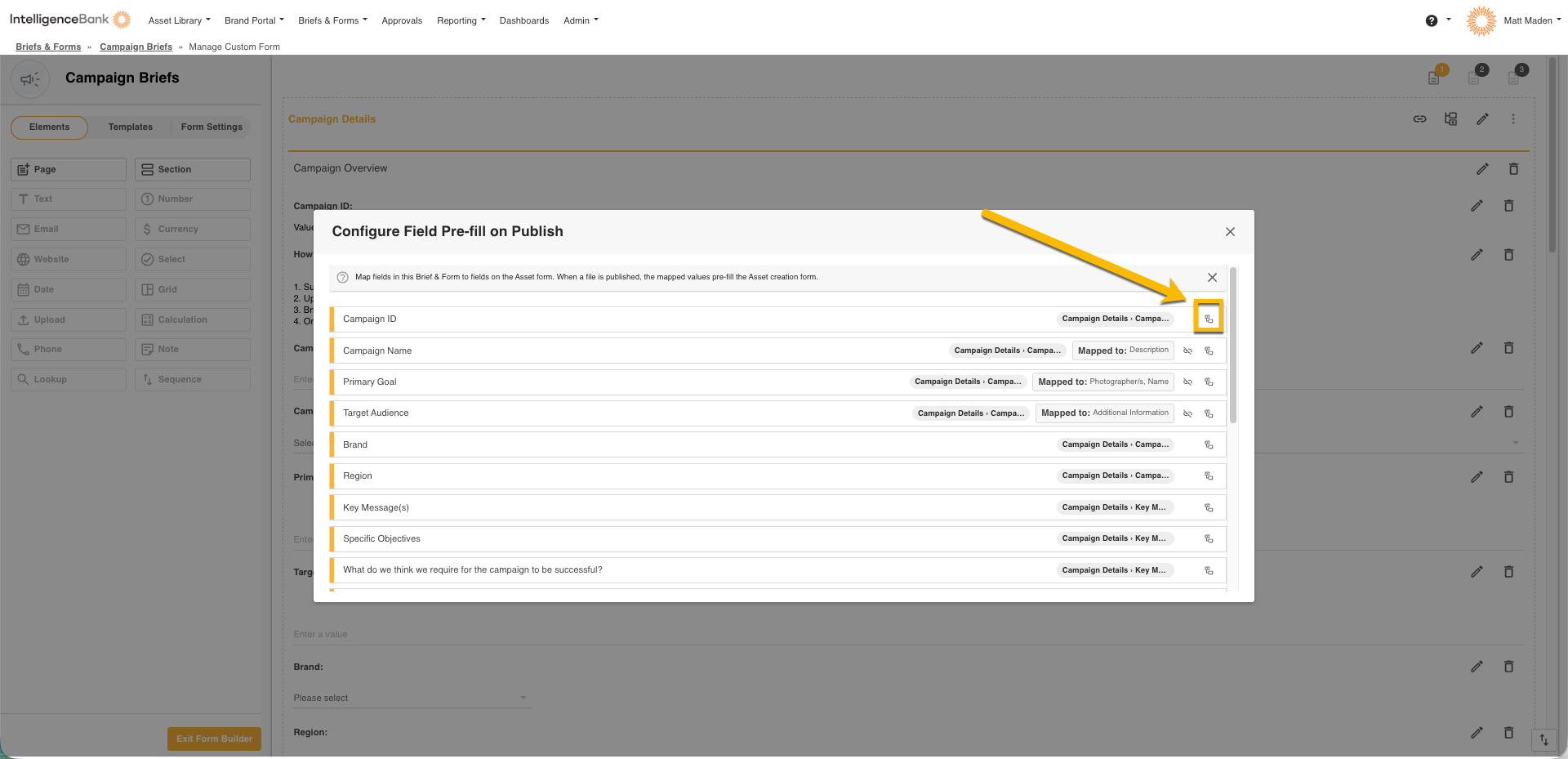
| 3Choose a field to map | In the list, find the field you want to map and click its configure icon. |
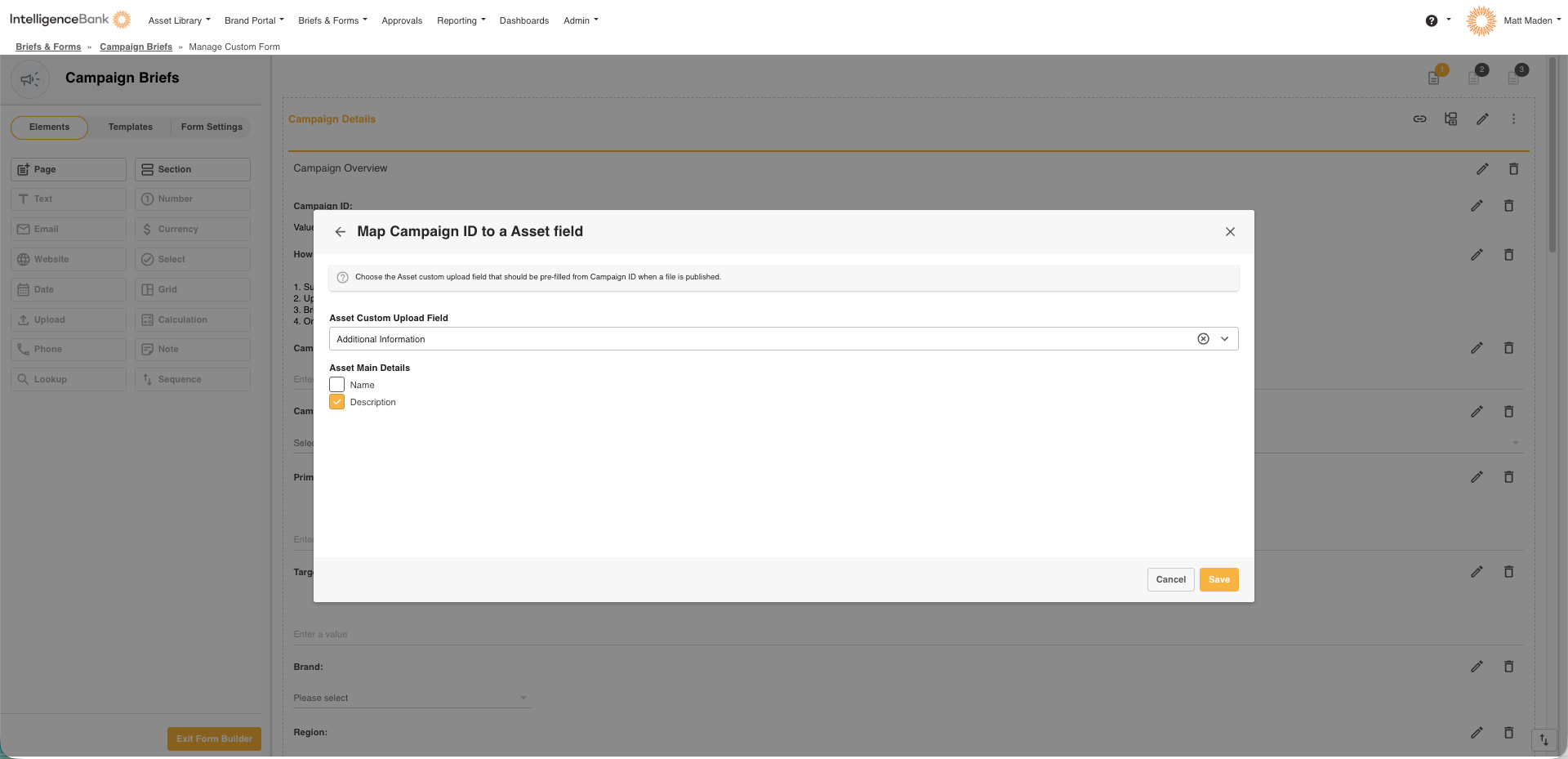
| 4Choose the target | Pick a Resource Custom Upload Field to feed, or check the option to populate a Resource filter, or check Name or Description under Resource Main Details. |
| 5Save | Click Save. If the field and target aren't compatible, or the target is already used by another field, you'll see a message before it saves. |
How It Works
Nothing happens when you save the record itself. The pre-fill happens at the moment someone publishes a file from that record into a folder, that's when your configured mappings copy the record's current values onto the new Resource's fields, filters, and Name or Description.
Because it reads the record as it appears on screen at that moment, unsaved edits in progress are included too, you don't need to save the record first for the pre-fill to pick up your latest changes.
If a mapped field happens to be empty, or a mapping has become stale (its target no longer exists, for example), that one field is simply skipped, publishing still goes ahead normally.
Making Changes
To change what a field maps to: open its configure icon again and pick a new target.
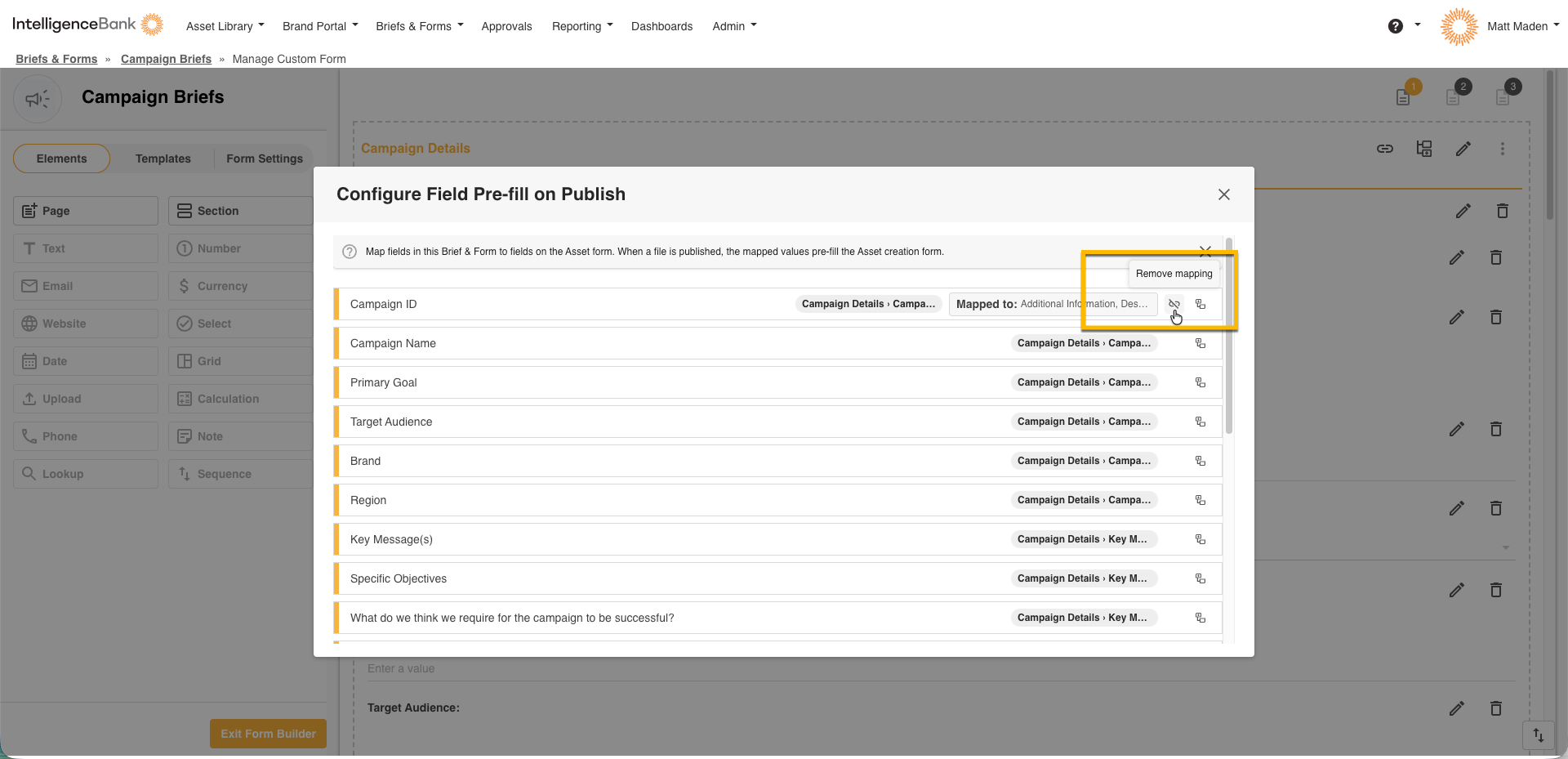
To remove a mapping: use the remove icon next to that field, then confirm.
Confirming a Mapping Worked
The simplest check is to look at the result directly:
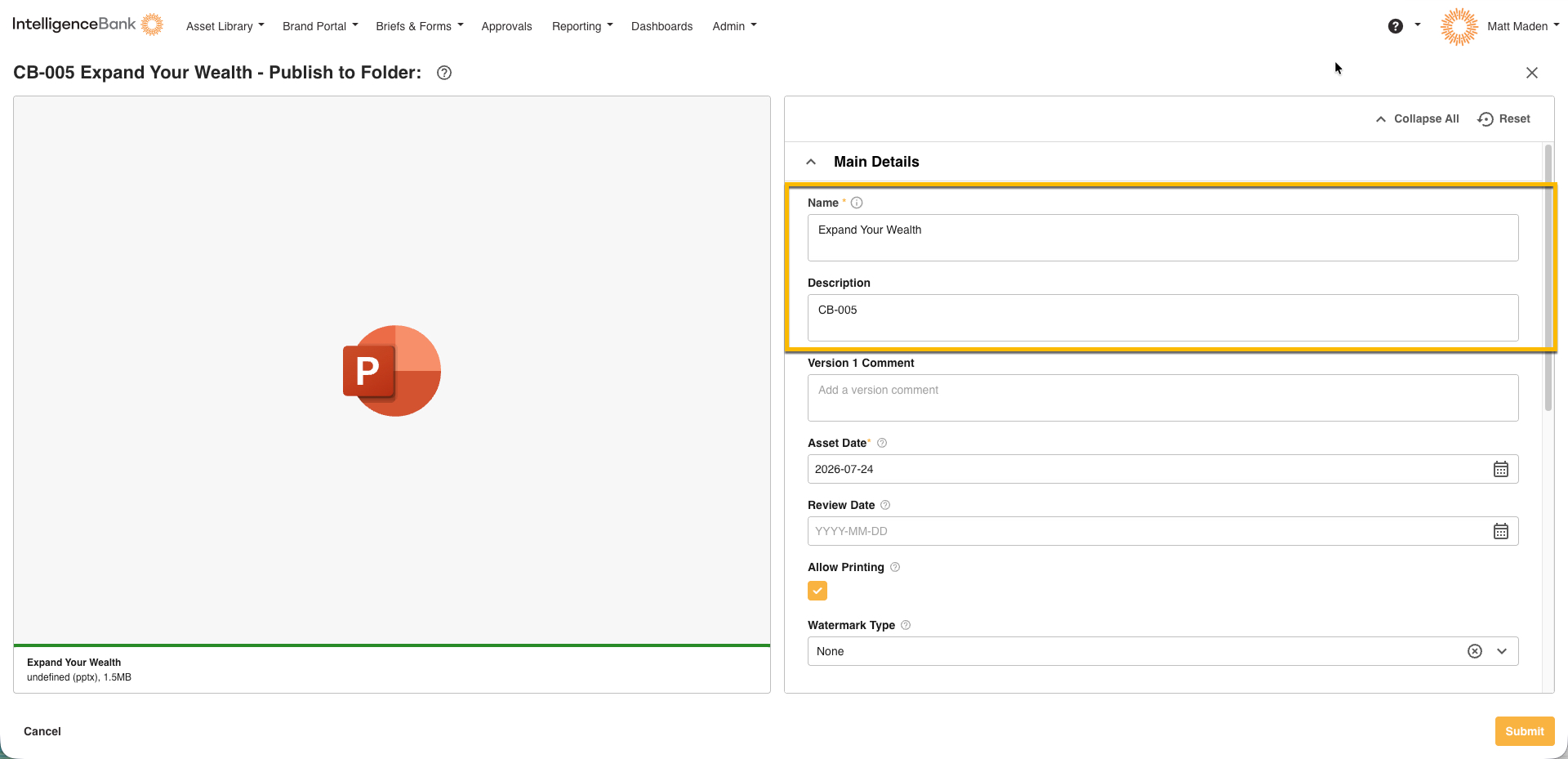
- Publish a file from a record with a mapping configured, as you normally would.
- Open the new Resource and check that the mapped fields, filters, and Name or Description carry the values from the source record.
Troubleshooting
| I can't find the field mapping option | Field Mapping may not be enabled for your account, or this page may not have an upload field yet. Contact IntelligenceBank Support or your Customer Success Manager to confirm. |
| A field doesn't appear in the mapping list | Check whether it's inside a repeatable section, those aren't eligible. Otherwise check its type against What Can and Can't Be Mapped. |
| Save won't let me finish setting up a mapping | No target has been chosen yet, or the target you picked is already used by another field. |
| A mapping isn't working anymore | Check whether the field, its section, or its target was changed or removed, this automatically clears the mapping without a separate warning. |
| I want to map to a specific folder's own form, not the standard Resource form | Not available today, the target is always the standard Resource form. Let your Customer Success Manager know if this matters for your workflow. |
FAQs
Do I have to map every field? No, map only the fields you actually want pre-filled on the Resource.
Can one field feed more than one place on the Resource? Yes, a field can map to a Resource Custom Upload Field, a Resource filter, and Name or Description at the same time. It can't feed two different Resource Custom Upload Fields at once, though.
Does the record need to be saved first? No, the pre-fill reads the record as it appears on screen at the moment of publishing, including unsaved edits.
What happens if a mapped field is empty? That field is simply skipped, publishing still goes ahead normally.
Can I map fields from a repeatable (duplicable) section? No, fields inside a repeatable section aren't eligible as a source or a target.
Can I remove a mapping later? Yes, use the remove icon next to the field in the mapping list and confirm.
Need Help?
For anything not covered here, reach out to your Customer Success Manager or log a ticket with IntelligenceBank Support, and include the Database name, the field involved, and a screenshot of what you're seeing.
Was this article helpful?
That’s Great!
Thank you for your feedback
Sorry! We couldn't be helpful
Thank you for your feedback
Feedback sent
We appreciate your effort and will try to fix the article